MC B2B Portal: Super Admin User Guide
Comprehensive operational documentation for the Measurement Company (MC) B2B E-Commerce and RFQ Management Platform. This guide is tailored specifically for the Super Admin role.
As a Super Admin, you have unrestricted access to all data, settings, client records, and system configurations across the entire portal. Actions taken using this account can immediately impact production data, seller limits, and client visibility. Proceed with care when modifying global settings or executing bulk imports.
1. Overview & Role Description
The Super Admin role is the highest level of authorization within the MC B2B Portal. The system is designed to streamline the Request for Quotation (RFQ) process, manage the product catalog, and facilitate business-to-business electrical product sales in Kuwait.
While standard Admin accounts can manage general sales and catalog tasks, the Super Admin account possesses exclusive capabilities that govern the very structure of the system and its users.
Core Super Admin Capabilities (Beyond standard Admin):
- Seller Management: Create and deactivate Salesman accounts, set their maximum discount limits.
- Discount Approvals: Act as the final gatekeeper for quotations where a seller exceeds their allowed discount threshold.
- System Settings: Configure global settings like quotation terms, notes, and default messaging.
- Global Access: Unrestricted visibility into all clients, regardless of which seller they are assigned to.
- Staff & Admin Management: Create, edit, and deactivate other internal staff and Admin accounts.
- Reports & Analytics: Access high-level sales funnels and performance metrics.
- System Logs & Email Config: Technical oversight of system health and communication settings.
2. The Dashboard
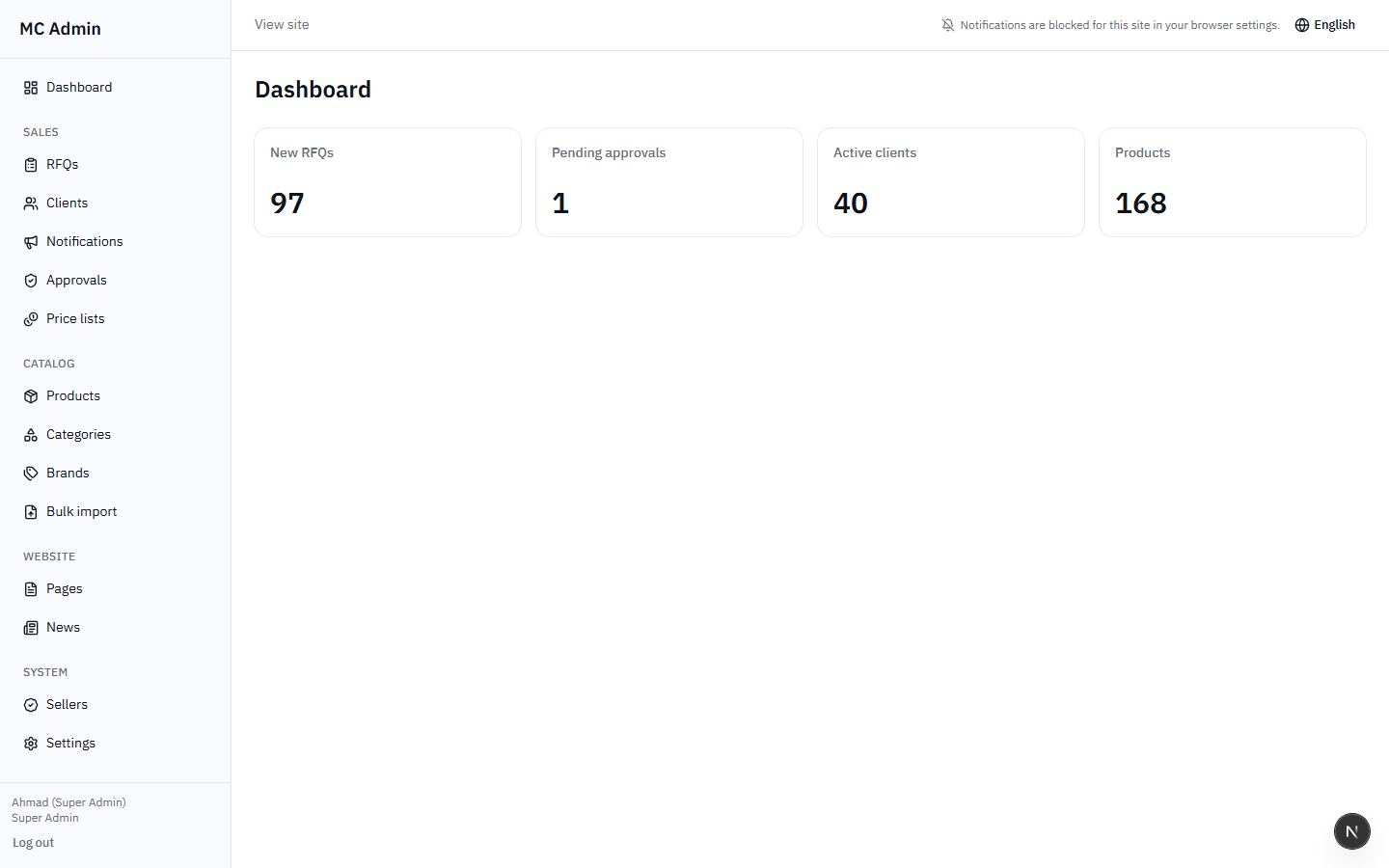
Upon successfully logging in, you are greeted by the Dashboard. For a Super Admin, the Dashboard provides a macro-level, unfiltered view of the entire portal's operations.
The Four Metric Tiles
The top of the dashboard displays four critical health indicators for the business. Unlike a Salesman who only sees data related to their own clients, the Super Admin sees aggregate numbers for the entire company.
- New RFQs: The total number of Request for Quotations submitted by all clients that are currently in the "RFQ Submitted" status and require initial processing.
- Pending Approvals: The number of generated quotations currently sitting in your queue because a seller attempted to issue a discount higher than their permitted limit. (Action required by you).
- Active Clients: The total count of fully approved, active client accounts currently able to log in and submit RFQs on the portal.
- Products: The total number of items currently existing in the catalog database (regardless of public visibility or stock levels).
3. Signing In & Panel Layout
Authentication Process
Navigate to the Admin Portal
Access the portal via the designated administration URL (e.g., admin.mc.dev).
Enter Credentials
Sign in using your assigned Super Admin email address (e.g., superadmin@mc.dev) and your password.
Session Security
For security purposes, sessions will automatically timeout after a period of inactivity. Keep your credentials secure, as they provide keys to the entire business platform.
Navigating the Sidebar
The left-hand sidebar is your primary navigation tool. It is logically grouped into four core operational areas. As a Super Admin, you are the only role that sees absolutely every item listed below.
| Navigation Group | Available Menu Items | Primary Purpose |
|---|---|---|
| Sales | Dashboard, RFQs, Clients, Notifications, Discount Approvals, Price Lists | Managing customer relationships, incoming requests, and pricing structures. |
| Catalog | Products, Categories, Brands, Bulk Import | Maintaining the integrity, stock, and imagery of the product database. |
| Website | Pages, News | Controlling the public-facing content and announcements. |
| System | Reports, Sellers, Staff, Settings, Email, Logs | Configuration, HR/Staff administration, and technical health monitoring. |
4. Client Management
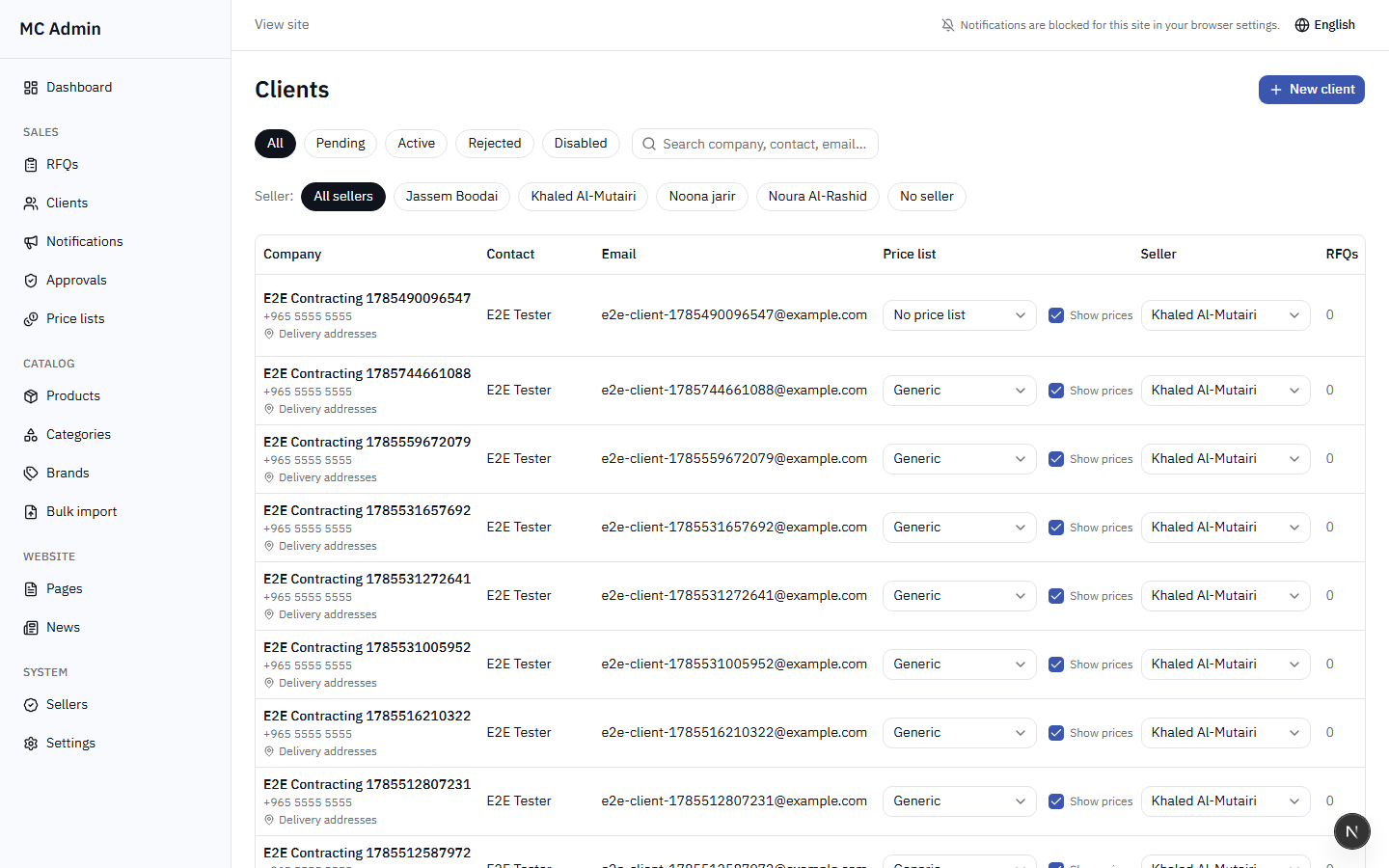
The Client module is where you manage the companies purchasing from MC. A Super Admin can view all clients across all sellers' books.
Client List Tabs & Filtering
The view is divided into helpful tabs: All, Pending, Active, Rejected, and Disabled. You can utilize the "Filter by seller" dropdown to isolate a specific salesman's book of business.
Processing Pending Registrations
When a new company registers on the public site, they land in the Pending tab. To approve them, you must provide two critical pieces of information:
- Assign a Seller: Select which internal salesman is responsible for this account.
- Enter ERP Code: Input the official accounting/ERP reference code. This links the portal account to your internal financial systems.
Once approved, they move to Active status and can begin shopping.
You do not have to wait for clients to register themselves. You can click "Create Client" to manually setup an account. Accounts created this way bypass the "Pending" phase and are immediately pre-approved.
Advanced Client Controls Super Admin Exclusive Features included
- Price List Assignment: Swap which Price List the client operates against (e.g., standard vs. VIP pricing).
- Price Visibility Toggle: You can explicitly toggle whether a specific client is allowed to see prices on the portal, or if prices should be hidden (requiring them to RFQ blind).
- Reassigning Sellers: (Super Admin Exclusive) If a salesman leaves the company, or territories shift, you can edit a client and reassign them to a new seller.
- Deactivate/Reactivate: Temporarily disable a client's login access without deleting their data.
- Delivery Addresses: Add or modify allowed drop-off locations for the client's orders.
- ERP Balances: View the outstanding financial balance for the client directly pulled from the integrated ERP system.
5. Seller Management SUPER ADMIN EXCLUSIVE
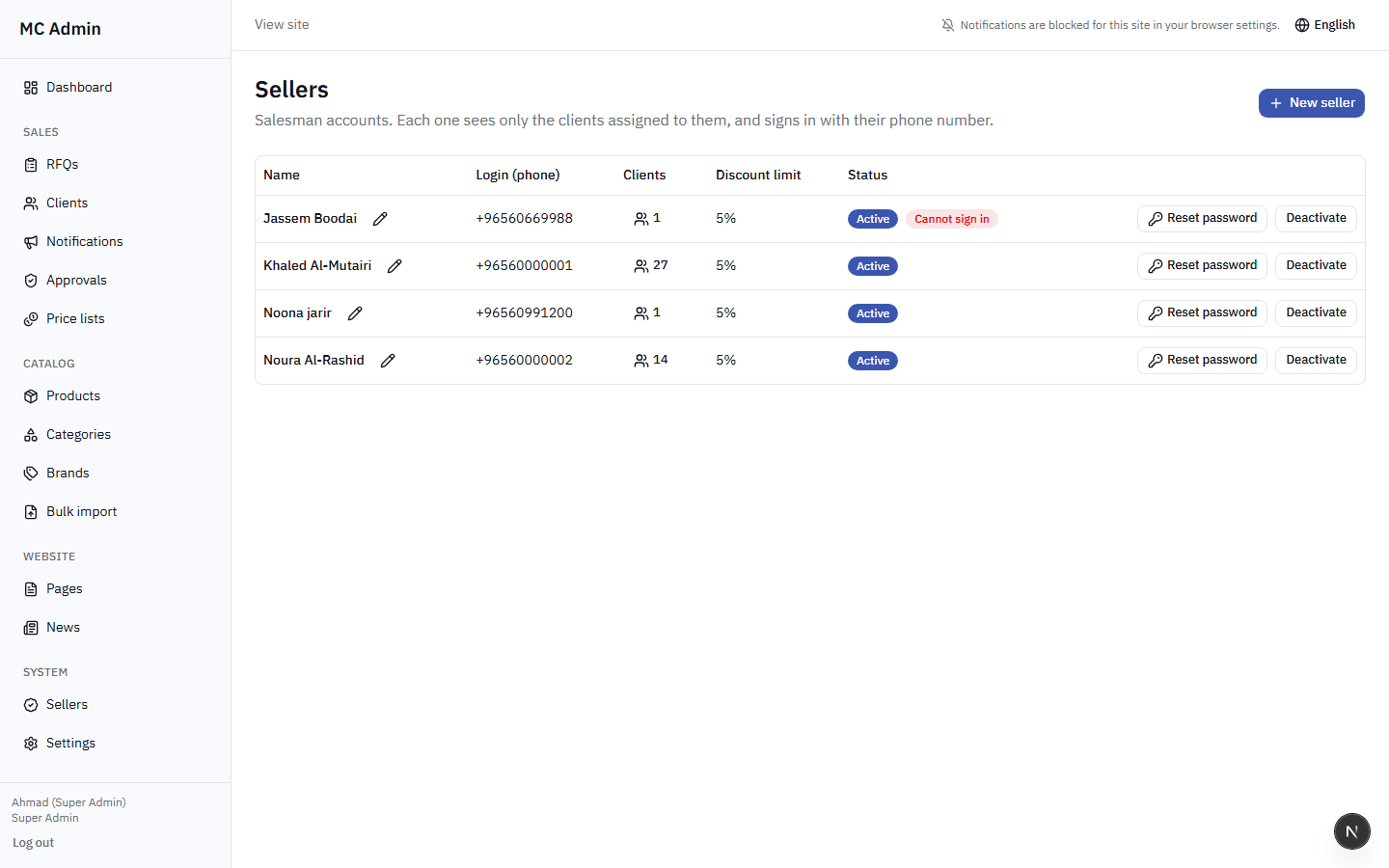
This critical module allows you to provision access for your sales team. Sellers are the frontline workers who interact with clients and process RFQs.
Creating a New Seller
When creating a new seller, you configure their foundational details:
- Name & Language: Personal details and preferred interface language.
- Phone Number: This acts as their login username.
- Discount Limit (%): Crucial field. This represents the maximum percentage a seller can discount a quotation on their own authority. If they attempt to grant a larger discount, the quote is intercepted and sent to your Discount Approvals queue.
- Password: The initial password is shown exactly once upon creation. Use the provided "Copy" button or "WhatsApp Link" to securely transmit the password to the new team member.
You cannot simply delete a seller who has an active history. A seller is strictly blocked from deactivation if they still have clients assigned to them. You must first go to Client Management and reassign all of their clients to another seller before the system will allow you to deactivate their account.
6. Staff Account Management SUPER ADMIN EXCLUSIVE
Distinct from Sellers, Staff accounts represent internal MC employees who need administrative access to the backend (e.g., catalog managers, content writers, or other Super Admins).
From this module, you can:
- Create new Admin accounts (restricted from system settings and seller management).
- Create peer Super Admin accounts.
- Deactivate or reactivate existing staff members.
7. RFQ Management
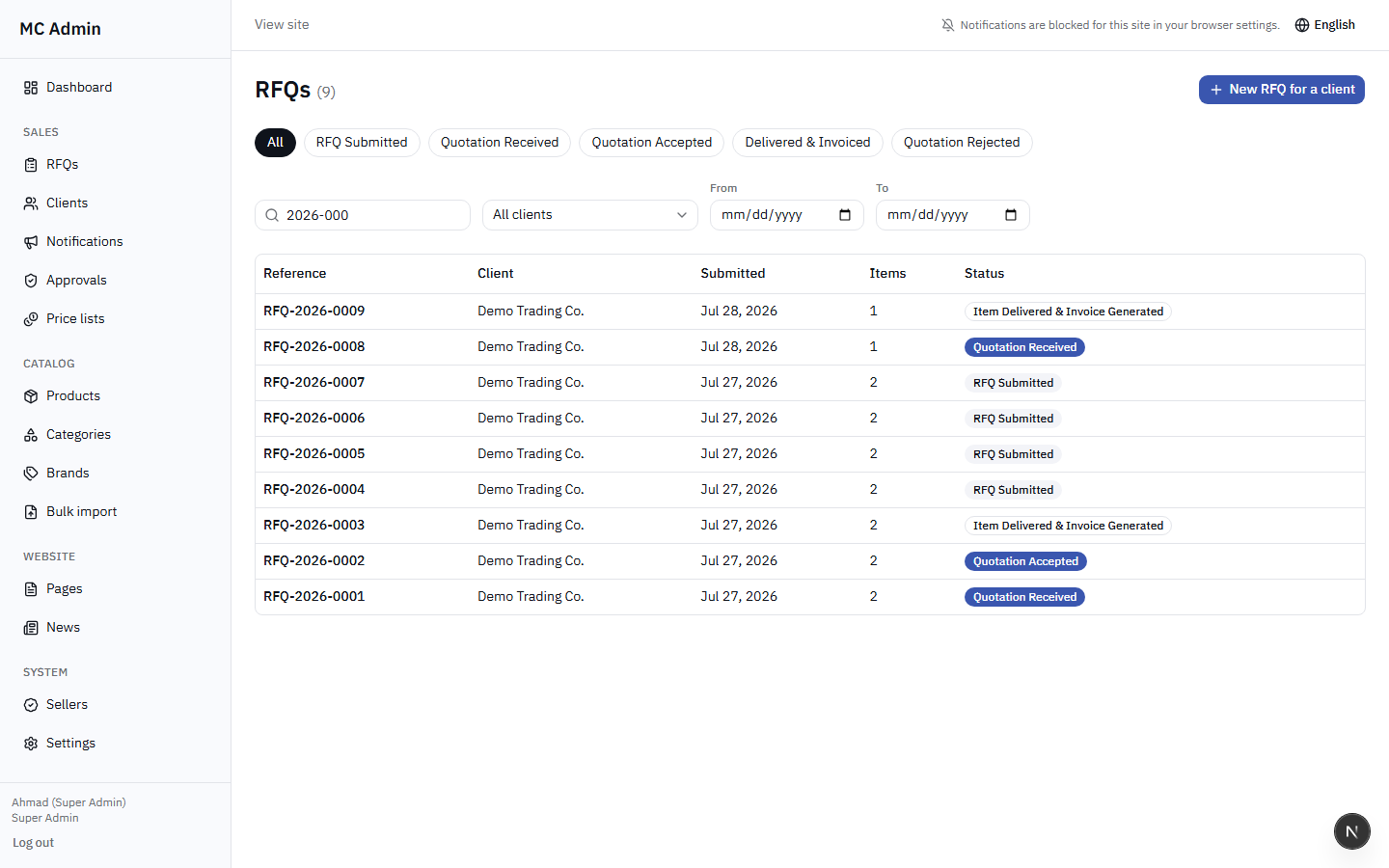
The Request for Quotation (RFQ) module is the beating heart of the platform. As Super Admin, you have unrestricted visibility into every RFQ generated in the system.
The RFQ Lifecycle
RFQs move through a strict, linear status progression:
- RFQ Submitted: Client has requested pricing. Action required from MC.
- Quotation Received: MC has responded with pricing. Action required from Client.
- Quotation Accepted: Client agreed to pricing. Action required from MC to fulfill.
- Item Delivered & Invoice Generated: The final terminal state of a successful transaction.
Off-ramps (Terminal failure states):
- Quotation Rejected: Client explicitly declined the offered pricing.
- RFQ Cancelled: The request was aborted before completion.
The RFQ Workspace
Clicking into an RFQ opens the Workspace. Here you can view the requested items, delivery location, contact details, and a full chronological status history.
You can upload supporting files up to 8MB (datasheets, CAD drawings, special terms). You can also manually change the status of the RFQ, adding optional internal notes to explain the change.
Not all clients will use the portal to request quotes. If a client calls or messages you on WhatsApp requesting items, you can click "Create RFQ on behalf of Client" to manually generate the request into the system so it follows standard tracking protocols. You can also quickly generate a new order based on a previously accepted quotation.
8. Quotation Builder
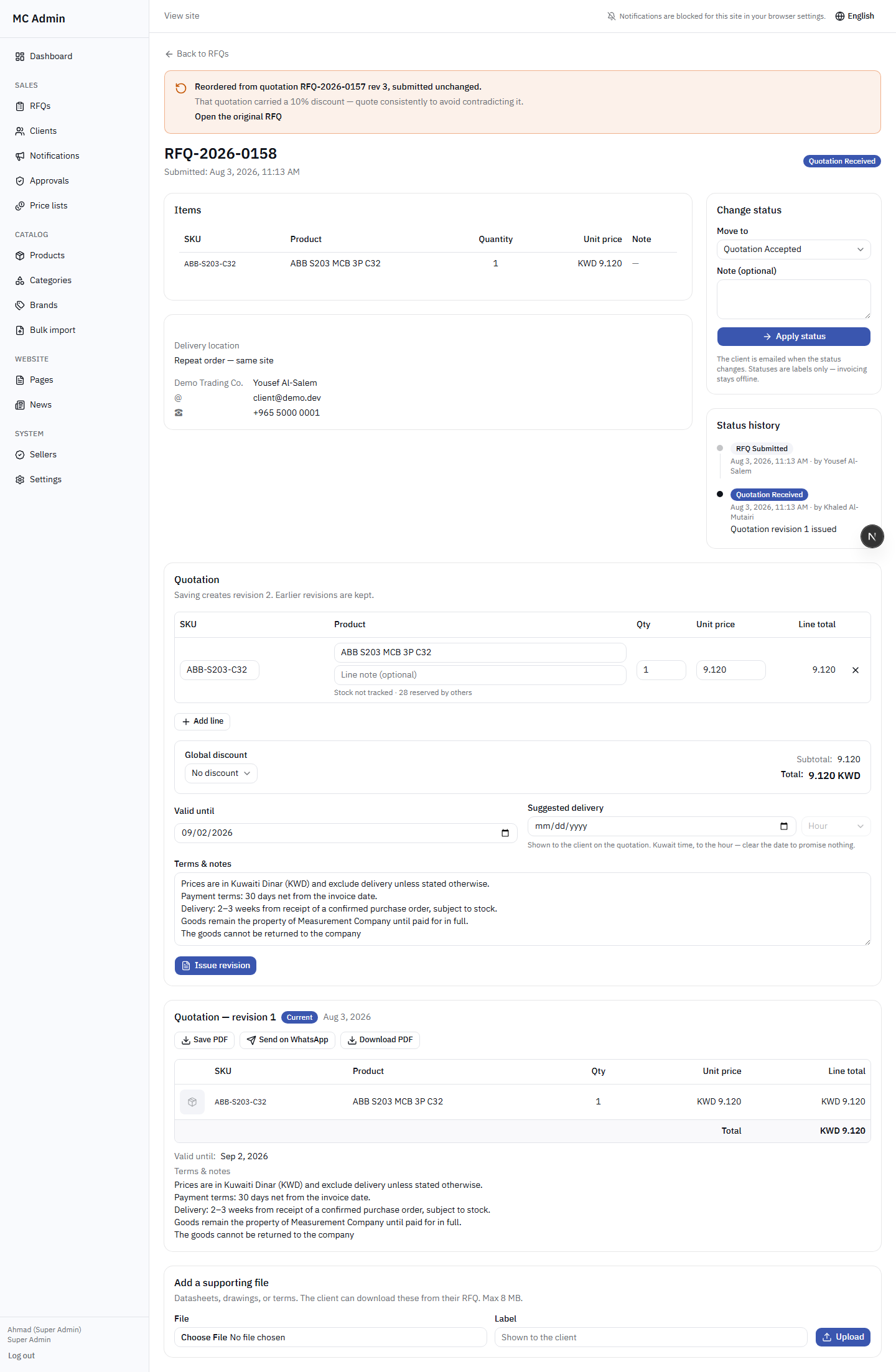
When an RFQ is submitted, you use the Quotation Builder to formulate the financial response.
Editing the Quotation
The builder is pre-filled with the exact items and quantities the client requested. From here, you have extensive control:
- Line Items: Adjust quantities, add completely new items, remove requested items (if unavailable), or add line-specific notes.
- Pricing Super Admin Privilege: While standard sellers cannot edit base unit prices, Super Admins CAN directly overwrite unit prices within the quotation builder.
- Global Discount: Apply a discount to the entire quote. Choose between "None", a "Percentage (%)", or a "Fixed KWD Amount".
- Validity: Set a "Valid until" date. Important: Once this date passes, if the client has not accepted, the quotation is withdrawn and becomes invisible on the client's view.
- Delivery: Specify a suggested delivery date and time (hour).
Stock Visibility
Directly beneath every line item, the system displays live stock intelligence to help you quote safely:
- On Hand: Total physical stock in the warehouse.
- Committed: Stock currently reserved for other accepted quotations.
- Available: The true number you can safely sell (On Hand - Committed).
Issuing and Revisions
Issuing a quote requires a two-step confirmation because issuing cannot be undone. If you make a mistake after issuing, you cannot edit the existing quote. You must create a Revision. The system saves the history, but the client will only ever see the newest, currently active revision.
You can generate PDFs of the quote. The staff-generated PDF includes internal stock figures, while the client-facing PDF strictly hides stock metrics.
9. Discount Approvals SUPER ADMIN EXCLUSIVE
This module is a protective financial gate. If a salesman constructs a quotation and applies a discount that exceeds their configured "Discount Limit %", the quote is intercepted.
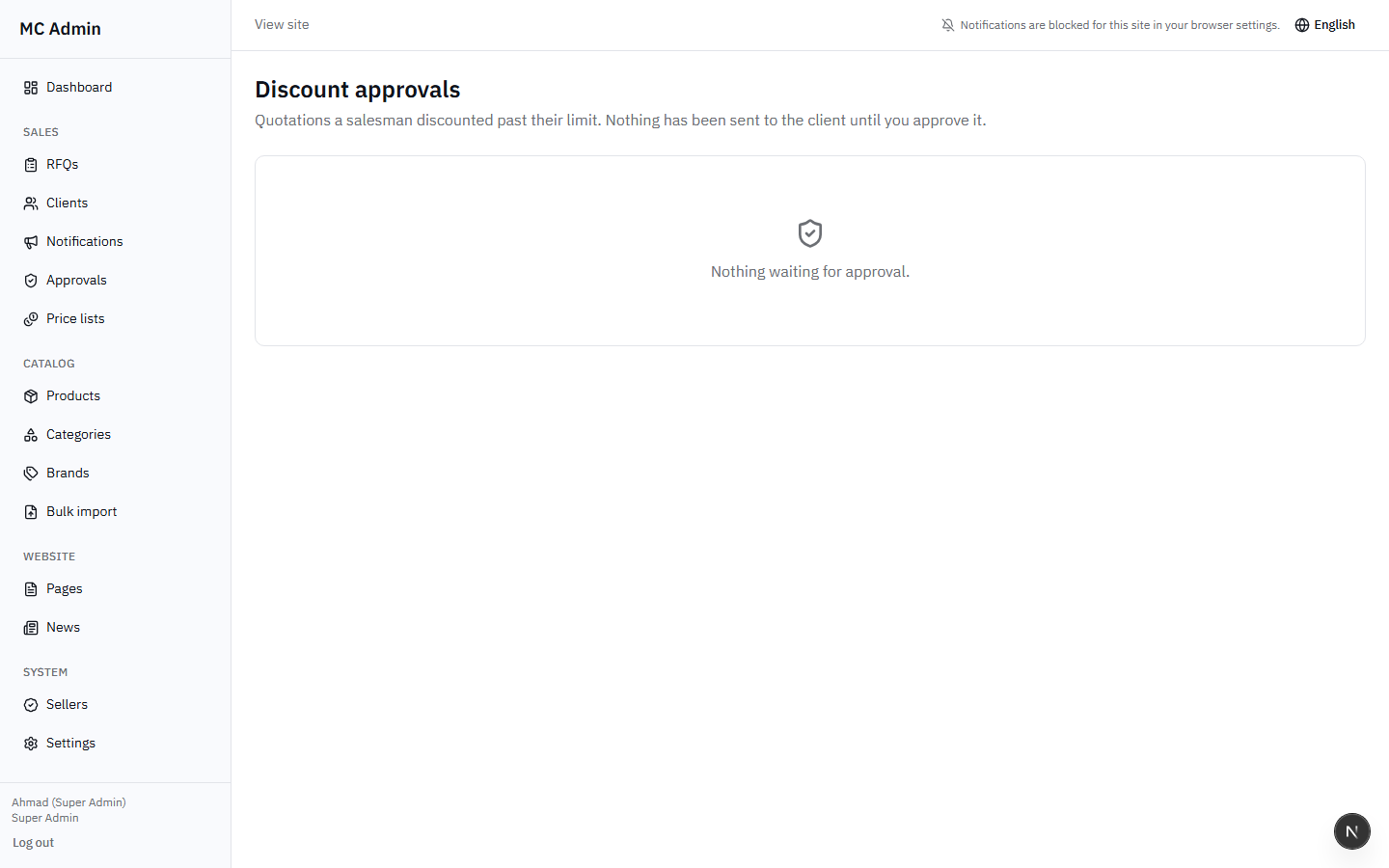
The Approvals Queue shows:
- The associated RFQ and Client Company.
- The specific seller requesting the exception.
- The requested discount vs. their allowed limit.
- Total value of the quotation.
- Timestamp of the request.
Your Actions
When reviewing the request, you read the seller's justification note. You have two options:
- Approve & Issue: The quotation bypasses the limit, is immediately issued to the client, and the RFQ moves forward.
- Refuse: You reject the exception. You must provide a refusal note explaining why. The quotation is bounced back to the seller, who must revise the pricing to fit within their limits or try again.
10. Client Notifications
The Notifications system allows you to push banner messages directly to a client's portal dashboard. This is useful for communicating account holds, special promotions, or account manager changes.
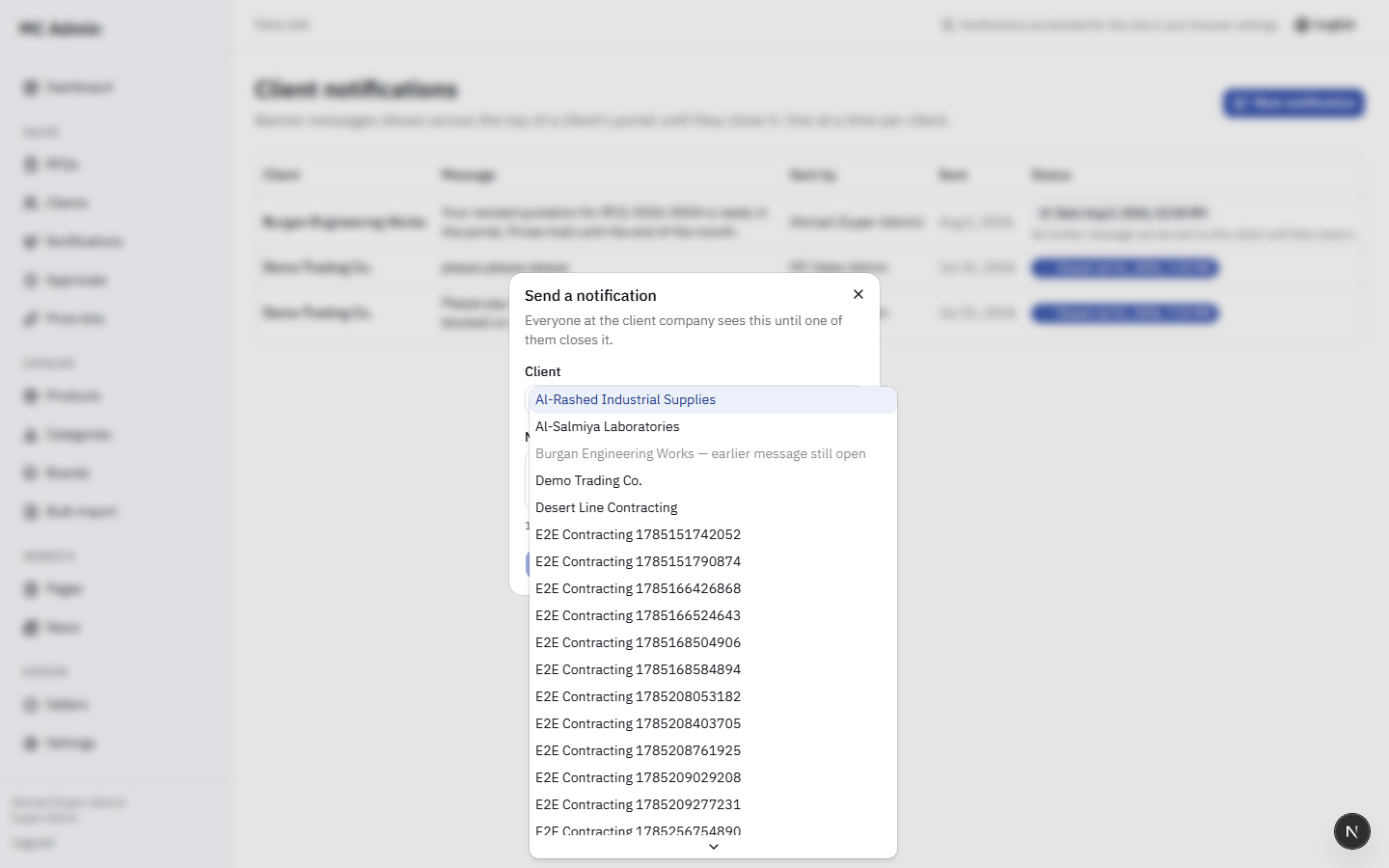
The system enforces a strict rule: There can only be one open message per client at a time. You cannot stack multiple banners. If a client has an active message, you must wait for it to be closed or manually close it before sending a new one.
You can track the exact lifecycle of the message: you can see when it was sent (Not seen), the exact timestamp the client logged in and viewed it (Seen), and when they dismissed it (Closed).
11. Price Lists
The B2B Portal supports dynamic pricing via multiple Price Lists. You can maintain different tiers (e.g., Tier 1, Wholesale, Government) and assign specific clients to specific lists.
Capabilities:
- Create/Edit: Define new lists. You must always designate one list as the "Default" for newly registered clients.
- Inline Editing: Click directly on prices in the table to quickly update them. Prices are strictly stored in Kuwaiti Dinars (KWD) to 3 decimal places.
- Promotions: You can apply temporary sale pricing to specific products on specific lists. You must define the promotional price and a mandatory End Date, after which the price automatically reverts.
To prevent system corruption, a price list cannot be deleted if there are any client companies assigned to it, or if it is currently flagged as the system Default list.
12. Catalog Management
The Catalog group controls the products, taxonomy, and brand representations on the portal.
Products
When creating or editing a product, you manage an extensive set of data points:
- Core Identifiers: SKU (Stock Keeping Unit), Barcode, English & Arabic Names.
- Categorization: Category assignment, Brand mapping, Search Keywords.
- Attributes: Size, Type, Unit of Measure (UoM).
- Visibility Flags: 'Active' (can it be sold?), 'Public' (is it visible on the catalog?).
- Rich Data: Long descriptions, tabular specifications.
Image Requirements
To maintain a high-quality frontend UI, uploaded product images must adhere to strict guidelines. They must be perfectly square, up to a maximum resolution of 1600x1600px, and under 8MB in file size. The system will automatically convert uploads to the highly efficient WebP format.
Stock Logic Rules
The portal handles stock values very specifically:
- Blank Value: If the stock field is completely empty, the system considers the item "Not Tracked." It will always show as available.
- Number Value (e.g., 50): The exact quantity currently on hand.
- Zero (0): If explicitly set to zero, the item is recognized as "Out of Stock" and will be hidden from the standard frontend catalog to prevent impossible orders.
Categories & Brands
Categories follow a strict two-level tree structure (Parent -> Child). You configure the slug (URL path), sort order, and an active toggle. Brands require a name and a logo upload.
13. Bulk Import
For large-scale updates, avoid manual entry and use the Bulk Import tool. The system operates on a strict matching mechanism based on the SKU.
The Bulk Import Workflow
Download Template
Select your import type and download the provided CSV/Excel template to ensure correct column headers.
Populate & Upload
Fill the template. Tip: Partial files are acceptable. If you only want to update weights, you only need the SKU column and the Weight column. Unmentioned columns are ignored and not overwritten.
Validate & Preview
The system will scan the upload for errors (missing SKUs, invalid formats) and provide a preview of the changes to be made.
Confirm Execution
Finalize the import to commit the data to the live database.
Available Import Types:
- Products (base data)
- Prices for a single specific list
- Prices across all lists simultaneously
- Promotional pricing and dates
- Stock counts
- Product images (bulk association)
14. Public Website (CMS)
The MC portal isn't just an ordering system; it includes a lightweight Content Management System (CMS) for the public-facing promotional website.
- Pages: Edit bilingual (English/Arabic) content blocks for static pages (About Us, Contact, etc.).
- Header/Footer Super Admin Privilege: Only Super Admins have the authority to edit the site-wide header and footer navigation links.
- SEO Settings Super Admin Privilege: Only Super Admins can alter per-page Meta Titles, Descriptions, and OpenGraph tags for search engine optimization.
- News: Manage the company blog. Create articles with titles, excerpts, rich text bodies, slugs, and cover images. Articles can be toggled between Draft and Published states.
15. Reports SUPER ADMIN EXCLUSIVE
As a Super Admin, you have access to executive-level reporting tools not visible to the general sales staff. This includes the Sales Funnel Dashboard, providing deep insights into conversion rates (how many RFQs turn into accepted quotations vs. rejections) and holistic RFQ analytics to track seasonal demand and team performance.
16-18. System Controls SUPER ADMIN EXCLUSIVE
16. Settings
Manage the global behavioral rules of the portal:
- Sales Notifications: Define a comma-separated list of email addresses that will receive system alerts when a new RFQ is submitted or urgent client actions occur.
- Standard Terms & Notes: Define the default legal boilerplate and terms of service that automatically pre-fill into every new Quotation Builder session. (Includes a "Restore Default Wording" fail-safe option).
17. Email Manager
Access the core SMTP configuration. Manage how the portal sends transactional emails (password resets, welcome emails, quote notifications) and verify delivery health.
18. System Logs
Crucial for technical troubleshooting. The System Logs catch runtime warnings and errors generated by the application. Errors are grouped by "Fingerprint" (meaning if the exact same error happens 1,000 times, it appears as one row with a count of 1,000 and the date it was last seen, preventing log spam).
19. Push Notifications
To ensure rapid response times, the portal supports browser-level Push Notifications. You can enable alerts for specific critical events:
- New RFQ submitted by a client.
- Discount held (a quotation requires your Super Admin approval).
- Quotation issued (track seller activity).
- New Client messages/inquiries.
The Admin portal is built as a Progressive Web App (PWA). You can "Install" it directly to your desktop or mobile device. Note for iPhone Users: To receive push notifications on iOS, you must use the Safari share sheet and select "Add to Home Screen" to install the app first.
20. Quick Reference: Permissions Matrix
Below is a quick reference illustrating how the Super Admin role differs from standard Admins and Sellers.
| Feature / Capability | Salesman | Admin | Super Admin |
|---|---|---|---|
| View Assigned Clients | ✅ Yes | ✅ Yes | ✅ Yes |
| View ALL System Clients | ❌ No | ✅ Yes | ✅ Yes |
| Change Quotation Base Prices | ❌ No | ❌ No | ✅ Yes |
| Grant Discounts Beyond Limit | ❌ No (Requires Approval) | ❌ No (Requires Approval) | ✅ Yes |
| Manage Categories & Products | ❌ No | ✅ Yes | ✅ Yes |
| Reassign Clients to New Sellers | ❌ No | ❌ No | ✅ Yes |
| Create/Manage Staff & Sellers | ❌ No | ❌ No | ✅ Yes |
| Approve Discount Exceptions | ❌ No | ❌ No | ✅ Yes |
| Edit Global System Settings | ❌ No | ❌ No | ✅ Yes |
21. Important Cardinal Rules
As a Super Admin, always keep the following system behaviors in mind when operating or training staff:
- No Orphans: A client registration cannot be approved to 'Active' status without being assigned to a specific seller.
- Pricing Integrity: Salesmen cannot manipulate base catalog prices within a quote. They may only use their configured discount limit.
- Immutable Issuance: Once a quotation is "Issued" to a client, it is locked. The action cannot be undone. Any corrections require generating a new Revision.
- Notification Limits: Only one notification banner can be active per client at any given time.
- Price Privacy: Base catalog prices are never completely public. Even if a client is approved, their price visibility can be toggled off at your discretion.
- Stock Semantics: A "blank" stock field means unlimited/untracked. A "0" (zero) stock field means definitively Out of Stock and hidden from clients.
- Quotation Expiration: The "Valid Until" date on a quote is a hard cut-off. Once expired, it is automatically withdrawn from the client's view.