Sales Person Comprehensive Guide
The definitive manual for managing clients, generating quotations, and closing deals on the MC B2B Portal.
1. Overview & Role Description
Welcome to the MC B2B Portal Sales Person guide. The Sales Person (Seller) role is carefully tailored to ensure laser-focus on assigned clients while maintaining strict data isolation between different sales representatives.
As a seller, your environment is strictly siloed. You can ONLY see your assigned clients, their RFQs, and their specific prices. Attempting to view another seller's clients or RFQs will result in a hard 404 Not Found error—these records are completely invisible to you, not just hidden from menus.
Login Process & Authentication
The login process for sellers is fundamentally different from administrators. Sellers do not use email addresses for authentication.
-
Use Your Phone Number
Sellers log in using their registered mobile phone number. The system is flexible and accepts multiple formats (e.g., +965 6000 0001, 96560000001, or 60000001).
-
Enter Your Password
Enter the password assigned to you. Note that initial passwords are set by the Super Admin and securely handed over to you (typically via WhatsApp or in person).
-
Account Recovery
Because your account is not linked to an email address, the "Forgot Password" function cannot be used. There is nowhere to send a reset link. If you forget your password, you must contact a Super Admin directly to have it reset.
2. Dashboard
Upon logging in, you are greeted by the Sales Dashboard. While it looks similar to the Admin dashboard, the data presented is strictly scoped to your assigned clients.
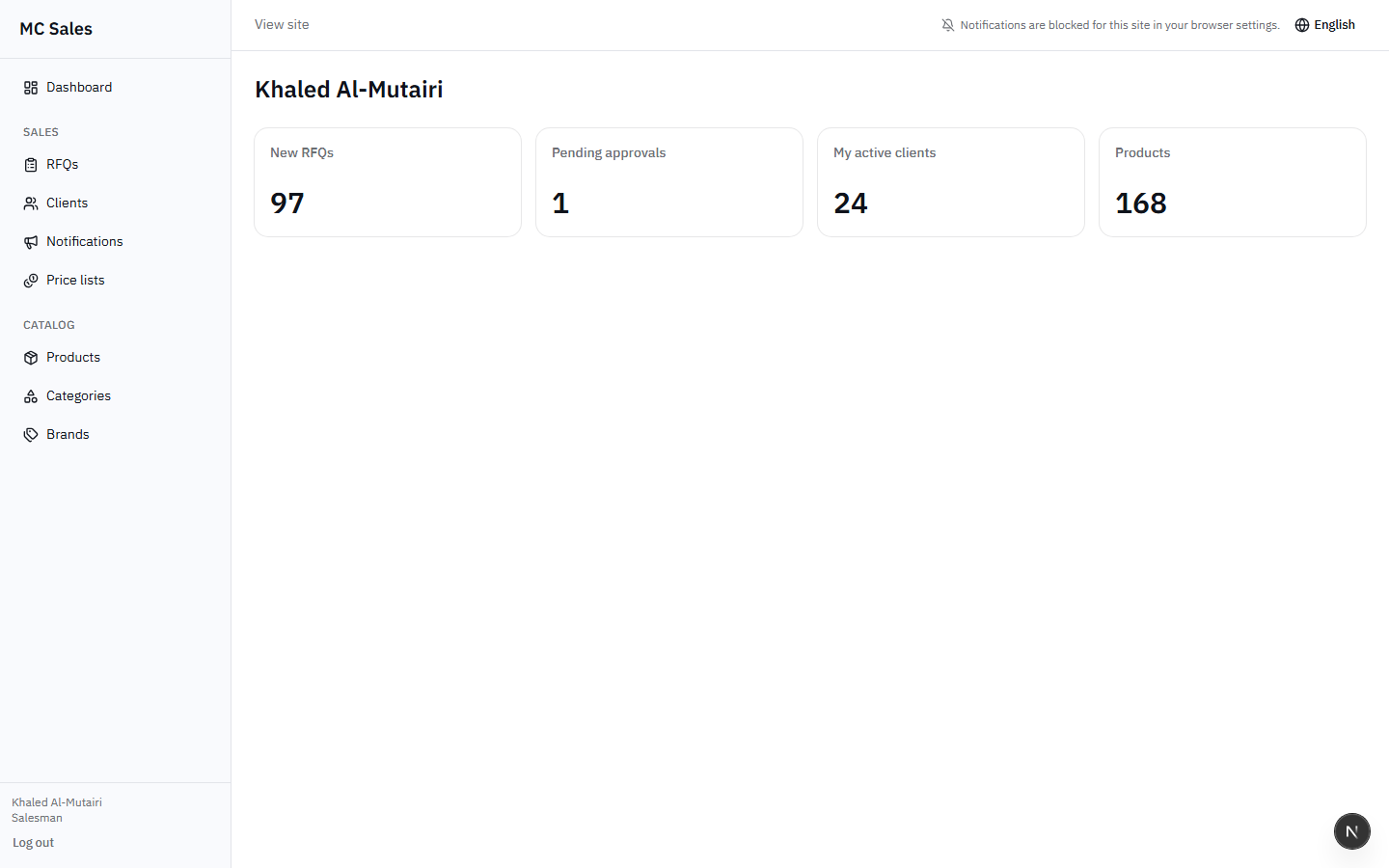
Dashboard Tiles Explained
| Tile | What It Shows |
|---|---|
| My new RFQs | The number of new Requests for Quotation (status: Pending) submitted by your assigned clients. |
| Pending Approvals | RFQs belonging to your clients that require your action (e.g., quotations that need to be built, or waiting on client response). |
| My active clients | The total number of approved clients currently assigned to your portfolio. |
| Products | The total number of active products in the system catalog (this is a system-wide metric, as the catalog is shared). |
3. Panel Layout
The Seller panel layout is designed to be streamlined and distraction-free. You only see what you need to sell.
The Sidebar ("Sales Panel")
Your main navigation menu is titled "Sales Panel" (unlike the "MC Admin" title seen by administrators). It is significantly shorter than the Admin sidebar.
What you have:
- Dashboard
- RFQs (Scoped)
- Clients (Scoped)
- Notifications (Scoped)
- Price Lists (Read-Only)
- Products, Categories, Brands (Read-Only)
What is intentionally removed:
Bulk Import, Pages, News, Reports, Sellers, Staff, Settings, Email, Logs, and Discount Approvals.
4. Client Management (Own Clients Only)
The Client Management module is where you view and interact with the companies assigned to you.
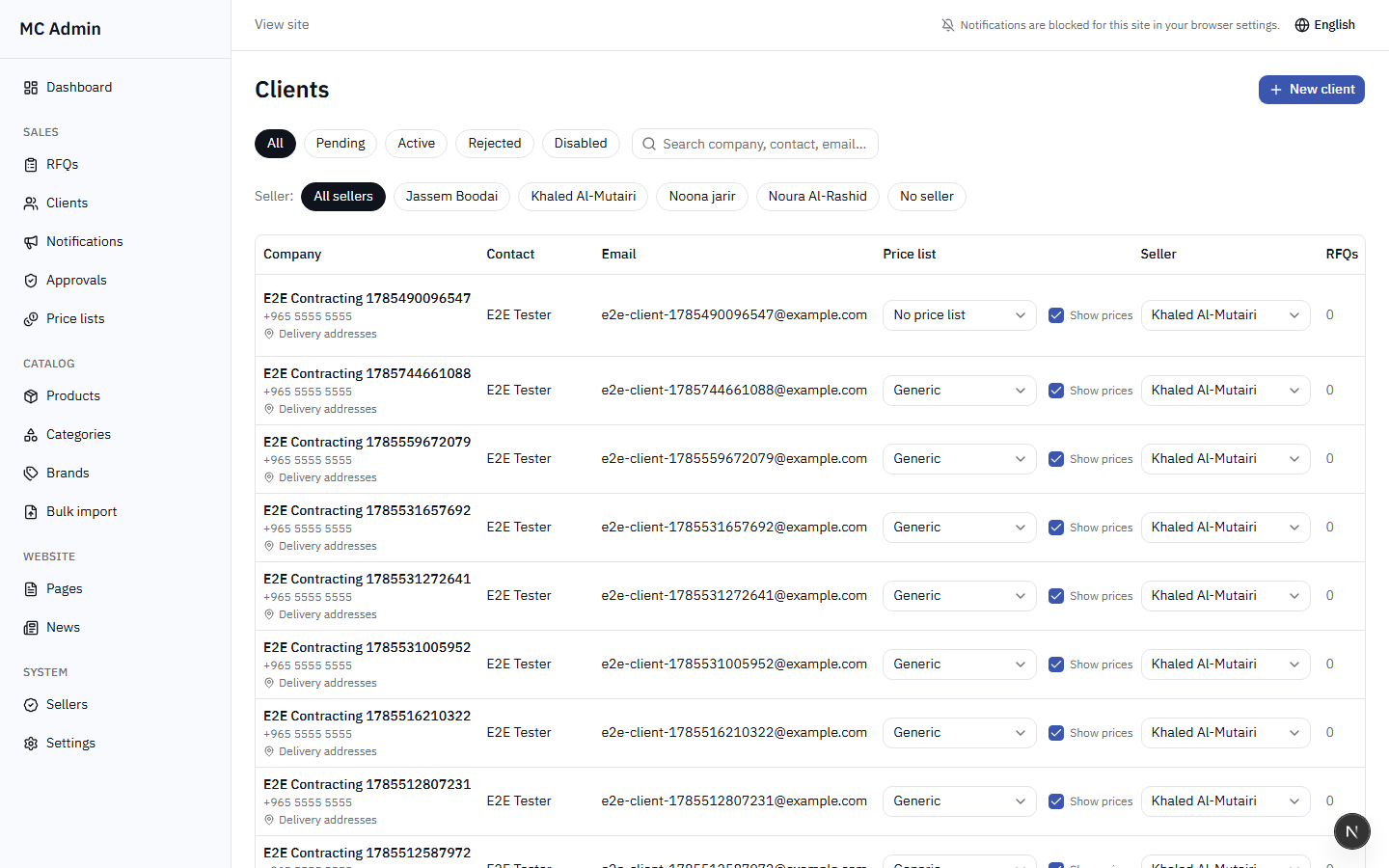
What You CAN Do:
- View Client Details: Access contact information, trade licenses, and company profiles.
- Manage Delivery Addresses: Add, edit, or remove delivery addresses for your clients to streamline the checkout process.
- View Balances: Check outstanding balances and credit limits (if configured) for your assigned clients.
What You CANNOT Do:
- Create/Approve/Reject Clients: Client onboarding is handled by Admins. You cannot create new client accounts.
- Change Price Lists: You cannot change which price list a client is assigned to.
- Toggle Prices Visibility: You cannot change the "Show Prices" setting for a client.
- Reassign Sellers: You cannot transfer a client to yourself or to another seller.
5. RFQ Management (Own Clients Only)
Managing Requests for Quotation (RFQs) is the core of your daily operations.
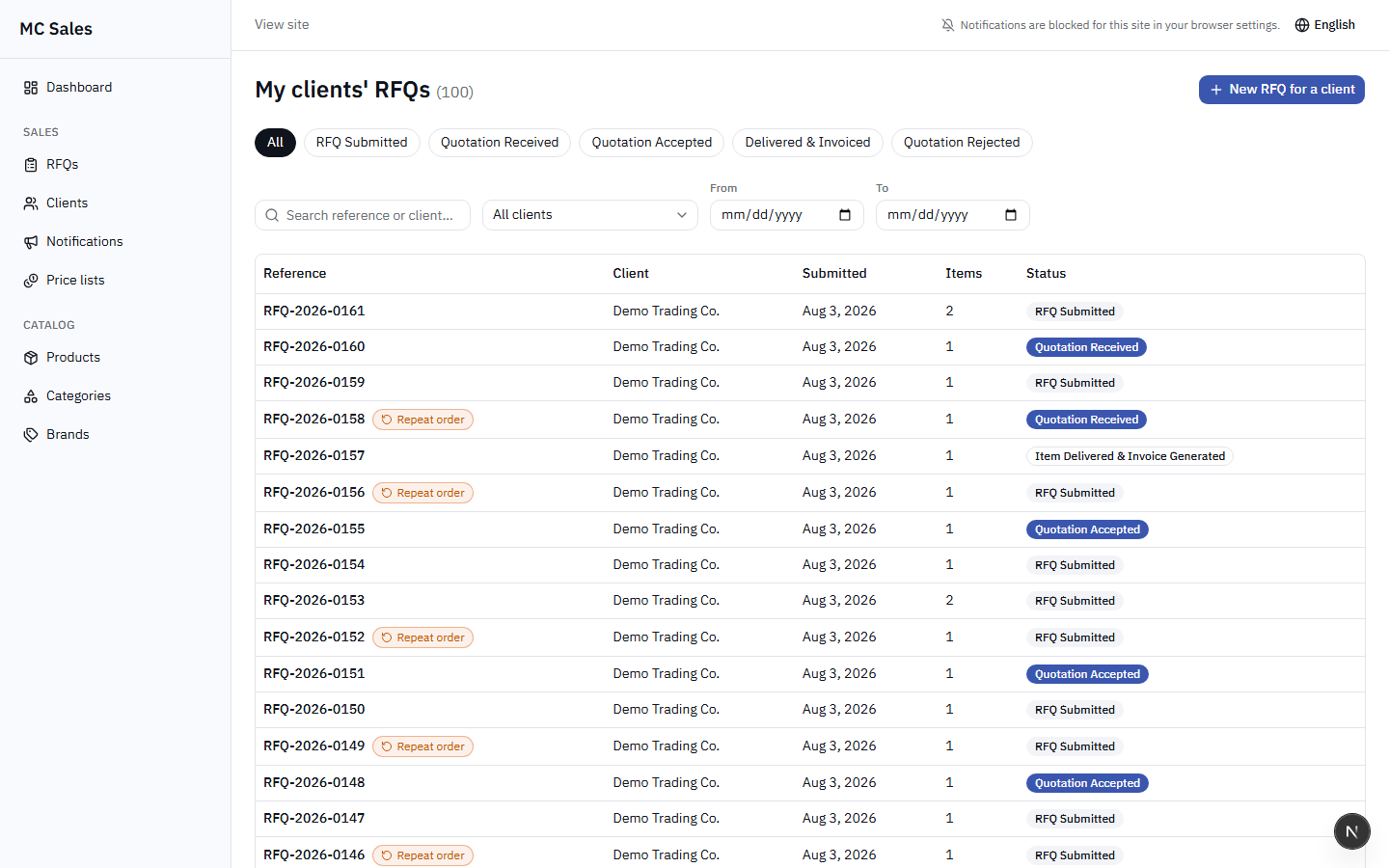
If you attempt to access an RFQ URL that belongs to another seller's client, the system will not redirect you—it will throw a hard 404 Not Found error. This is intentional to prevent data leakage.
Key Features for Sellers:
-
Full Quotation Powers
For your own clients, you have full authority to build, issue, and manage quotations (subject to discount limits).
-
Create RFQs on Behalf of Clients
You can proactively create an RFQ for your clients. Click "New RFQ", select your client from the dropdown, and add products.
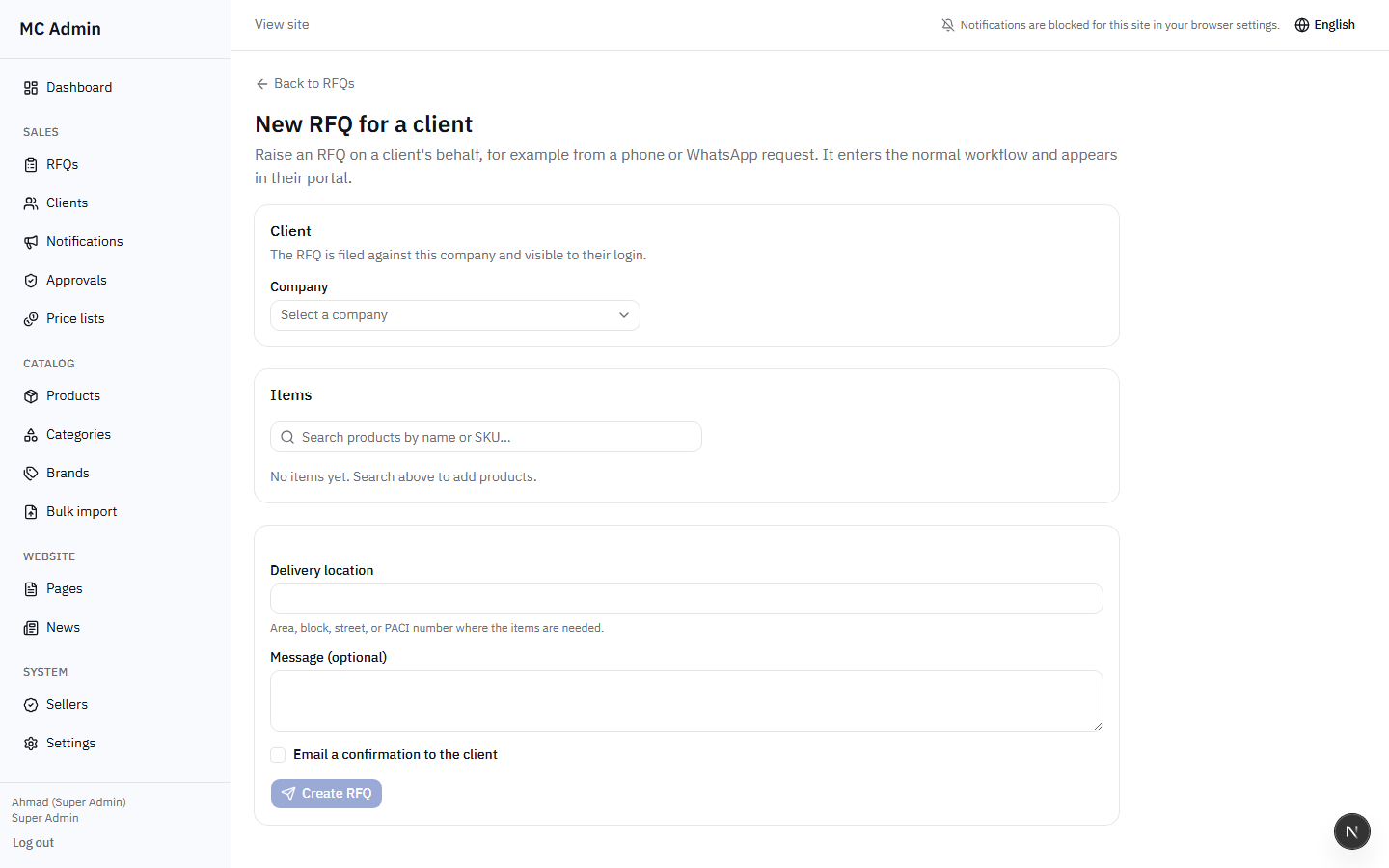 Figure 4: Creating an RFQ on behalf of a client.
 -
Reorder Functionality
You can easily duplicate an accepted quotation to create a new RFQ for the same items. These will be marked with a special "Repeat Order" badge in the list.
-
Supporting Files
You can attach spec sheets, diagrams, or other supporting documents directly to the RFQ thread.
6. Quotation Builder IMPORTANT
The Quotation Builder is where you convert client requests into official offers. This interface has strict rules for sellers to ensure pricing consistency and protect margins.
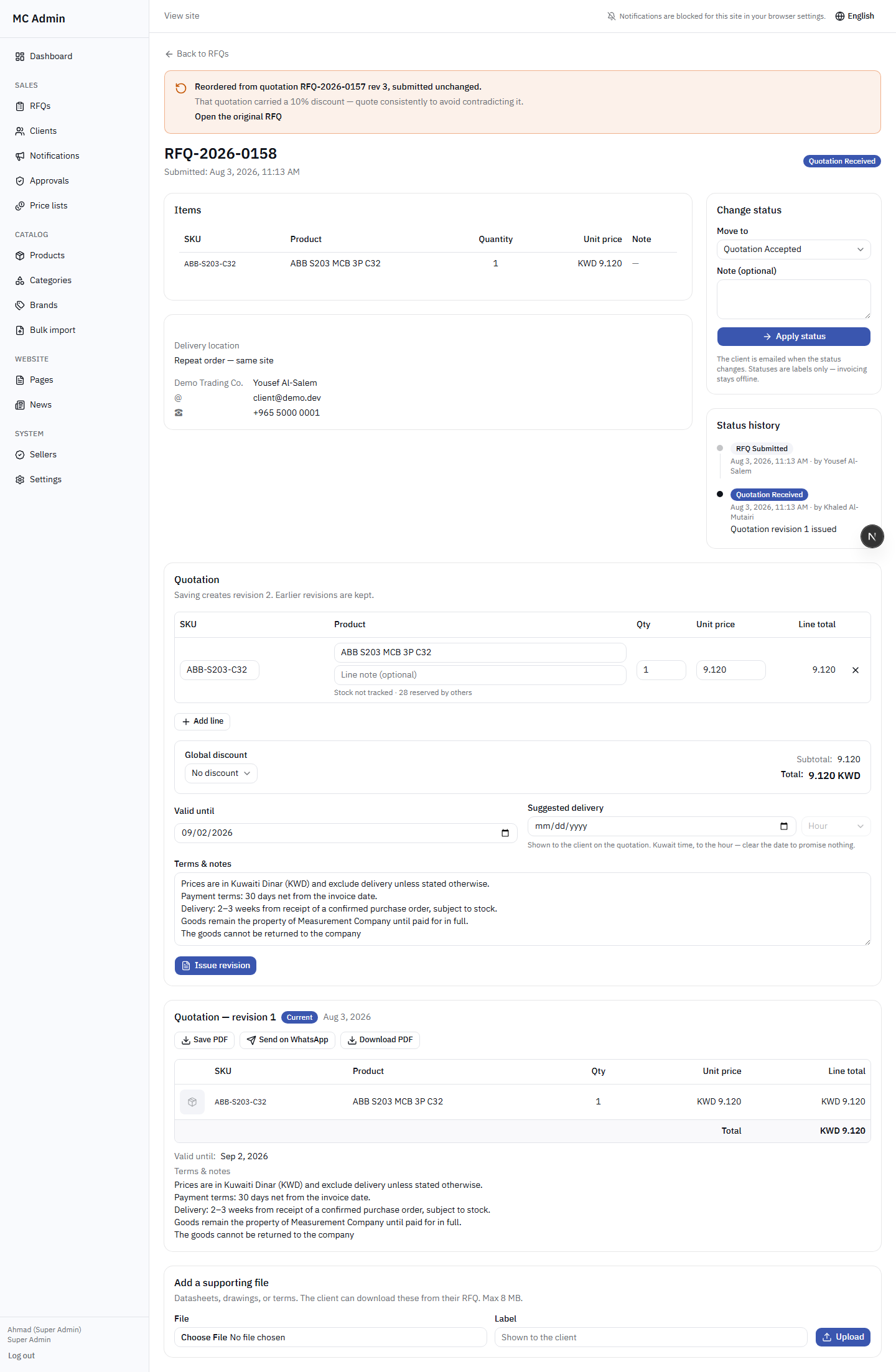
The Golden Rules of the Quotation Builder
- Unit Prices are LOCKED: You CANNOT edit the unit price of catalog items. The price is strictly inherited from the client's assigned Price List.
- Custom Lines (Free-text): You CAN add custom lines for non-catalog items (e.g., "Custom Installation Service"). Because these are free-text, you are allowed to manually set the price for these specific lines.
- Stock Visibility: Real-time stock levels are visible to you while building the quote to prevent promising unavailable goods.
You can apply a global discount to the quotation (either as a Percentage or a Fixed KWD amount). However, your account has a hard-coded Discount Ceiling (e.g., 5%).
What happens if you exceed your discount limit?
- A warning message is immediately displayed in the builder.
- You are required to write a justification (minimum one sentence) explaining why the deep discount is necessary.
- When you click "Issue", the quotation is NOT sent to the client. Instead, it enters a "Held for Approval" state and is sent to the Super Admin's queue.
- The RFQ status remains unchanged for the client—they see nothing until the Super Admin approves the discount.
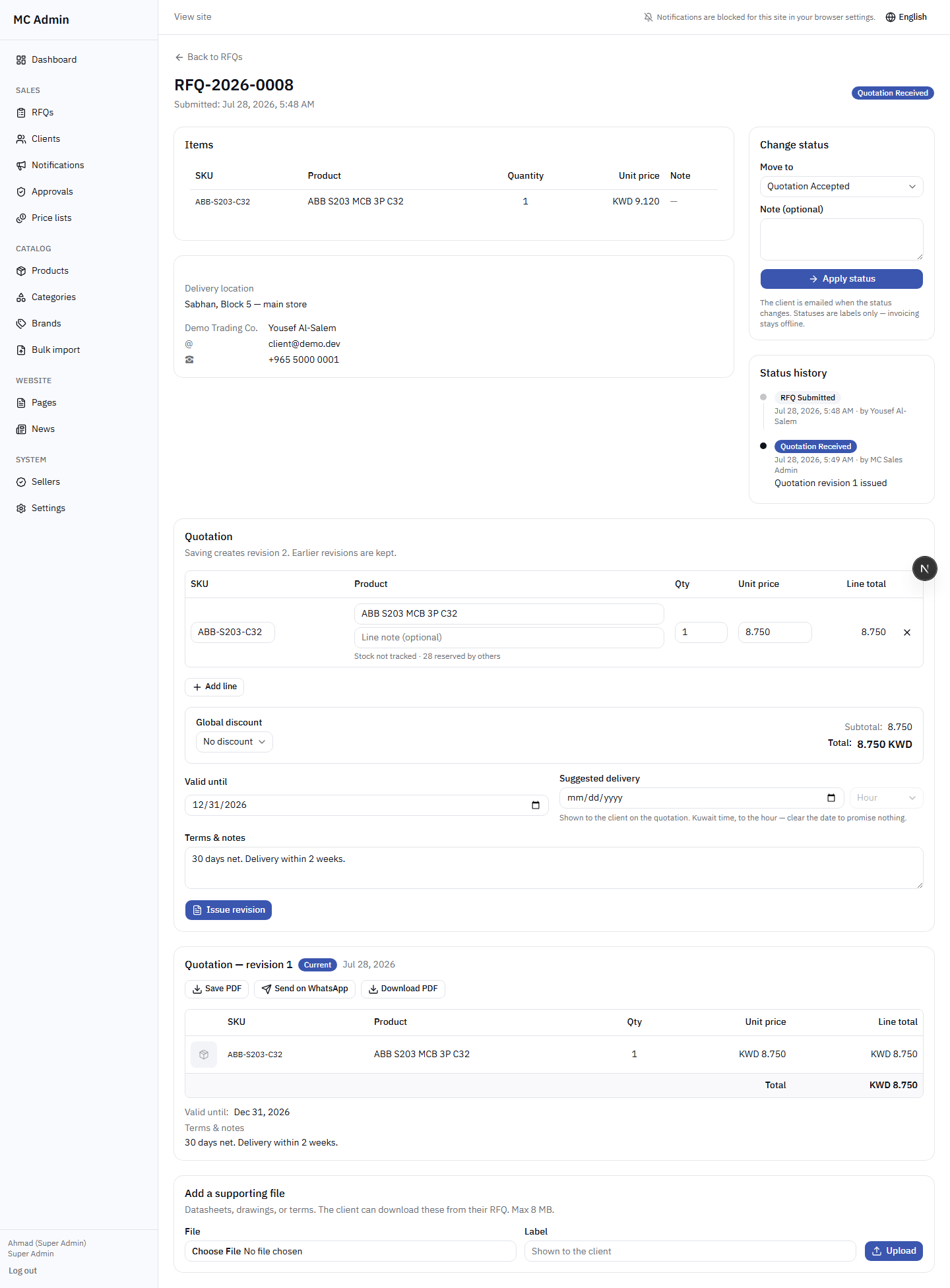
Finalizing the Quote
Setting terms is crucial. You must define:
- Valid Until: Expiration date of the offer.
- Suggested Delivery: Estimated timeline.
- Terms & Conditions: Select applicable boilerplates.
Issuing requires a Two-Step Confirmation. Once issued, you can download the PDF or use the native WhatsApp sharing integration to send it directly to the client.
7. Client Notifications
You can send targeted alerts and messages directly to your clients' portal dashboards and mobile devices.
- Targeting: The recipient dropdown only populates with your assigned clients.
- One Notification Per Client: You send messages to the company entity, which notifies the relevant users under that client account.
- Tracking: You can track whether notifications have been marked as "Seen" or "Closed" by the client.
8. Price Lists (Read-Only)
Unlike Admins who manage complex pricing tiers, your view of Price Lists is purely informational and client-focused.
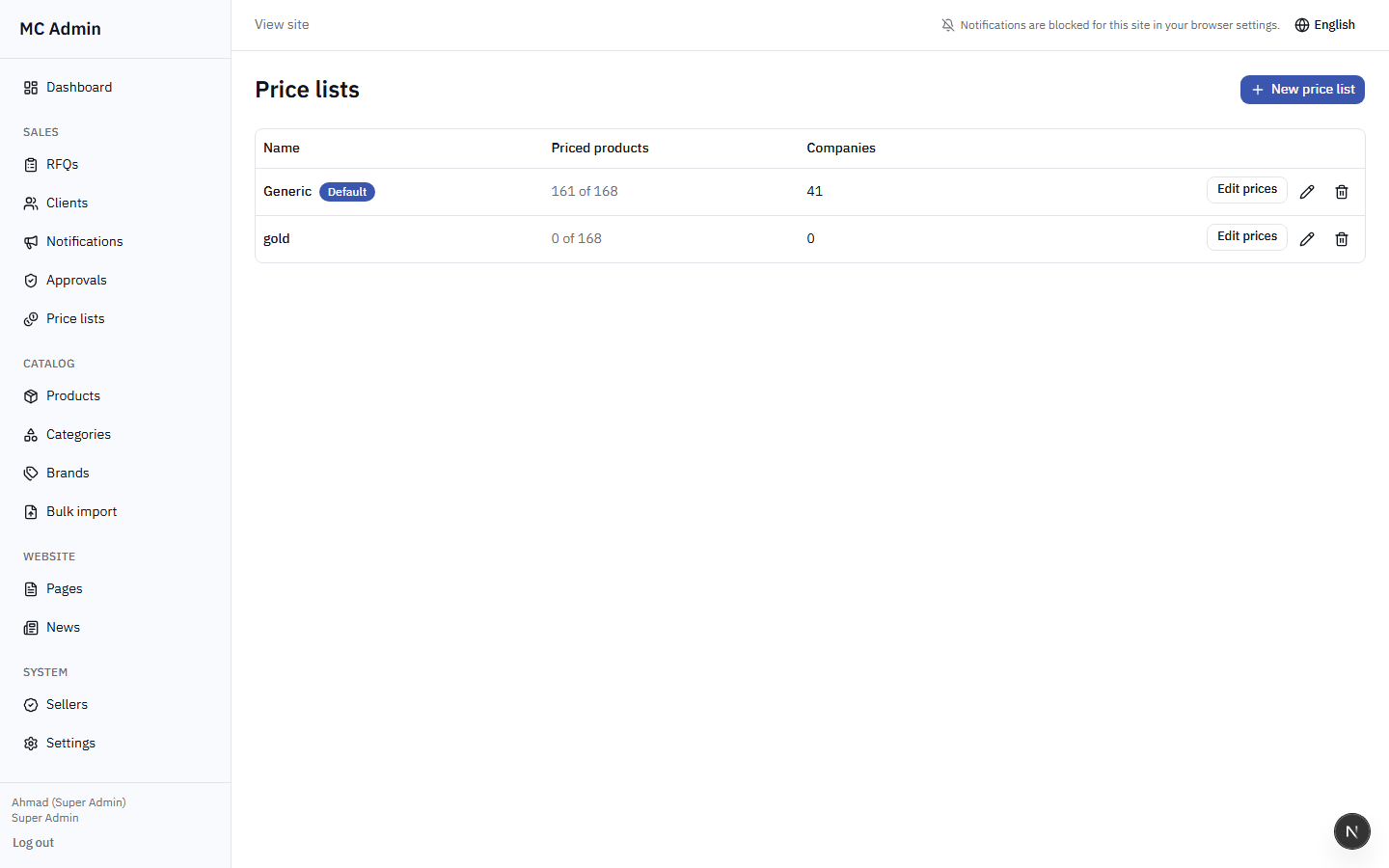
- "Client Prices" View: You select one of your clients from a dropdown to view their specific, calculated prices for every product.
- Read-Only: You CANNOT edit prices, create new price lists, or delete existing ones.
- Promotions: You can see if a product is part of a promotional category, but you cannot edit the promotional figures.
- Public Product Pages: If you browse the public-facing product pages while logged in as a seller, no prices are shown (as pricing is always strictly client-dependent).
9. Catalog (Read-Only)
You have full visibility into the system catalog to assist clients, but you lack editing permissions.
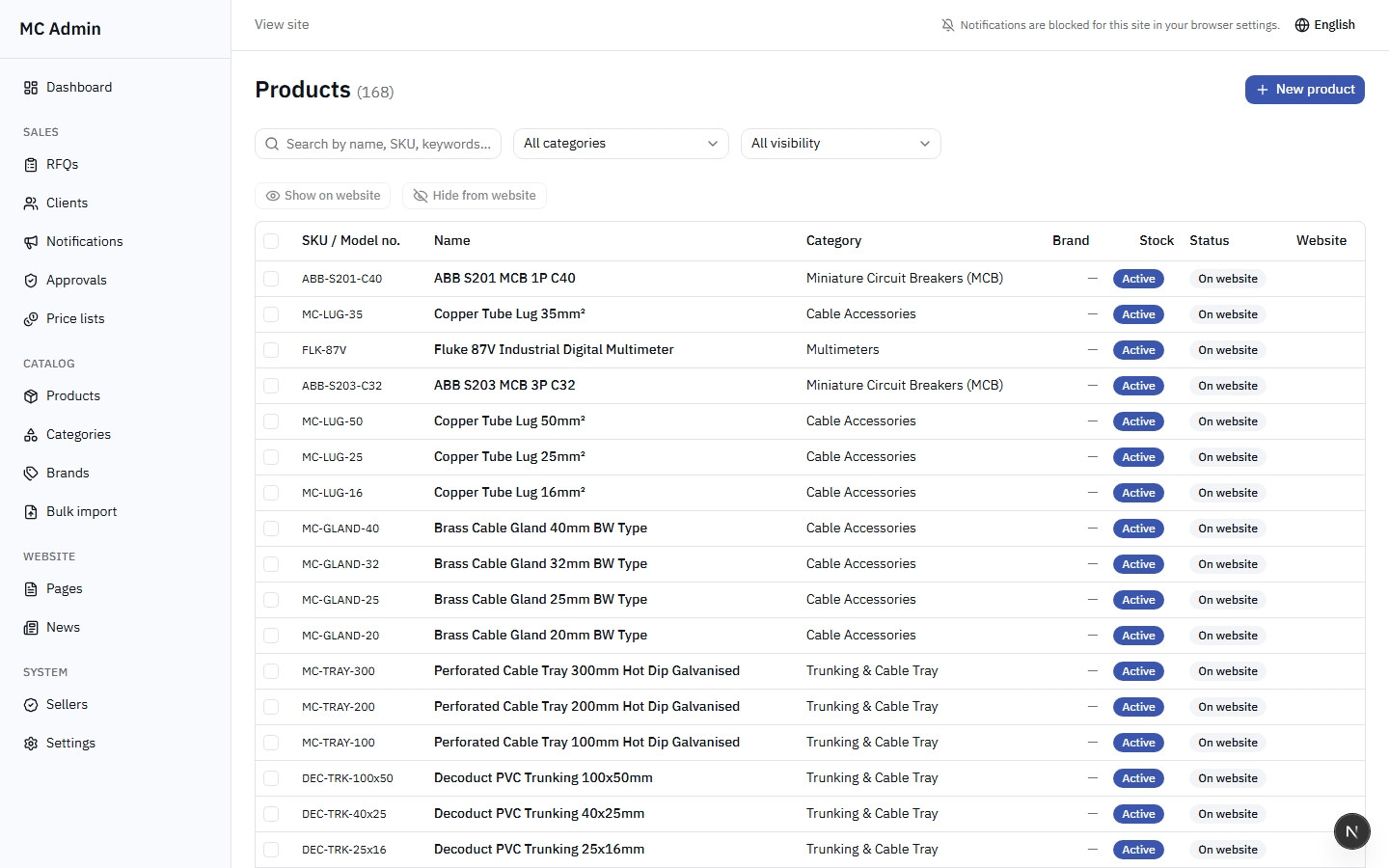
- View Only: You can view Products, Categories, and Brands.
- No Controls: "Add New", "Edit", "Delete", and "Export" buttons are completely removed from the UI.
- URL Protection: If you manually type an edit URL (e.g., /admin/products/edit/123) into your browser, the system will immediately redirect you away to safety.
10. What Sellers Cannot Access
To ensure system stability and security, the following administrative areas are completely inaccessible to your role:
- Settings & Options
- Email Manager
- System Logs
- Seller Management
- Staff/Admin Management
- Bulk Import/Export tools
- Reports & Analytics (Global)
- Discount Approvals Queue
- Website Pages (CMS)
- News & Blog posts
11. Push Notifications & PWA
The MC B2B Portal is a Progressive Web App (PWA). You can install it on your mobile device for a native app experience.
Alerts You Will Receive:
- New RFQs: Instant alert when one of your clients submits a new request.
- Quotation Status: Alerts when a client accepts, rejects, or comments on your issued quotation.
- Client Messages: Notifications for direct messages from your clients within the portal.
- Approval Updates: Notifications from the Super Admin regarding your held/discounted quotes.
12. Important Rules for Sellers
-
Prices are Locked
You cannot re-price catalog items. You can only apply global discounts up to your configured limit. For exceptions, escalate via the discount justification workflow.
-
Issuing is Final
Once a quotation is issued to a client (and not held for approval), it cannot be undone or silently edited. If a mistake is made, you must issue a revised version.
-
Password Security
Since there is no automated password reset functionality, keep your password secure. Do not share it. Contact a Super Admin immediately if you suspect a breach.
-
Data Privacy
You are entrusted with your clients' data. The system enforces strict isolation preventing you from seeing other sellers' clients. Do not attempt to bypass these restrictions.
13. Permissions Comparison Table
This table illustrates the capability differences between roles.
| Feature / Action | Seller | Admin | Super Admin |
|---|---|---|---|
| Login Method | Phone No. | ||
| Client Visibility | Own Only | Global | Global |
| Create/Approve Clients | No | Yes | Yes |
| Edit Product Catalog | Read-Only | Yes | Yes |
| Manage Price Lists | Read-Only | Yes | Yes |
| Edit Quote Unit Prices | No | Yes | Yes |
| Discount Limitations | Capped (e.g. 5%) | Unlimited | Unlimited |
| Approve High Discounts | No | No | Yes |
14. Quick Reference Summary
- Login: Always use your phone number. If you forget your password, WhatsApp the Super Admin.
- Scope: You operate in a silo. You only see your clients and their requests.
- Pricing: Client prices are strictly locked. You can view them but cannot edit them.
- Discounts: You can discount up to your ceiling. Anything above requires a written justification and goes to Super Admin approval.
- Catalog: Feel free to browse products and brands, but you cannot modify any catalog data.