Client User Guide
Welcome to the comprehensive guide for Clients using the MC B2B Portal. This document explains how approved business customers can browse the catalog, submit Requests for Quotations (RFQs), manage accepted offers, and track their orders through a streamlined, digital process.
1. What the Portal Does
The MC B2B Portal is designed to modernize and simplify the procurement process for electrical products in Kuwait. It specifically targets business-to-business (B2B) transactions, completely replacing the traditional, time-consuming phone and email quotation cycles with an efficient digital platform.
As an approved client on the portal, you have the ability to:
- Browse the comprehensive product catalog while viewing your company's specific, pre-negotiated prices in real-time.
- Collect required items in your personalized Quote Cart, adjusting quantities and adding notes as necessary.
- Submit a Request for Quotation (RFQ) seamlessly. Upon submission, a unique reference number (e.g., RFQ-2026-0072) is automatically generated for tracking.
- Receive official quotations directly within the portal once MC Sales representatives have reviewed and priced your request.
- Accept or reject the issued quotations with a simple click. If rejecting, you can provide reasons to facilitate further negotiation.
- Track the lifecycle of your RFQs, monitoring status updates from submission through delivery and invoicing (which are handled offline but reflected in the portal status).
Every RFQ maintains its own detailed history, ensuring that your communication and order records are always organized and easily accessible.
The portal serves as your centralized hub for all procurement activities with MC, offering transparency and speed that traditional communication methods cannot match.
2. The Public Website
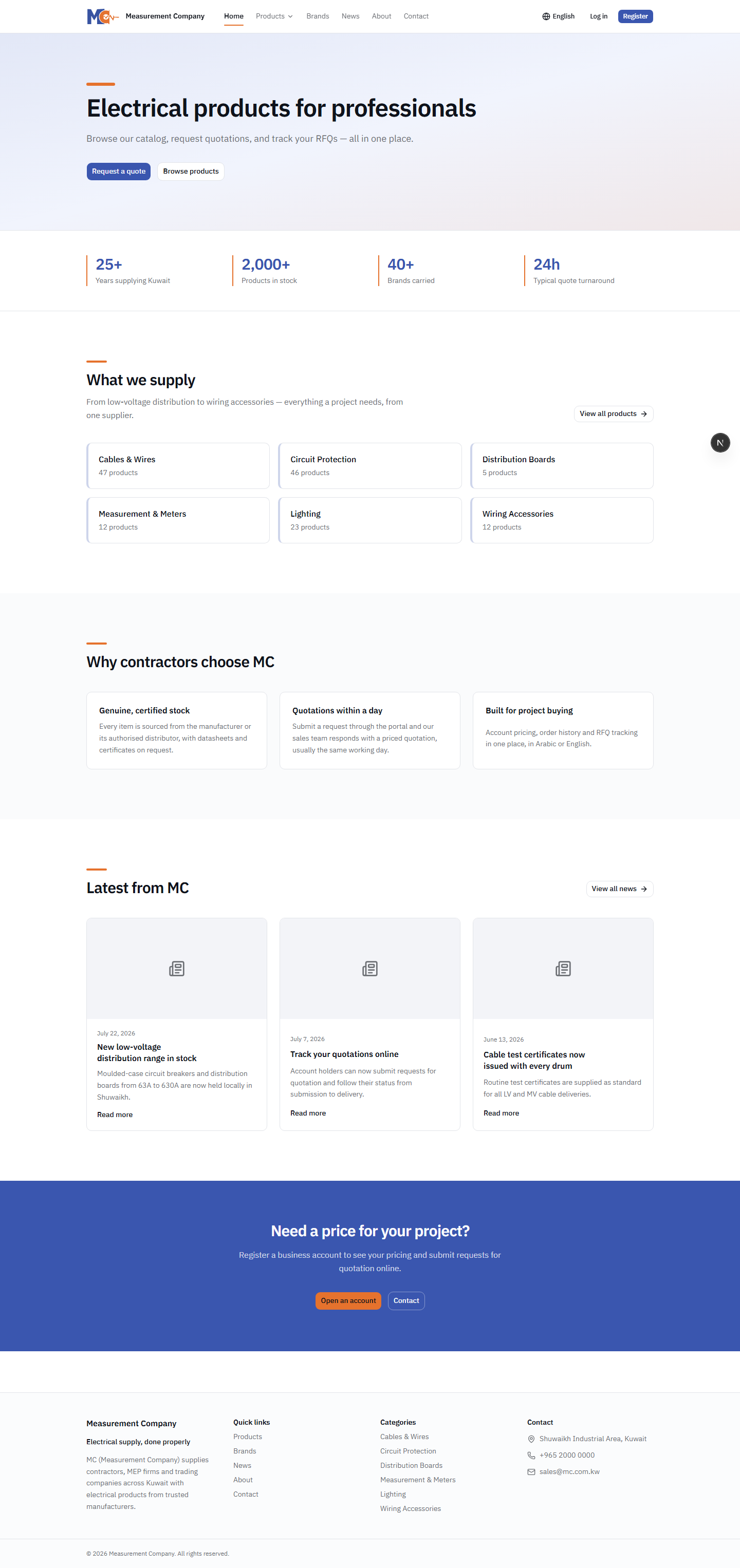
Before logging into the portal, visitors interact with the public-facing mc.com.kw website. This site is designed to be accessible to anyone without requiring an account, showcasing the breadth of MC's offerings.
On the public website, visitors can view:
- The complete range of Products, Brands, and Categories.
- Latest company News and Contact information.
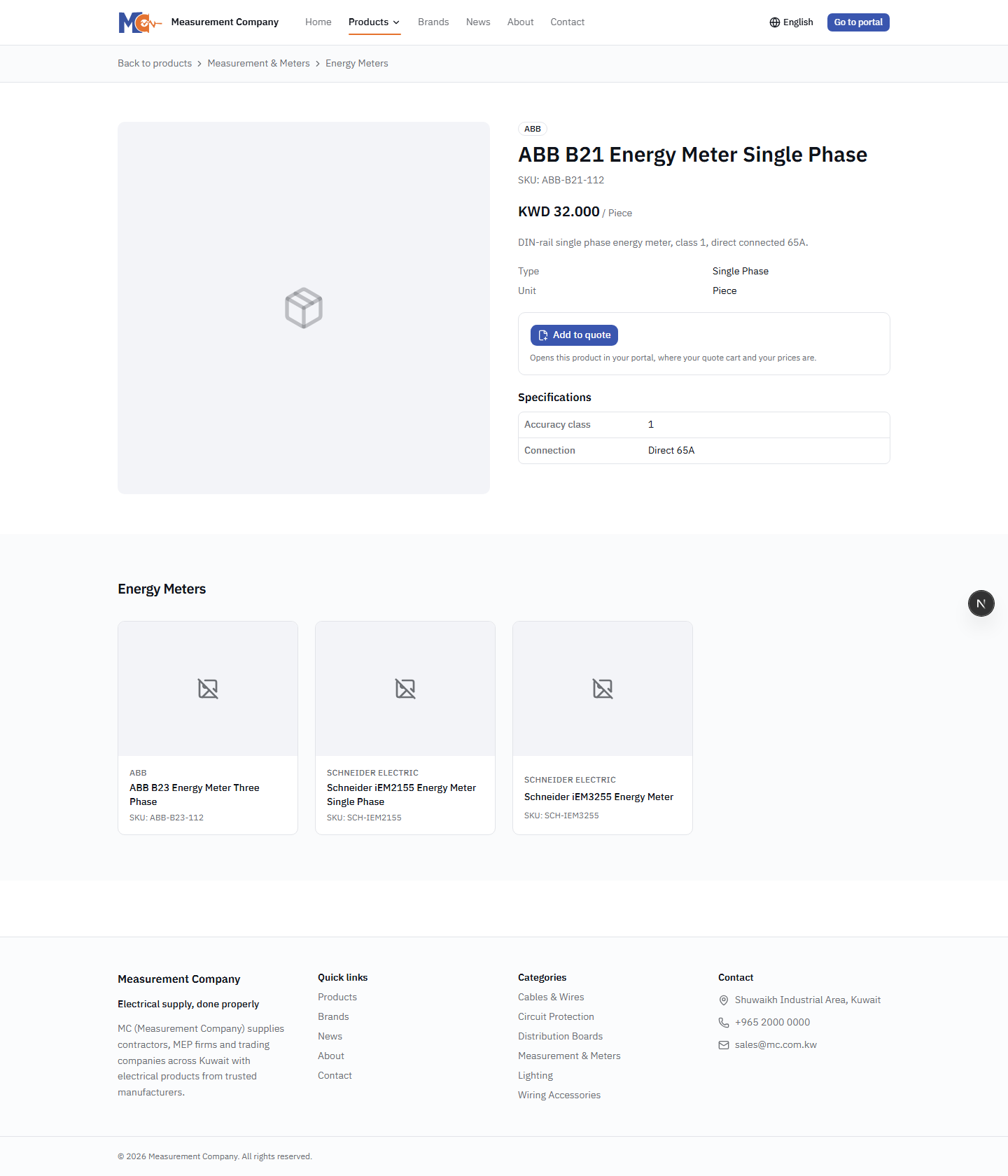
Prices are NEVER shown publicly. The public catalog is for informational and browsing purposes only. To see pricing, users must be logged into an approved client account.
Once you sign in to your approved account, the public catalog transforms into your personalized portal. Product pages will then display YOUR specific negotiated price and an "Add to Quote" button.
To access the portal from the public site, simply click the "Go to portal" button located in the site header.
3. Opening an Account
Becoming an approved client involves a registration and vetting process to ensure you receive the correct pricing and support.
Registration Process
- Navigate to the registration page via the portal login screen.
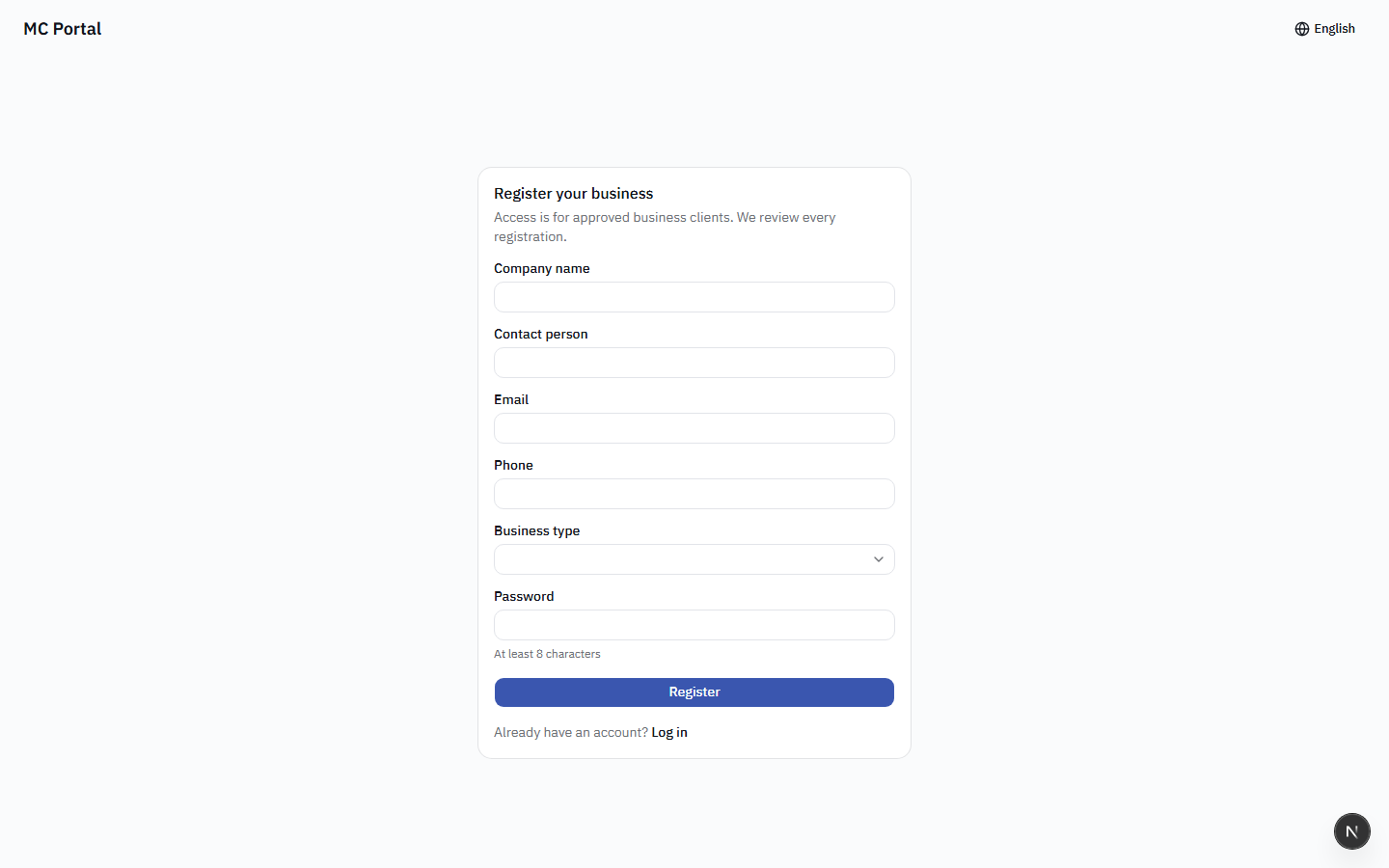
- Fill out the required information in the registration form, which includes:
- Company Name
- Contact Person Full Name
- Email Address
- Phone Number
- Business Type (e.g., Contractor, Retailer)
- Secure Password
- Submit the form. You will see a "Registration received" confirmation screen.
The Approval Cycle
After submission, MC staff manually reviews your application. During this time, logging in will direct you to an "Account pending approval" screen. This is entirely normal and indicates your account is in the review queue.
Upon approval, MC will assign a dedicated Salesman to your account and link your profile to the appropriate customized price list. You will receive an email notification once your account is fully active and ready to use.
In some cases, MC sales representatives may create an account on your behalf. If this happens, you will receive an invitation email containing a link to set your password and activate your account immediately.
4. Signing In
Accessing your personalized portal is straightforward and secure.
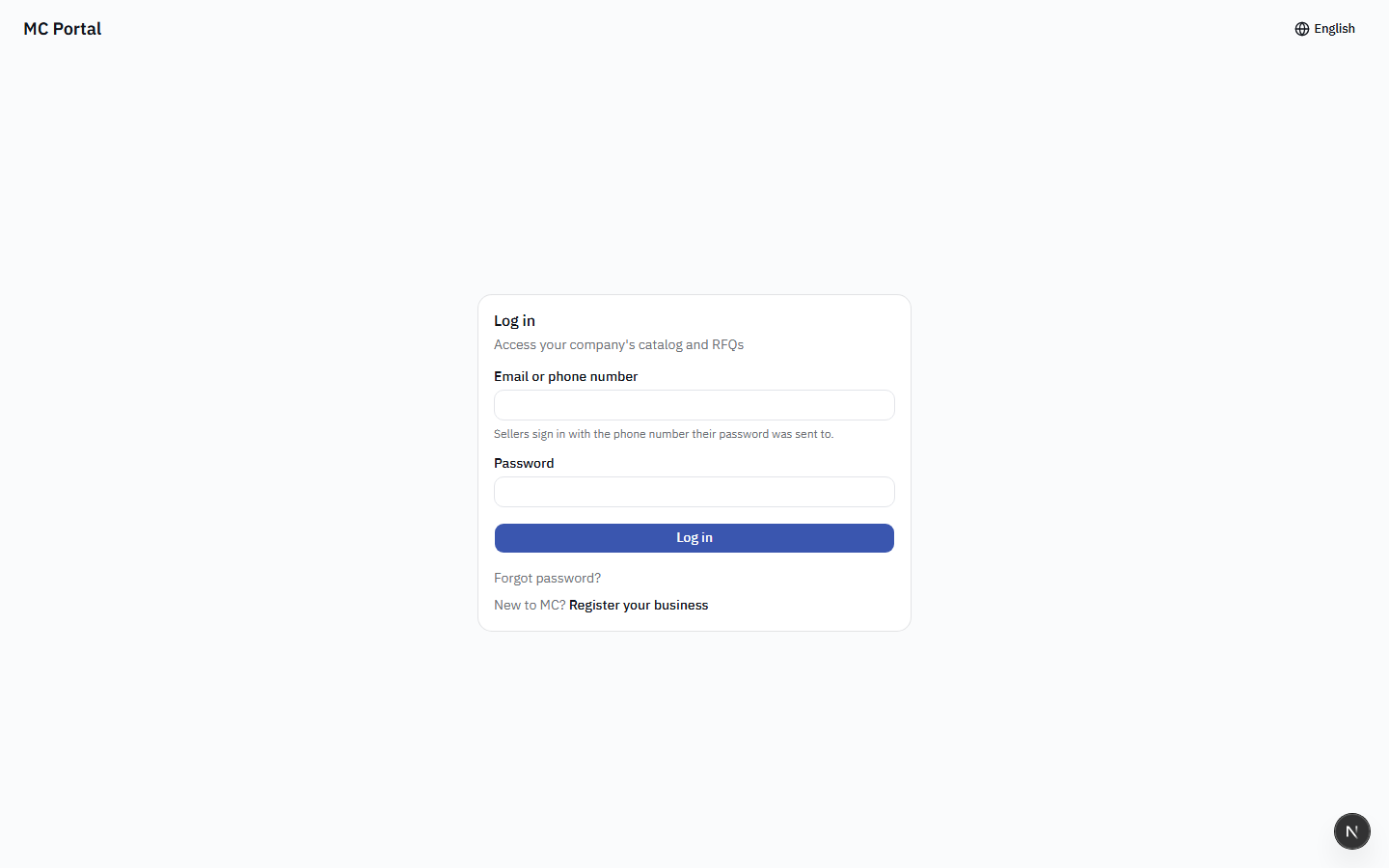
- Credentials: Log in using your registered Email address and Password.
- Password Recovery: If you forget your password, click the "Forgot password" link on the login screen. This will send a secure password reset link to your registered email address.
- Security Feature: To protect your account, too many consecutive failed login attempts will temporarily pause login capabilities. If you encounter this, wait a few minutes before trying again or reset your password.
6. Browsing the Catalog
Finding the right products quickly is a core feature of the portal. The catalog interface provides multiple ways to locate items and understand your pricing.
Search and Filtering
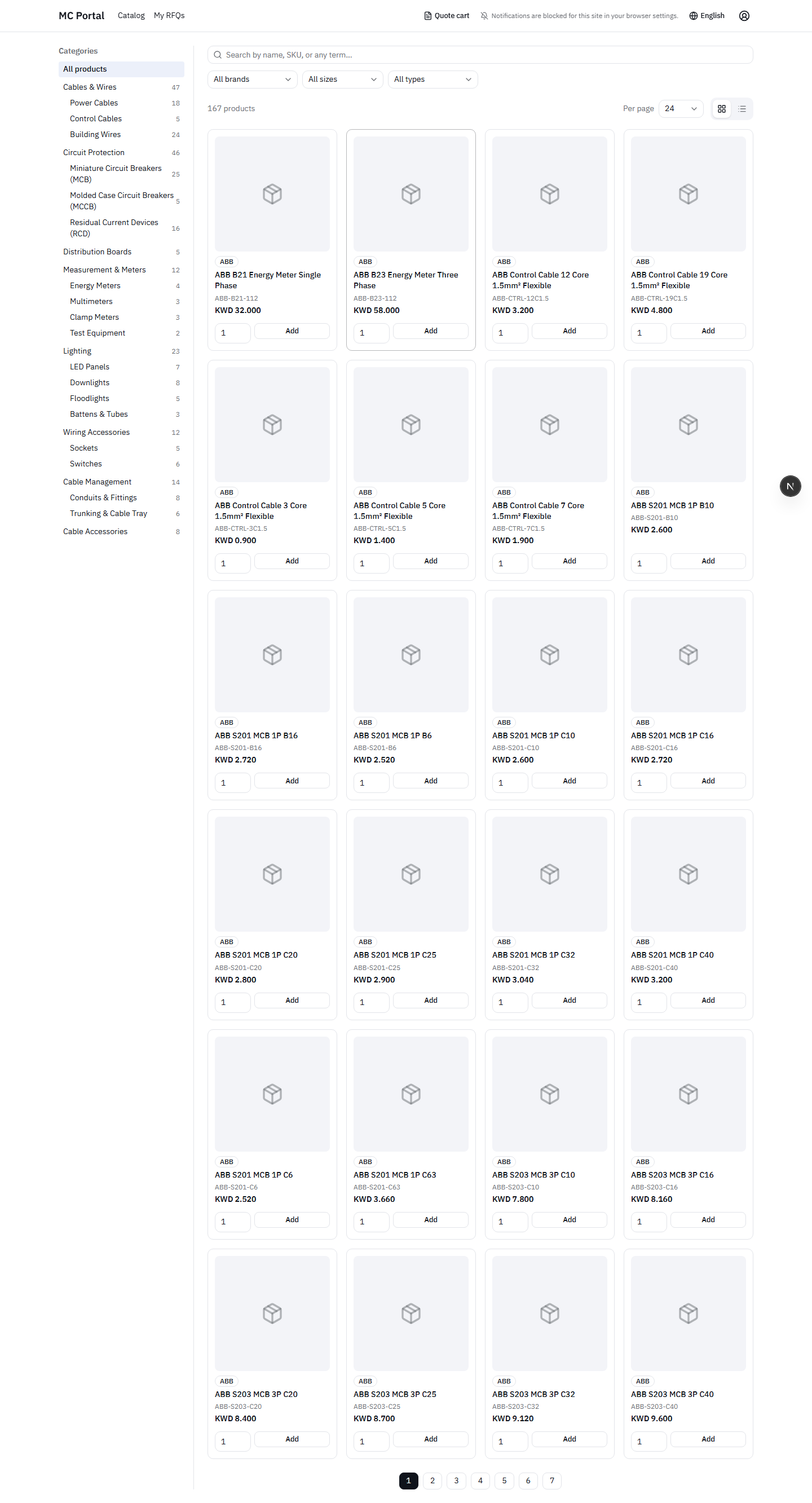
- Global Search: Use the search bar to find products by Name, SKU, or keywords. The search engine fully supports both English and Arabic queries.
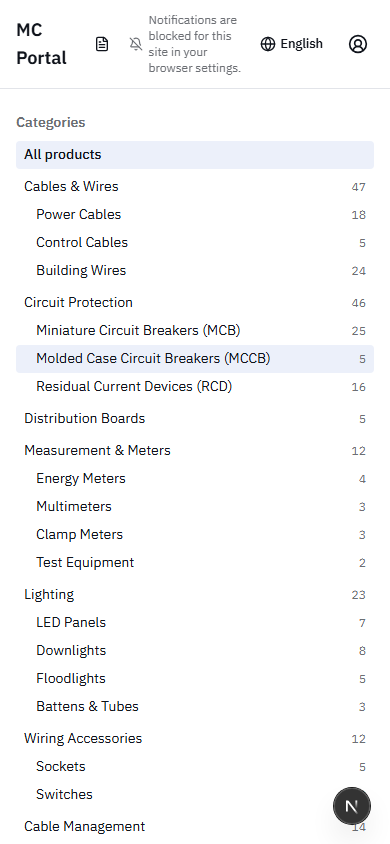
- Categories Sidebar: Navigate through structured product categories. The sidebar displays helpful product counts to indicate how many items are available within each group.
- Advanced Filters: Narrow down search results using dropdown filters for Brand, Size, Type, and other specific attributes.
- Display Options: Toggle between a Grid view (better for images) and a List view (better for reading specifications). You can also adjust the number of items shown per page (12, 24, 48, or 96).
Pricing and Availability
All prices are displayed in Kuwaiti Dinar (KWD) up to three decimal places. Remember, the prices you see are YOUR company's specific prices.
- Price on Request: If an item does not have a pre-set price on your specific price list, it will display "Price on request". You can still add this item to your cart, and MC will provide a price when they issue the formal quotation.
- Inventory Accuracy: Products that are entirely out of stock are automatically hidden from the catalog to save you time.
- Adding Items: Use the quantity selector and click "Add to Quote". If you add the same product again later, it will intelligently update the quantity in your cart rather than creating a duplicate line.
Promotions
MC frequently offers special pricing on select items. The Promotions category is pinned at the top of the category list whenever active offers exist.
- Promotional items display the old price (struck through), the new promotional price, and an end date (or the phrase "While stocks last").
- Note on Company Settings: If your company profile is configured to browse without seeing final prices (a setting controlled by your company admin/MC), promotional items will only show the discount figures (e.g., "Was X, Now Y") without displaying your final calculated unit cost.
7. The Quote Cart
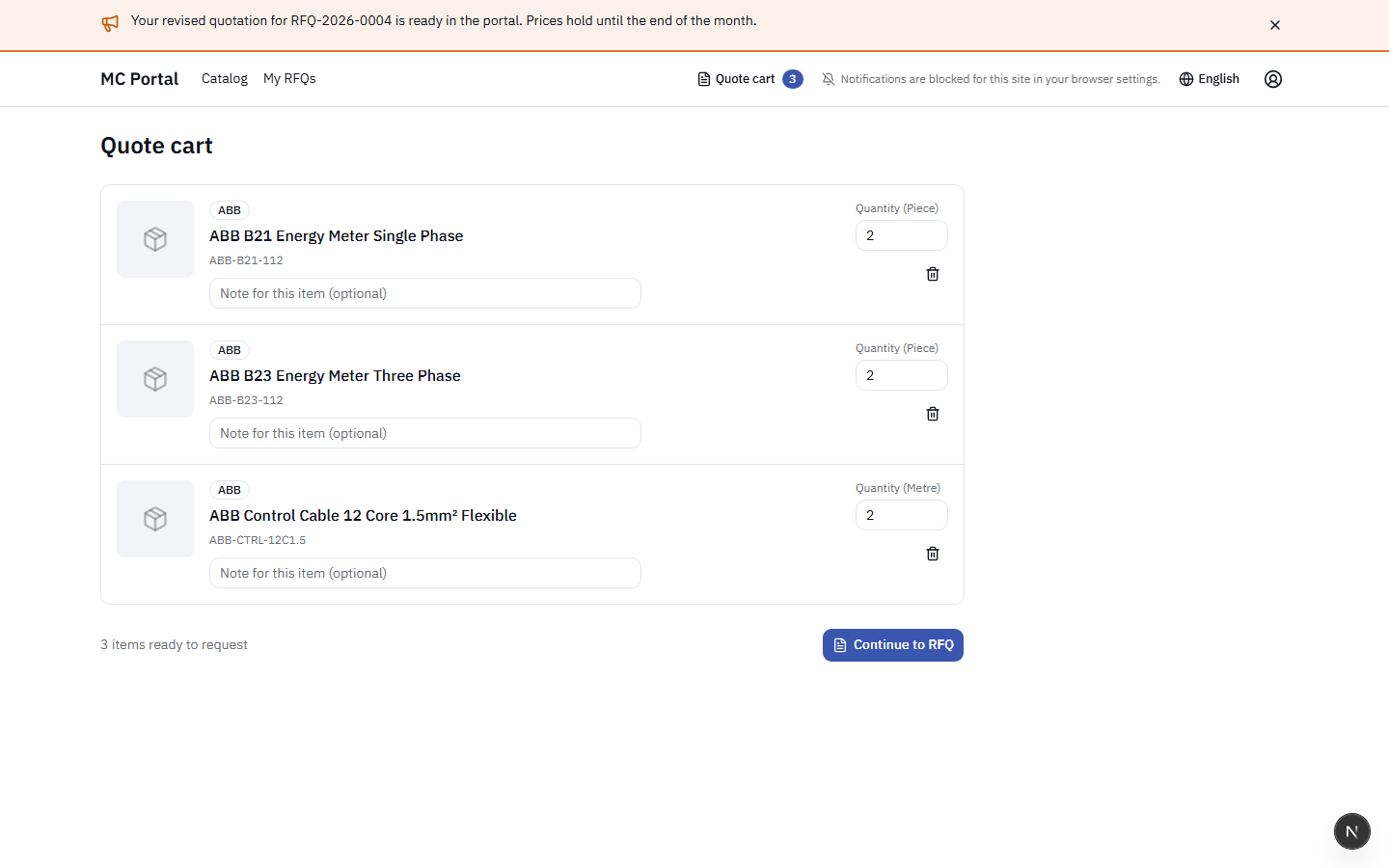
The Quote Cart acts as your working draft. Items here have not yet been sent to MC; you can freely adjust them as you compile your requirements.
Managing Your Cart
- Review Items: Check the list of products you intend to request a quote for.
- Adjust Quantities: Change the quantity directly in the input box. The portal saves your changes automatically as you type.
- Add Notes: You can add specific notes to individual line items (e.g., "Must be 220V variant" or "Need this for Phase 1").
- Remove Items: Click the remove icon to delete a line from your draft.
If you leave items in your cart for an extended period, their status might change. Items that MC has withdrawn will be marked as "No longer available". Items that have gone out of stock will be clearly marked and excluded from the final submission until stock returns.
When you are satisfied with the contents of your cart, click the "Continue to RFQ" button to proceed to the final submission step.
8. Submitting an RFQ
Submitting a Request for Quotation transitions your working draft into a formal inquiry processed by the MC Sales team.
Submission Steps
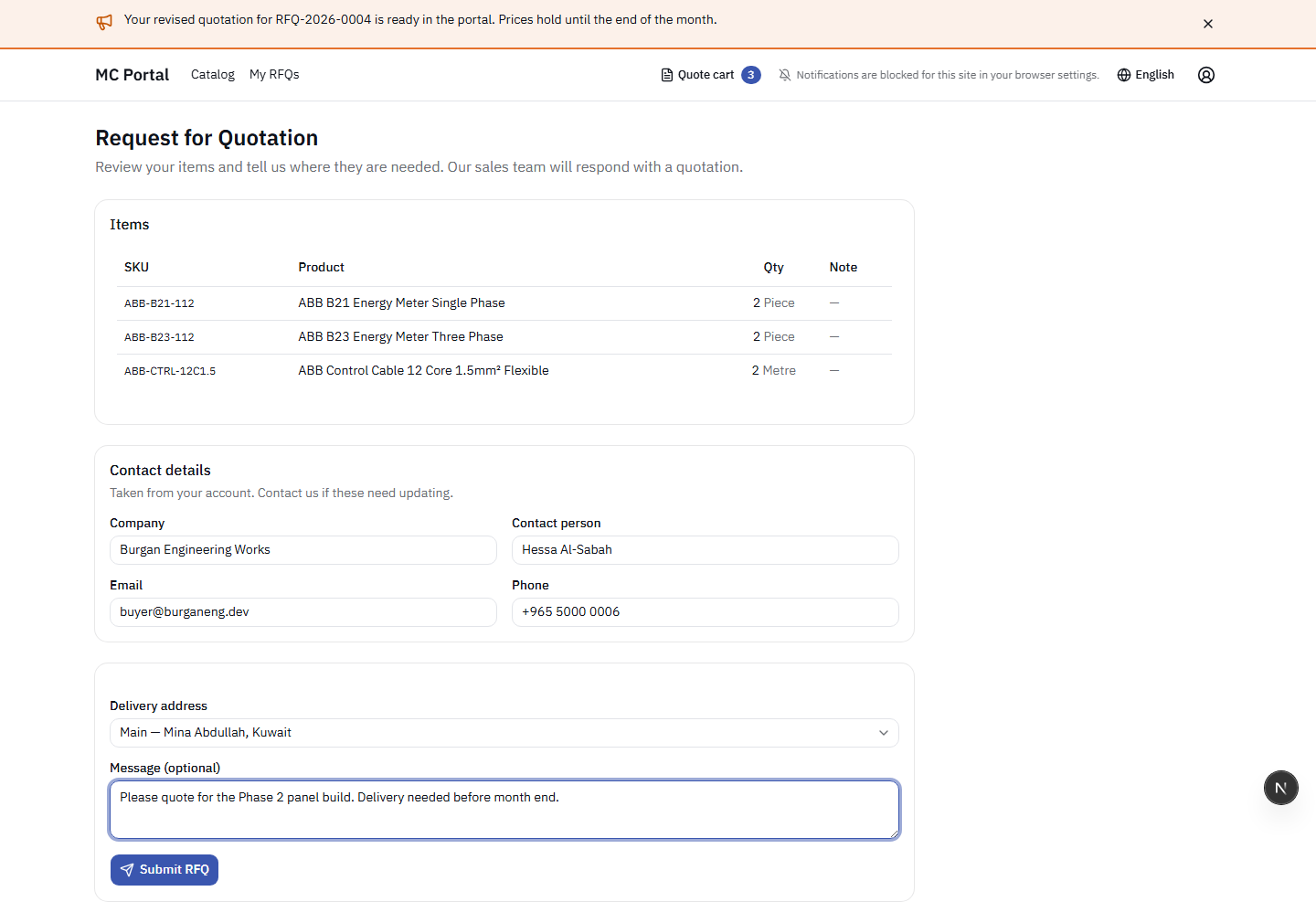
- Items Review: A final summary of the products, quantities, and line notes you are requesting.
- Contact Details: Your account details are automatically populated. Ensure they are correct for the sales team to contact you if needed.
- Delivery Address: Select a delivery location. You can choose from your previously saved addresses or type a one-off address for this specific order.
- Optional Message: Add a general message or overall instructions for the RFQ (e.g., "Urgent delivery required by next Tuesday").
- Submit: Click to finalize.
Upon submission, the system generates a unique Reference Number (e.g., RFQ-2026-0072) and you will receive a confirmation email. Your working cart is then emptied, ready for your next request.
Once submitted, an RFQ cannot be edited by you. If you realize a mistake was made, please contact your MC Sales representative directly, referencing the RFQ number, so they can amend the request on their side before issuing the quote.
9. Tracking RFQs
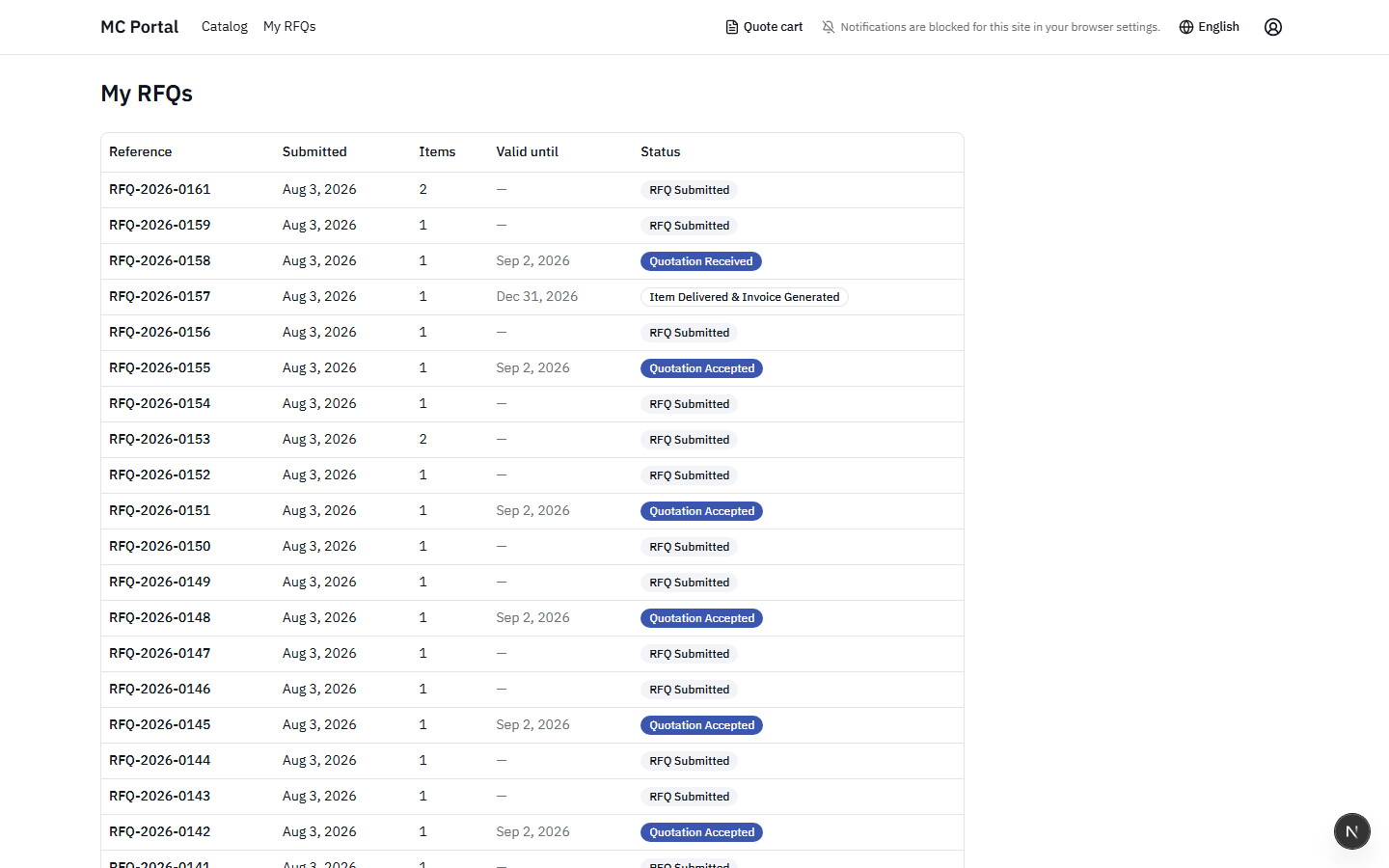
The "My RFQs" section is your command center for tracking all procurement activities. It lists all your requests, displaying the reference number, submission date, total item count, validity period, and current status.
Understanding RFQ Statuses
Every RFQ moves through a specific lifecycle, indicated by its status badge:
| Status | Meaning & Next Steps |
|---|---|
| RFQ Submitted | Your request is currently with the MC Sales team. They are reviewing inventory, calculating final prices (including those marked "Price on request"), and preparing your formal offer. |
| Quotation Received | MC has issued a quotation. It is now waiting for your review and decision. You must either Accept or Reject the offer before it expires. |
| Quotation Accepted | You have accepted the offer. The MC team is currently processing the order and preparing the goods for dispatch. |
| Item Delivered & Invoice Generated | The final step. The physical delivery and financial invoicing occur offline, but the portal updates to this status to maintain a complete historical record. |
| Quotation Rejected | You declined the quotation and provided a reason. The RFQ goes back to your Sales representative, who may revise the offer based on your feedback. |
10. Reading and Answering a Quotation
When an RFQ reaches the "Quotation Received" status, it is time for you to review MC's formal offer.
Reviewing the Document
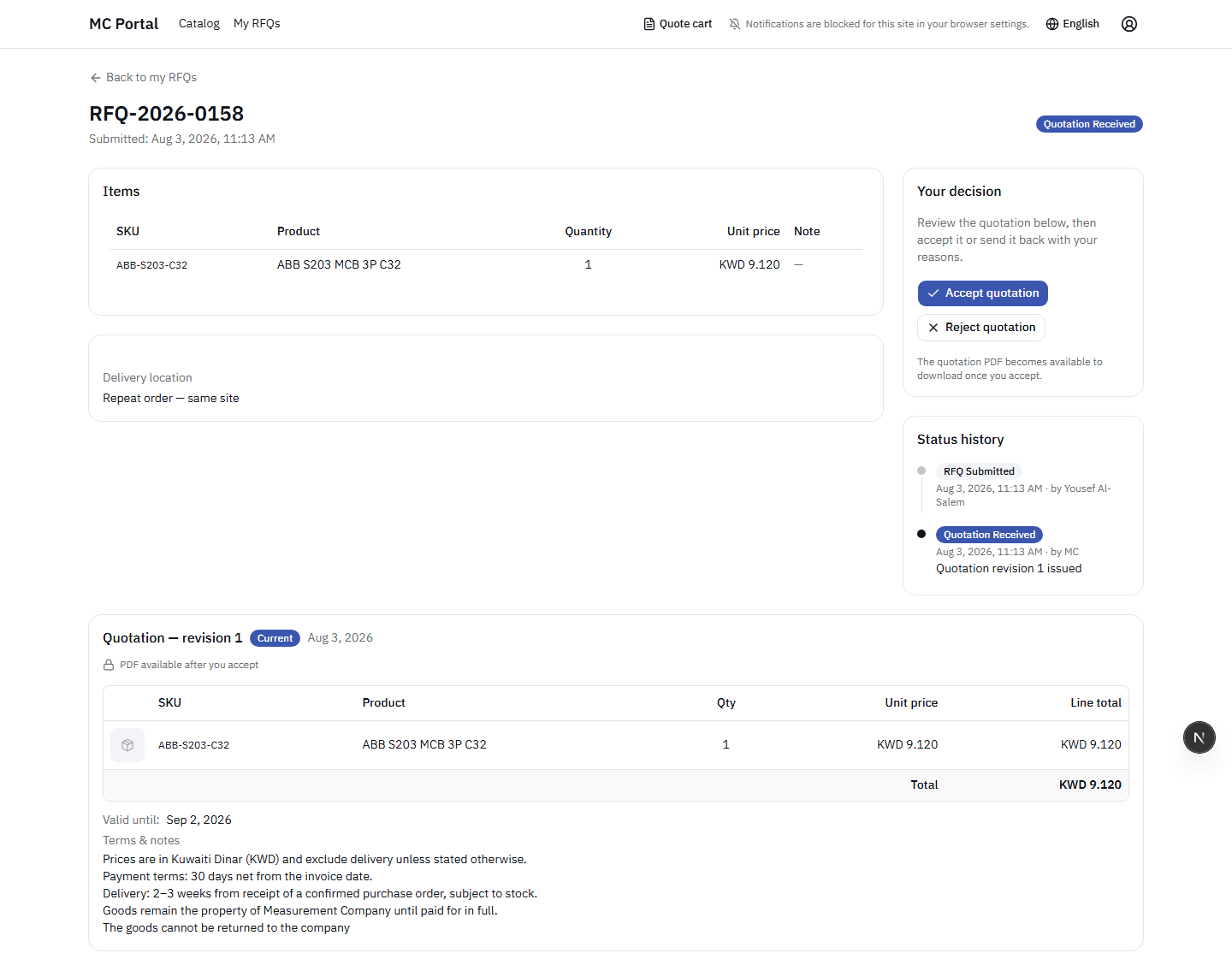
Opening the quotation displays a comprehensive priced table containing:
- Product pictures for visual confirmation.
- Final unit prices and line-item totals.
- Financial summary including Subtotal, any applied Discounts, and the Grand Total.
- Valid Until Date: Crucial. Offers will be auto-withdrawn if not acted upon before this expiry date.
- Delivery Details: Suggested delivery date and specific hour (all times are local Kuwait time).
- Terms & Notes: Important commercial terms and any specific notes the salesman added.
- Supporting Files: Downloadable attachments, such as datasheets, compliance certificates, or official PDF quote documents.
Taking Action
You have two choices upon reviewing the quotation:
- Accepting: Clicking accept legally confirms the offer. An official PDF record of the accepted quote becomes permanently available for download, and the status changes to "Quotation Accepted" so MC can prepare your goods.
- Rejecting: If terms, pricing, or timelines do not meet your requirements, click reject. You will be prompted to provide a required reason. This feedback is sent directly to your salesman to facilitate a revision.
During negotiation, a quotation may undergo several revisions. To prevent confusion, you will only see the current, active revision of the document. However, a history log is available at the bottom of the page showing the timeline of the negotiation.
11. Repeat Orders
For items you purchase regularly, the portal offers a streamlined reordering process to save you time.
Navigate to any previously "Accepted" quotation in your RFQ history and look for the "Reorder these items" button. Clicking this will instantly copy all the lines from that past order into a fresh, empty Quote Cart.
- Smart Filtering: If any products from the old order have been withdrawn or discontinued by MC, the system will intelligently skip them and notify you, rather than causing an error.
- Standard Cycle: Note that reordering does not bypass the quotation process. It simply saves you the effort of finding the items in the catalog again. You still submit the new cart as an RFQ, and MC will quote current pricing and availability.
12. Messages from MC
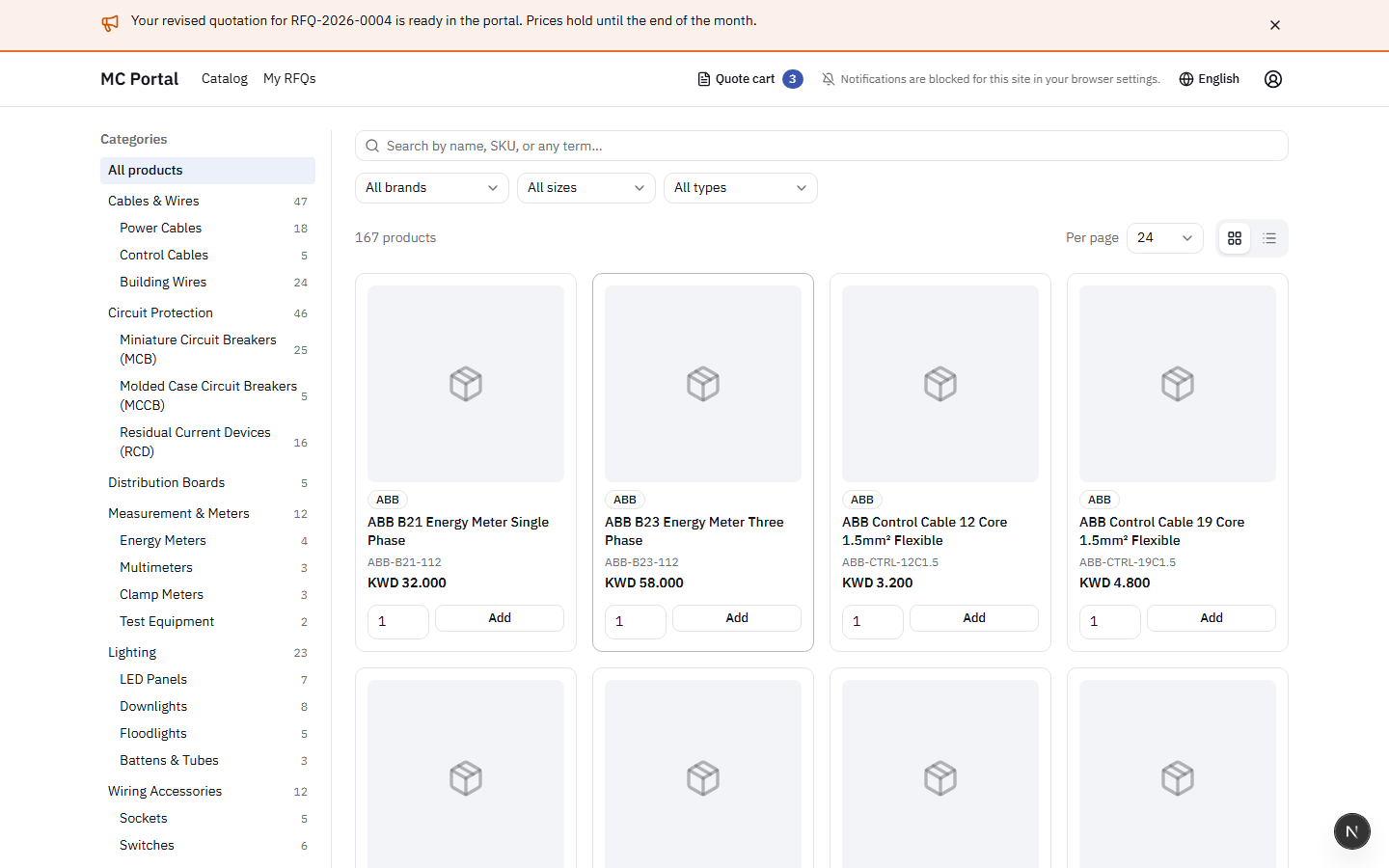
Occasionally, MC administration may need to broadcast important information, such as portal maintenance windows, holiday closure hours, or special company-wide announcements.
- These messages appear as a highly visible banner across the top of the portal interface.
- The banner will remain on your screen as you navigate until you explicitly dismiss it by clicking the '×' close icon.
- To prevent overwhelming users, only one system message is displayed at a time.
- MC administration can see when you have seen and closed the message, ensuring critical information has been successfully communicated.
13. Arabic and English Support
The MC B2B Portal is fully bilingual, catering to user preferences seamlessly.
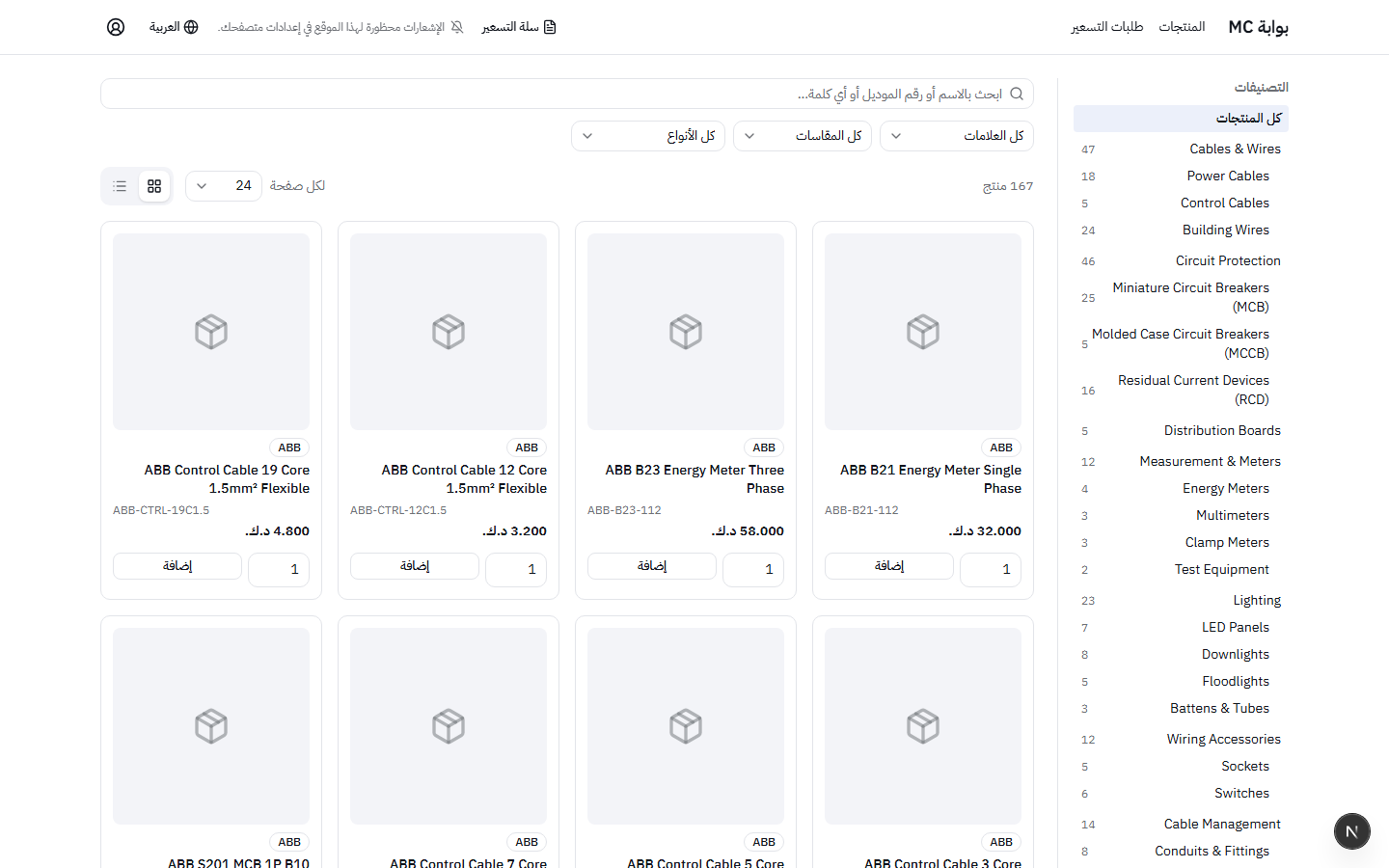
- Language Switcher: Use the language toggle located in the main header to switch between English and Arabic at any time.
- Full RTL Support: When Arabic is selected, the entire interface structure mirrors to provide full Right-to-Left (RTL) reading support, ensuring a native experience.
- Data Translation: Where available in the MC database, product names, category titles, and specifications will translate to Arabic.
- Persistent Preference: The system remembers your language choice for your next login. Furthermore, automated emails (like RFQ confirmations) will follow your chosen interface language preference.
14. Mobile Usage
Procurement doesn't stop when you are away from your desk. The portal is fully responsive and optimized for mobile devices.
- Browser Access: Simply navigate to the portal URL on any modern smartphone browser (Safari, Chrome) for a complete, touch-friendly experience.
- Install as App (PWA): For the best experience, use your browser's "Add to Home Screen" feature. This installs the portal as an app icon on your phone, removing the browser address bar for a fullscreen, app-like feel.
- Push Notifications: To receive instant push alerts on your phone (e.g., when a new quote arrives), you must install it via the "Add to Home Screen" method. Note for iPhone users: iOS strictly requires the app to be added to the home screen before it allows push notifications.
15. Common Questions (FAQ)
If you see a "pending approval" message, this means the MC Sales team is currently reviewing your application and setting up your custom pricing profile. You will receive an email as soon as your account is activated.
First, ensure you are actually signed into the portal, not just viewing the public mc.com.kw site. If you are signed in and still don't see prices, your company administrator or MC may have configured your specific account to browse without viewing financial figures.
This means that a predefined price for that specific item has not been set on your customized price list. You should still add the item to your quote cart and submit the RFQ; your salesman will calculate and provide the correct price when they issue the formal quotation.
If a quotation passes its "Valid Until Date" without you accepting or rejecting it, the offer automatically expires and is withdrawn. It will move to your historical/closed RFQ list. You will need to start a new RFRFQ or ask your salesman to reissue it.
To ensure a smooth ordering process, items that are currently completely out of stock are automatically hidden from the catalog. Check back later or contact your salesman for an ETA on restocking.
While you can type a one-off address during checkout, adding permanent addresses to your company profile must currently be done by your MC Sales representative to ensure logistics routing accuracy. Please contact them.
If your internal procurement process requires a physical/PDF document for management sign-off before you can click Accept on the portal, please message your salesman. They can generate and attach a pre-acceptance PDF to the portal for you to download.
Once accepted, an order immediately enters processing. You must contact your dedicated MC Salesman via phone or direct message immediately to halt the process and amend the order.
To maintain security and ensure they are assigned to your company's correct price list, please ask your MC Sales representative to issue an official invitation email to your colleague.