Admin Role User Guide
Comprehensive documentation for the Measurement Company B2B Portal
1. Overview & Role Description
The Admin role is designed for operations and management staff who oversee the day-to-day activities of the MC B2B Portal. This includes managing the catalog, overseeing clients, processing RFQs, setting prices, and updating website content.
What Admins Can Do
- Manage the complete product catalog (Products, Categories, Brands)
- Oversee all clients and RFQs across the portal
- Approve new client registrations
- Update prices and manage price lists
- Update general website content (Pages, News)
- Perform bulk data imports
What Admins CANNOT Do
- Manage seller or staff accounts
- Approve discount requests exceeding limits
- Access system reports
- Edit site-wide SEO, header, or footer
- Access the email manager
- View system event logs
- Reassign clients to different sellers after creation
Login Information
Admins access the backend panel via the standard staff login page using their assigned email address and password. Multi-factor authentication is required if configured by the Super Admin.
2. Dashboard
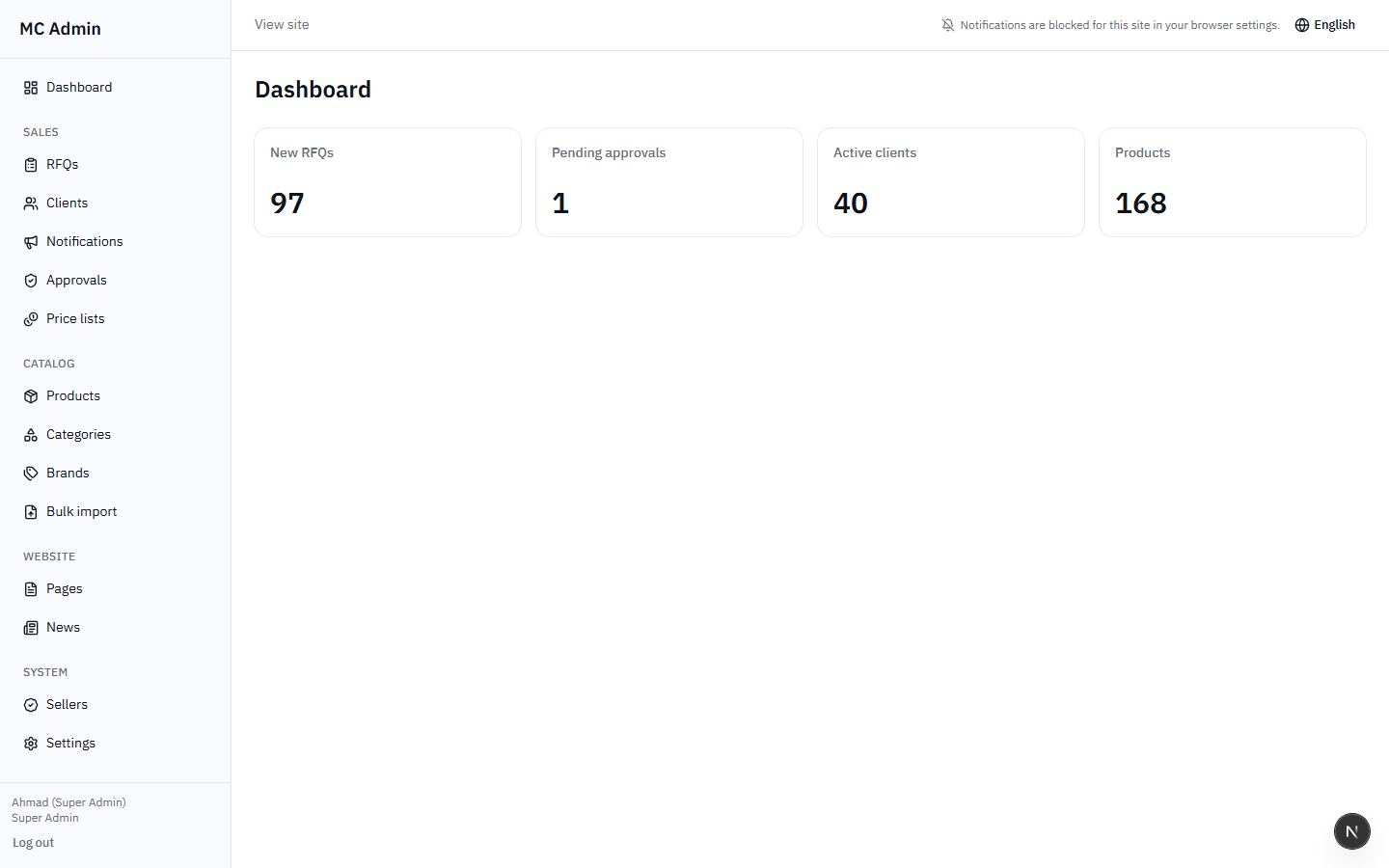
Upon logging in, the Admin is presented with the Dashboard. This provides a high-level overview of the portal's current activity across all sellers and clients.
The dashboard contains four primary metric tiles:
- New RFQs: The total number of Request for Quotations awaiting initial processing.
- Pending Approvals: Number of client registrations waiting to be reviewed and approved.
- Active Clients: Total number of active clients registered on the portal.
- Products: The total number of active products in the catalog.
Data Scope
Unlike Sellers who only see data related to their assigned clients, Admins see global data across the entire portal in their dashboard.
3. Panel Layout
The Admin backend panel is organized into logical groups in the left sidebar to facilitate easy navigation.
| Sidebar Group | Visible Menu Items | Description |
|---|---|---|
| General | Dashboard | Main overview and statistics |
| Sales | RFQs, Clients, Notifications | Manage quotations, customers, and communications |
| Catalog | Price Lists, Products, Categories, Brands, Bulk Import | Manage inventory, structure, pricing, and bulk data |
| Website | Pages, News | Manage content pages and announcements |
| System | Settings | Configure notification emails and quotation terms |
Restricted Sections
The following menu items are explicitly hidden from the Admin interface: Discount Approvals, Reports, Sellers, Staff, Email, and Logs. These are reserved exclusively for the Super Admin role.
4. Client Management
Admins have comprehensive oversight of all clients registered on the portal, regardless of which seller they are assigned to.
Client List View
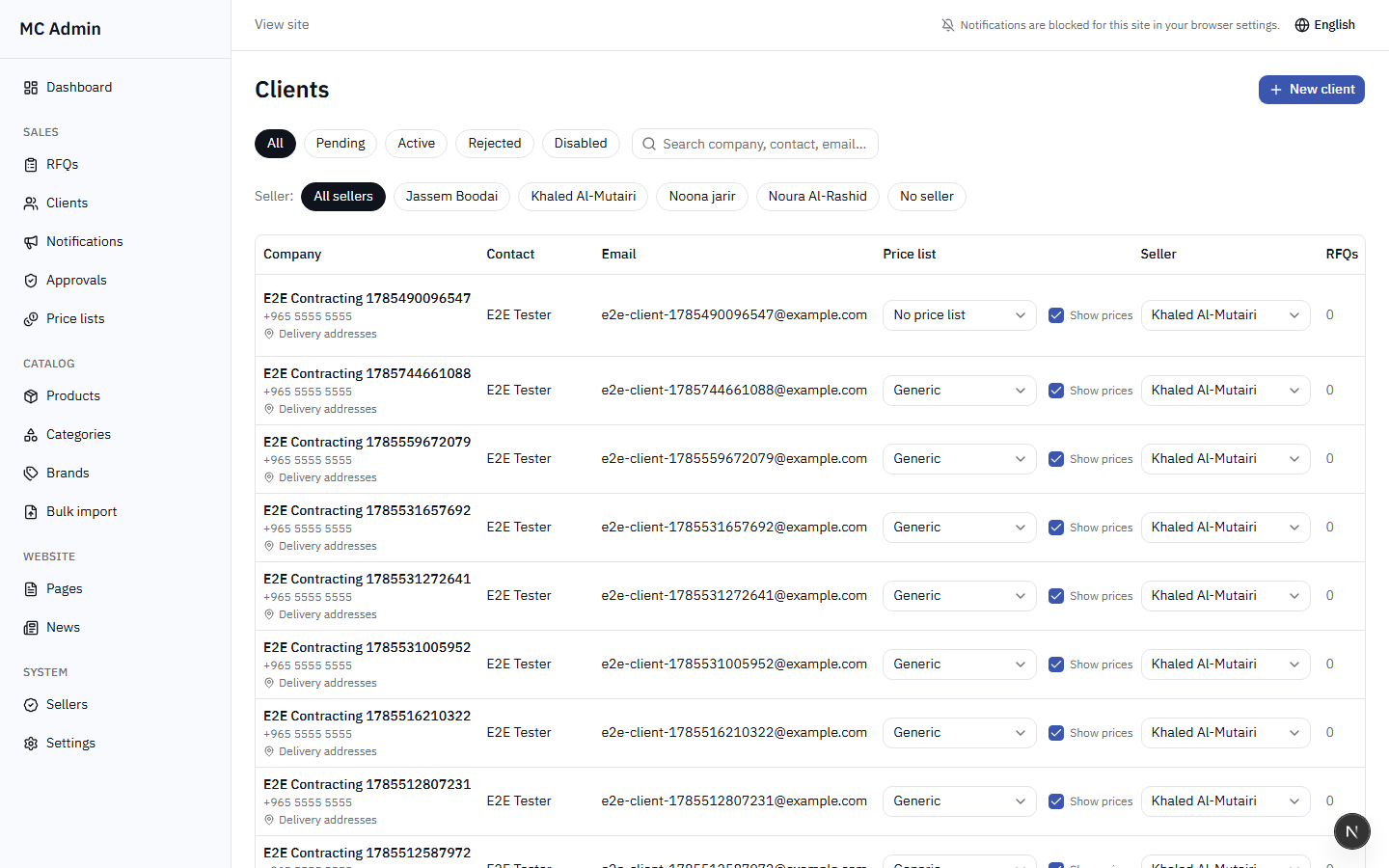
The client management screen is divided into tabs for easy filtering:
- All: Complete list of clients in the system.
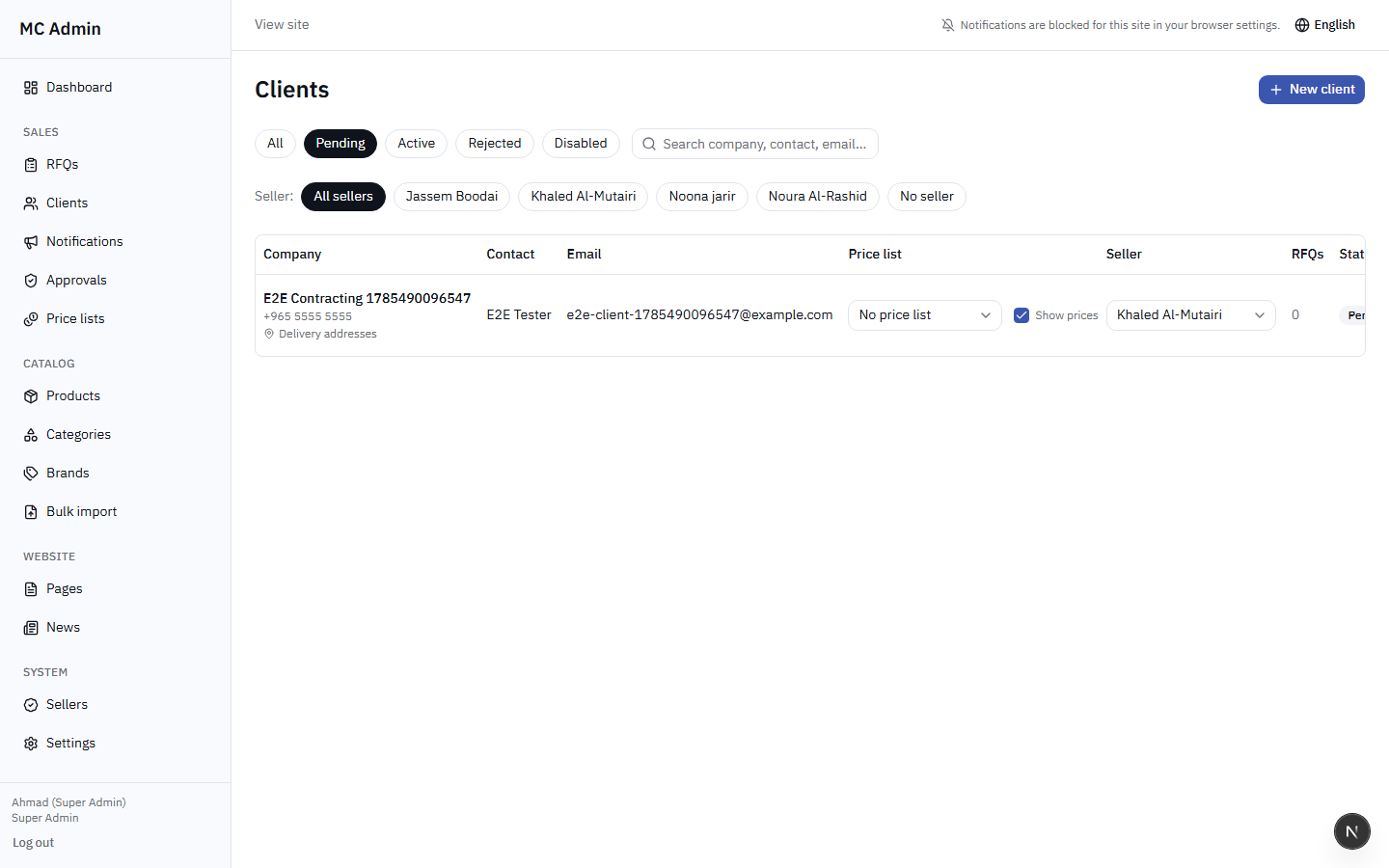
- Pending: Clients who registered via the frontend but have not yet been approved.
- Active: Approved clients currently able to log in and request quotes.
- Rejected: Applications that were denied.
- Disabled: Previously active accounts that have been suspended.
Admins can also use the Seller Filter dropdown to view only clients assigned to a specific salesperson.
Approving Client Registrations
When a company registers via the frontend, they land in the "Pending" tab. To approve them, an Admin must:
- Review their company details and submitted documentation.
- Assign a specific Seller to manage the account.
- Input their ERP Code to link them to the backend accounting system.
- Click "Approve". An email will automatically be sent to the client with their login credentials.
Managing Client Details
Once a client is active, Admins can manage various aspects of their account:
- Price Lists: Change which price list applies to the client.
- Show Prices Toggle: Enable or disable the client's ability to see prices before requesting a quote.
- Status Toggle: Deactivate or reactivate an account.
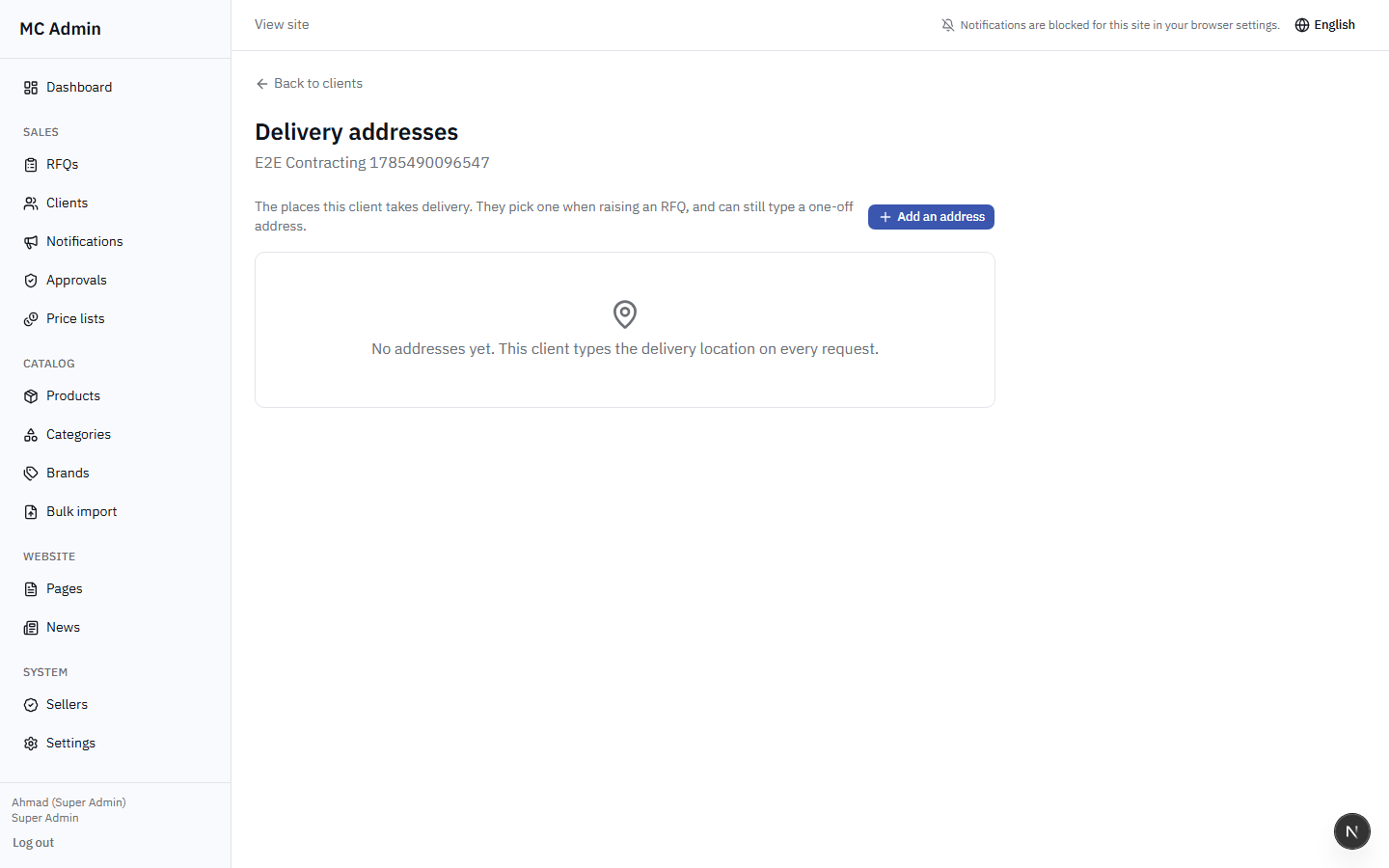
- Delivery Addresses: Add, edit, or remove authorized delivery addresses for the client.
- Financial Info: View outstanding balances synced from the ERP.
Important Restriction: Seller Reassignment
While Admins assign a seller during the initial approval process, they CANNOT reassign a client to a different seller later. If an active client needs to be moved to a different salesperson's portfolio, a Super Admin must perform this action.
5. RFQ Management
Admins can view and process any Request for Quotation (RFQ) in the system, acting as a backup or oversight to the sales team.
RFQ Listing & Filtering
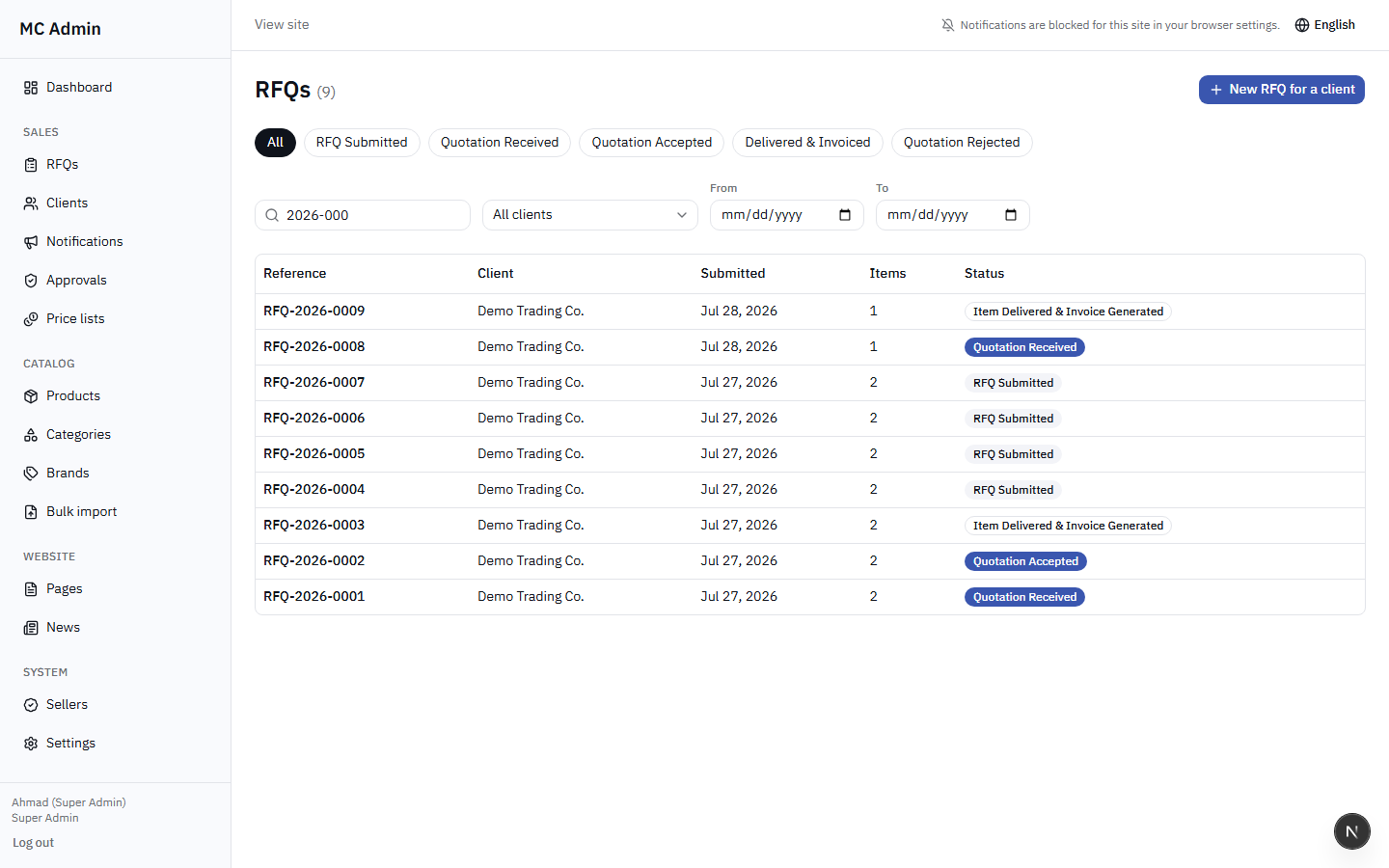
The RFQ list displays all requests across the portal. Admins can filter this list by:
- Status (New, In Progress, Quoted, Accepted, Rejected, Expired)
- Client Name
- Date Range
- Search by RFQ ID or product reference
RFQ Workspace
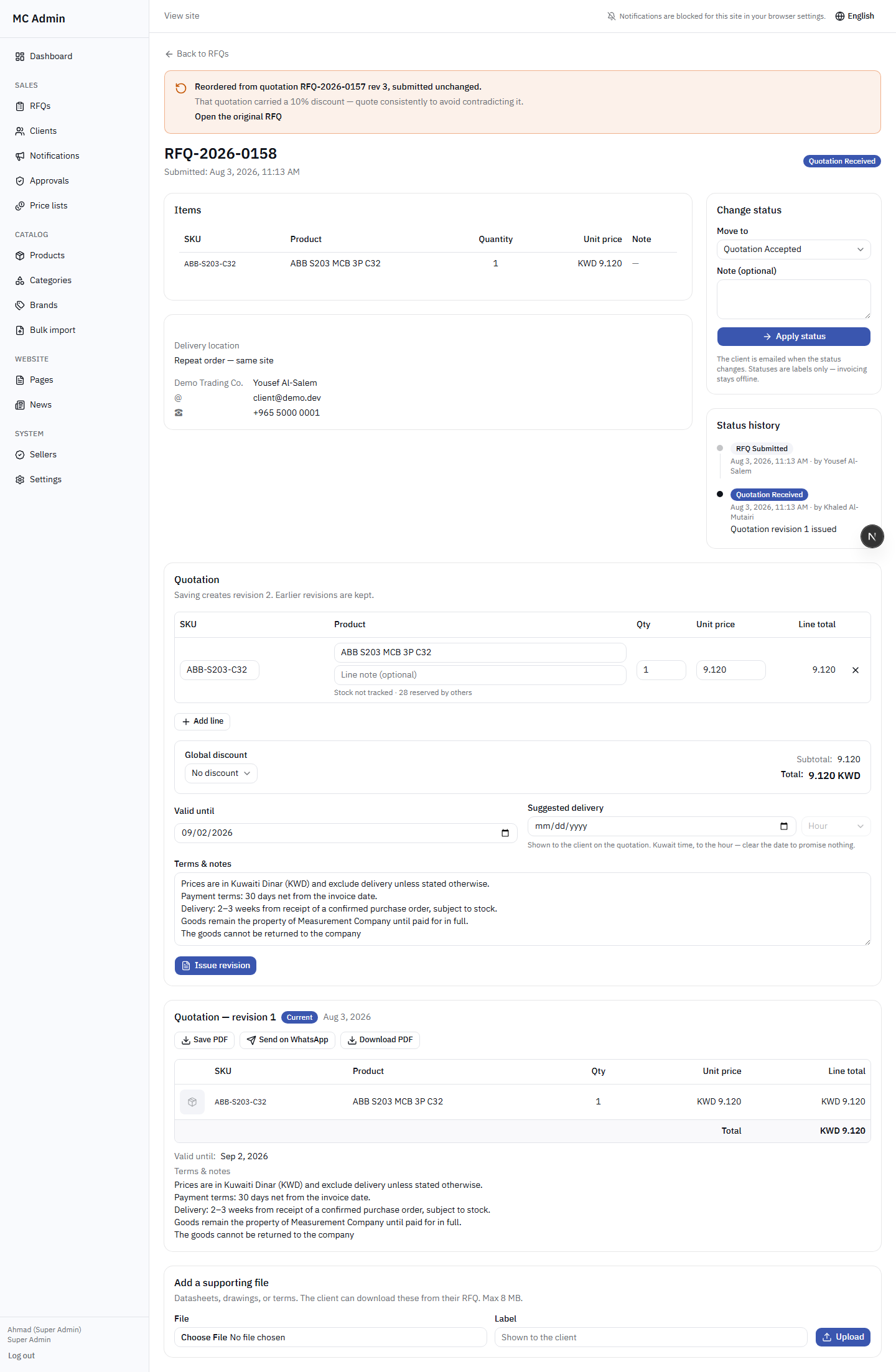
Clicking into an RFQ opens the workspace where Admins can:
- View requested products and quantities.
- Change the RFQ status manually if required.
- Add internal notes or files.
- Generate the formal quotation (see Quotation Builder).
Creating RFQs Internally
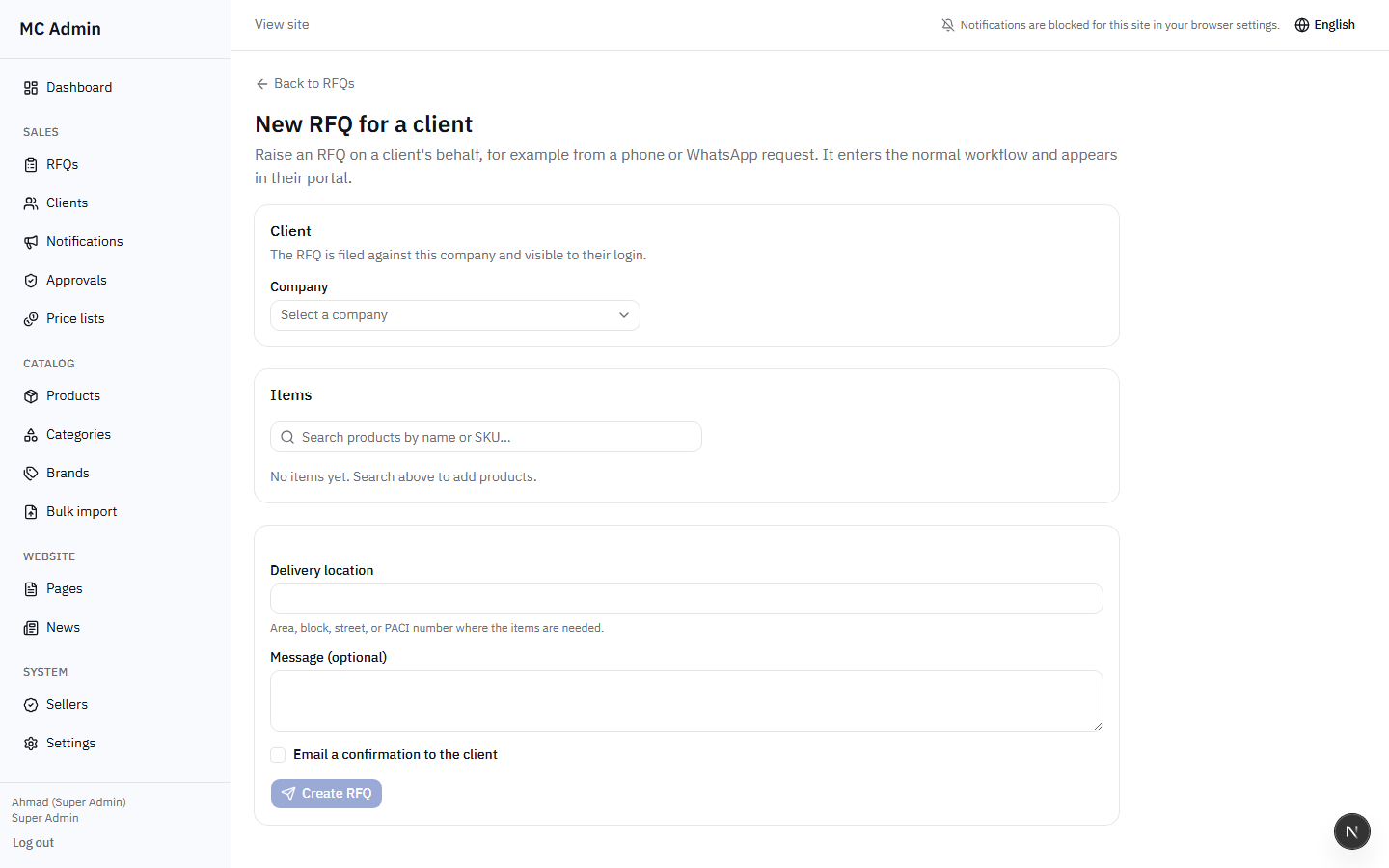
Admins can create an RFQ on behalf of a client who perhaps called or emailed their request:
- Navigate to RFQs and click "New RFQ".
- Select the target Client.
- Search and add products to the request.
- Adjust requested quantities.
- Submit. It will now appear in the system as if the client had submitted it.
Admins also have the ability to click "Reorder" on previously accepted quotations to instantly generate a new identical RFQ.
6. Quotation Builder
The Quotation Builder is where an RFQ is converted into an official quote with pricing, discounts, and terms.
Admin Pricing Capabilities
Unrestricted Pricing Power
Unlike Sellers who are bound by discount limits and cannot edit base unit prices, Admins have full pricing authority.
- Admins CAN edit the unit price directly.
- Admins CAN apply any discount percentage without requiring approval.
Building the Quote
- Open an RFQ and enter the builder.
- Review the current stock info visible inline.
- Adjust prices, apply discounts, or update quantities as needed.
- Set the "Valid Until" date and "Suggested Delivery" timeline.
- Select or modify the terms and conditions.
Two-Step Issuing Process
Sending a quote follows a two-step process to prevent accidental sending:
- Click Save Draft to finalize the numbers without notifying the client.
- Click Issue Quotation to finalize it. This changes the status to "Quoted" and notifies the client via email and push notification.
Once issued, the Admin can download the PDF version or use the built-in WhatsApp sharing button to send the link directly to the client's phone.
7. Client Notifications
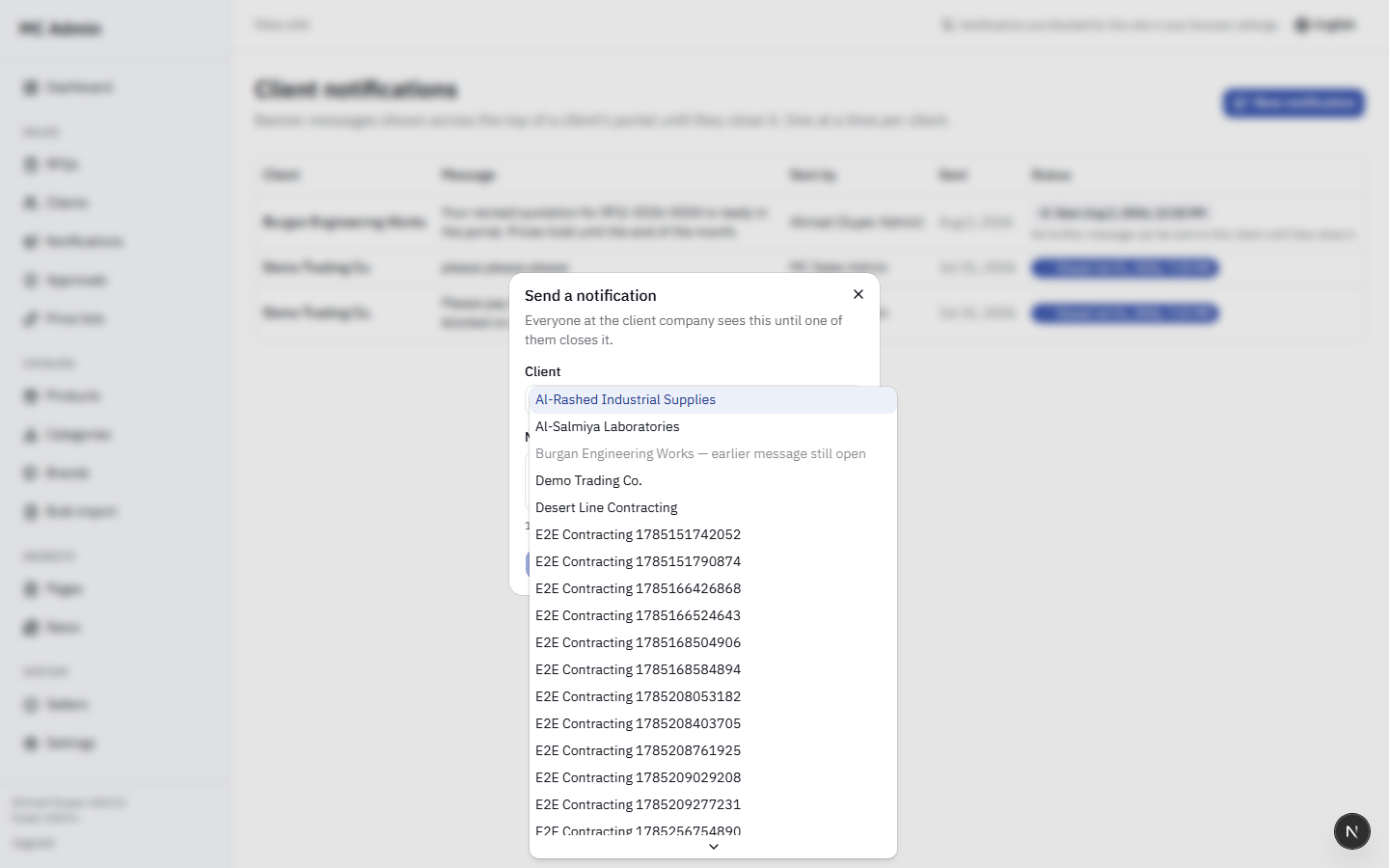
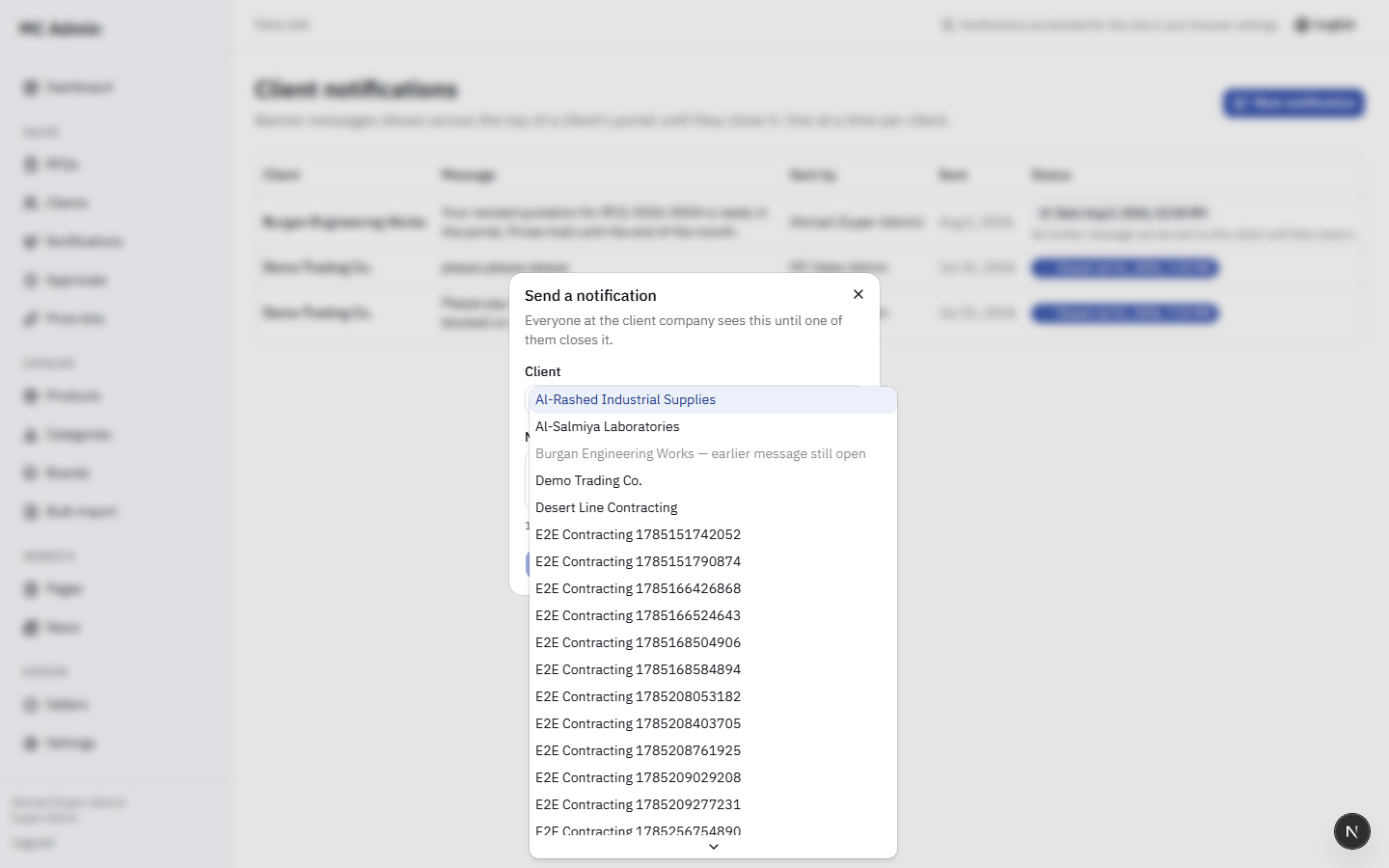
This feature allows Admins to place temporary alerts or announcements at the top of the client portal.
Rules for Notifications:
- Admins can broadcast a notification to ALL clients simultaneously.
- Only one notification can be active per client at any given time.
- Clients must click the "X" to dismiss the notification, allowing the portal to track read receipts.
8. Price Lists
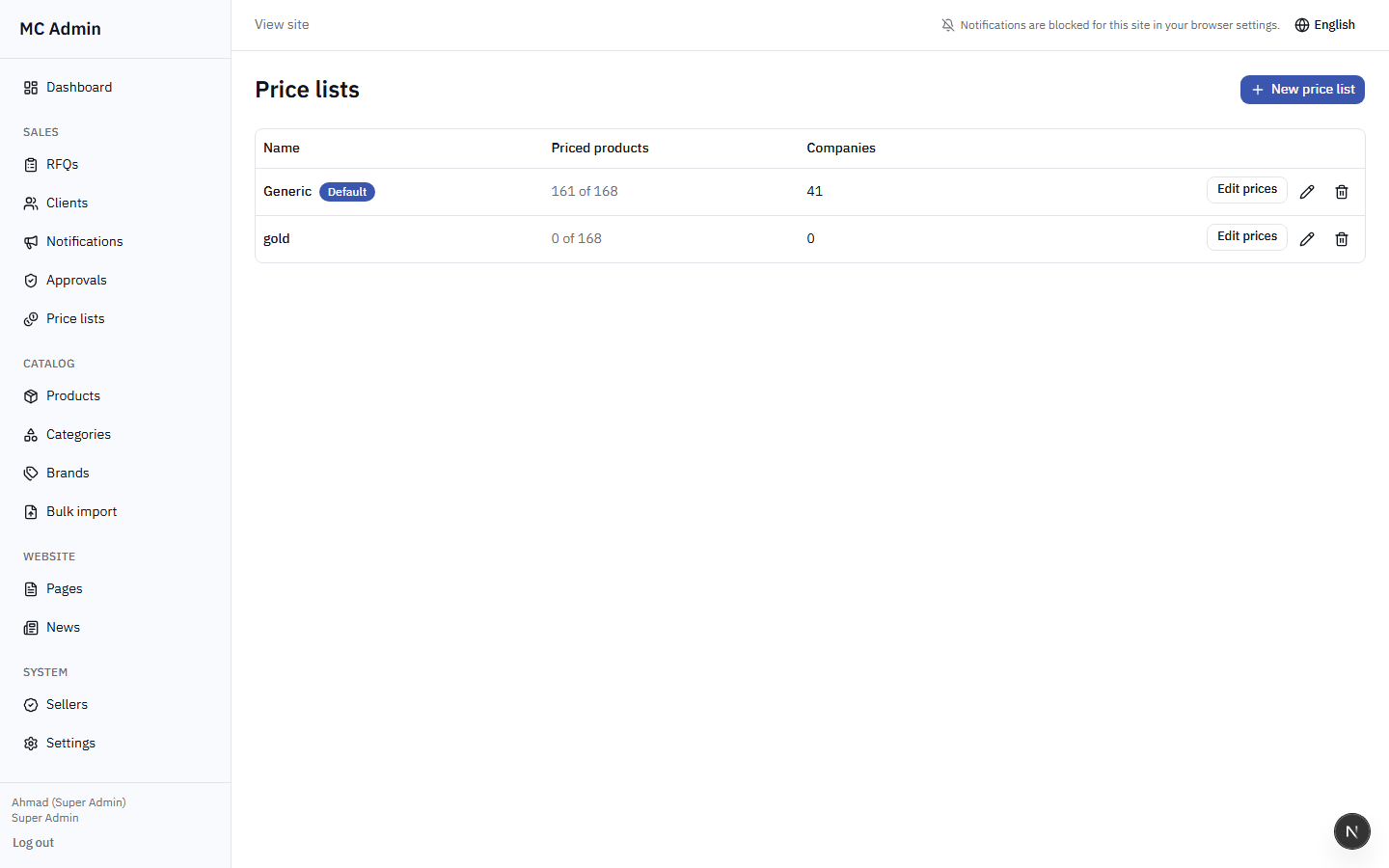
Price Lists dictate the base pricing clients see before any specific quote discounts are applied. Admins have full control over these lists.
Managing Price Lists
- Create/Edit/Delete: Admins can manage the structure of price lists.
- Default List: Specify which list applies to new clients automatically.
- Promotions: Admins can configure time-bound promotional prices on specific lists.
Updating Prices
Prices can be updated in two ways:
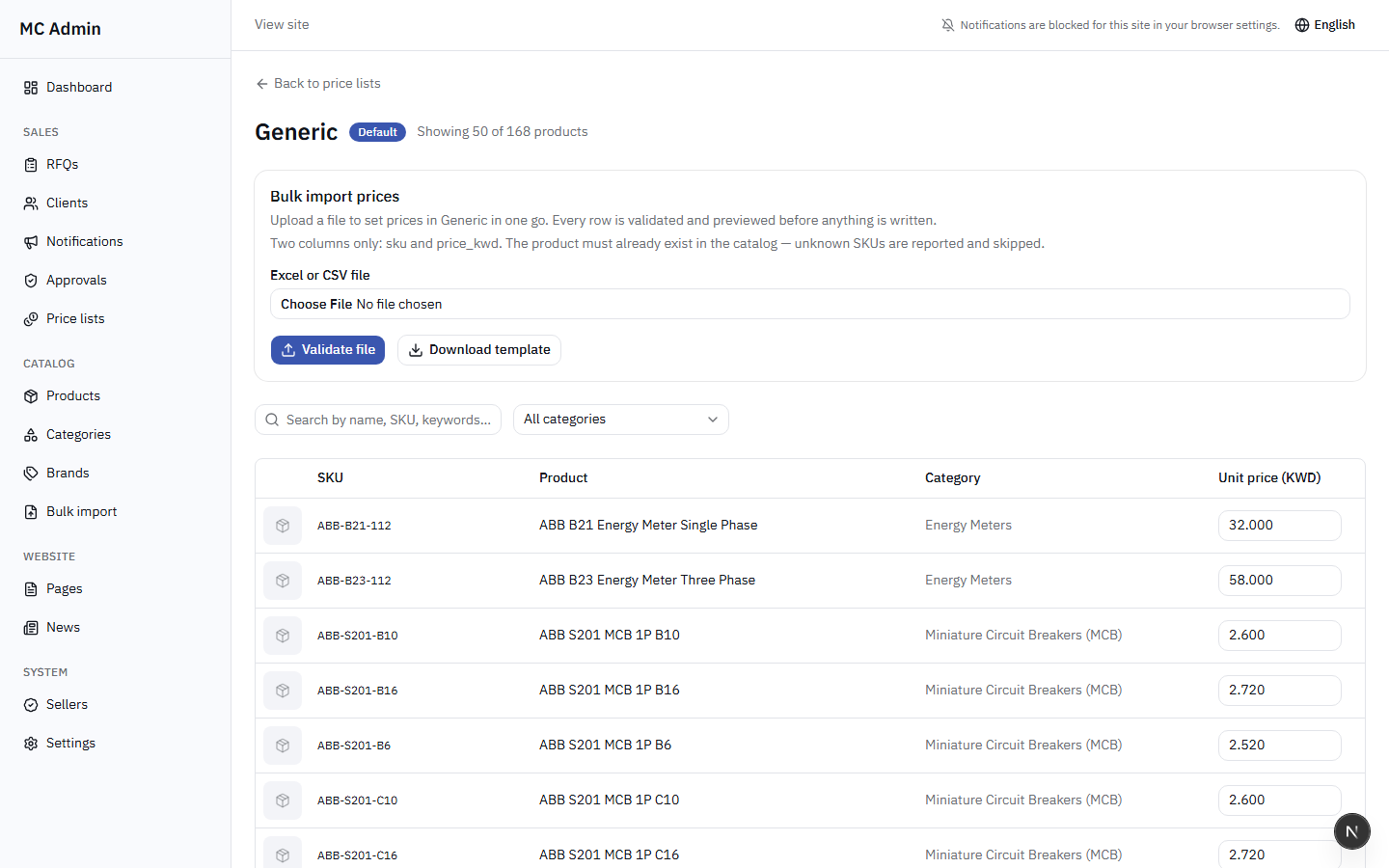
- Inline Editing: Clicking into a price list allows for quick, individual price adjustments on the fly.
- Bulk Import: For large updates, Admins can download a CSV template, modify prices in Excel, and upload the new sheet via the Bulk Import tool.
9. Catalog Management
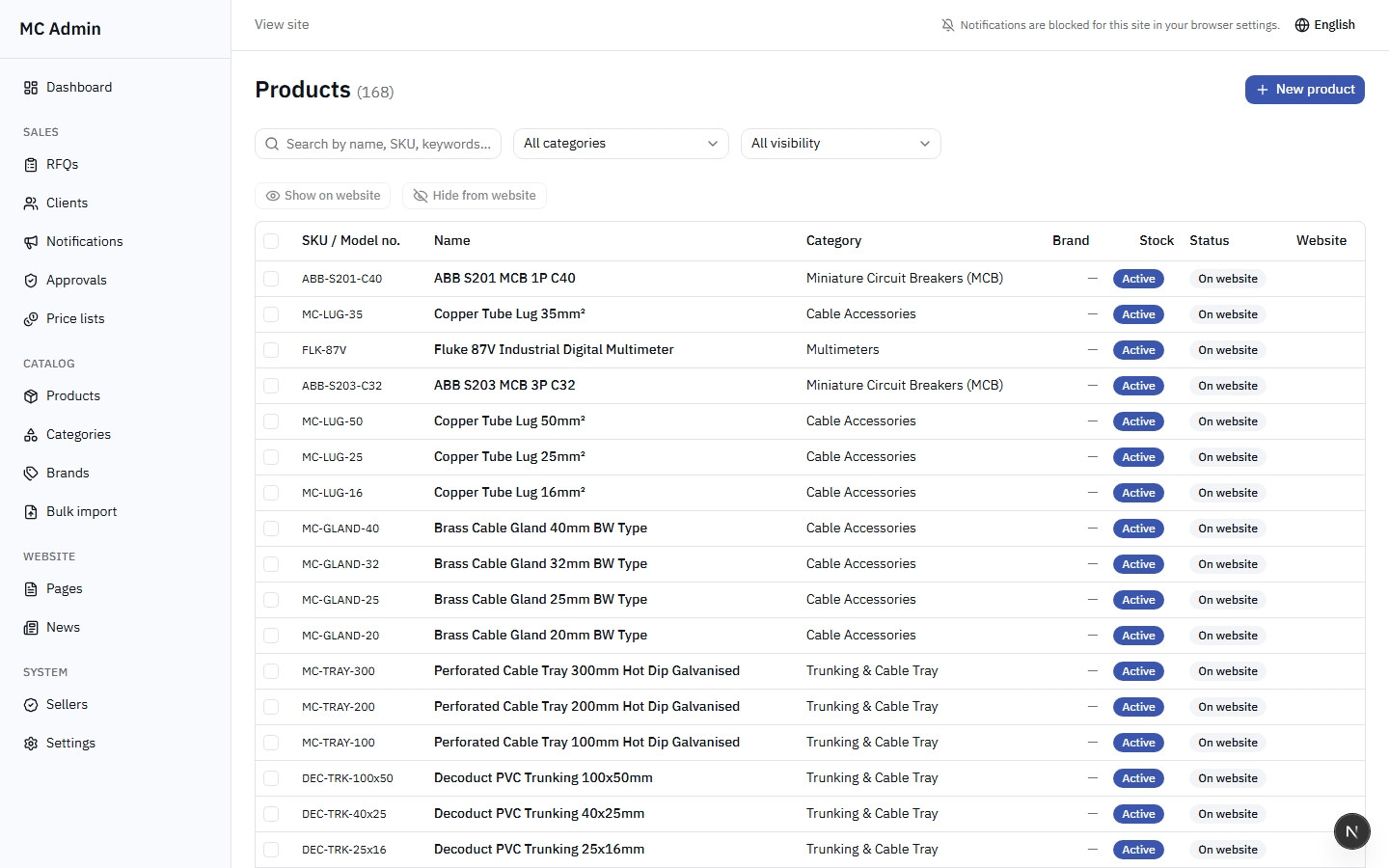
Maintaining an accurate and well-organized product catalog is a primary responsibility of the Admin role. The catalog consists of Products, Categories, and Brands.
Brands & Categories
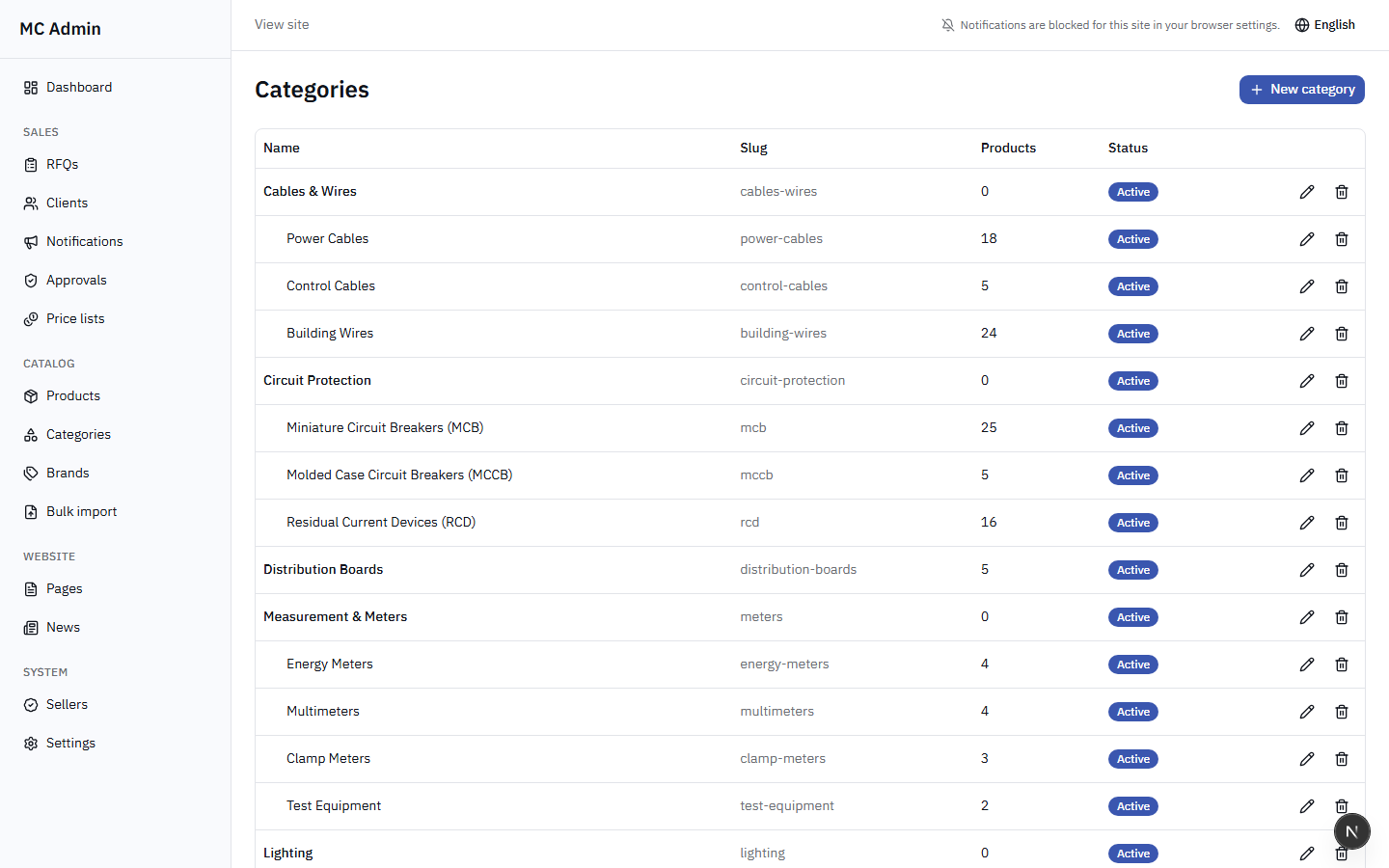
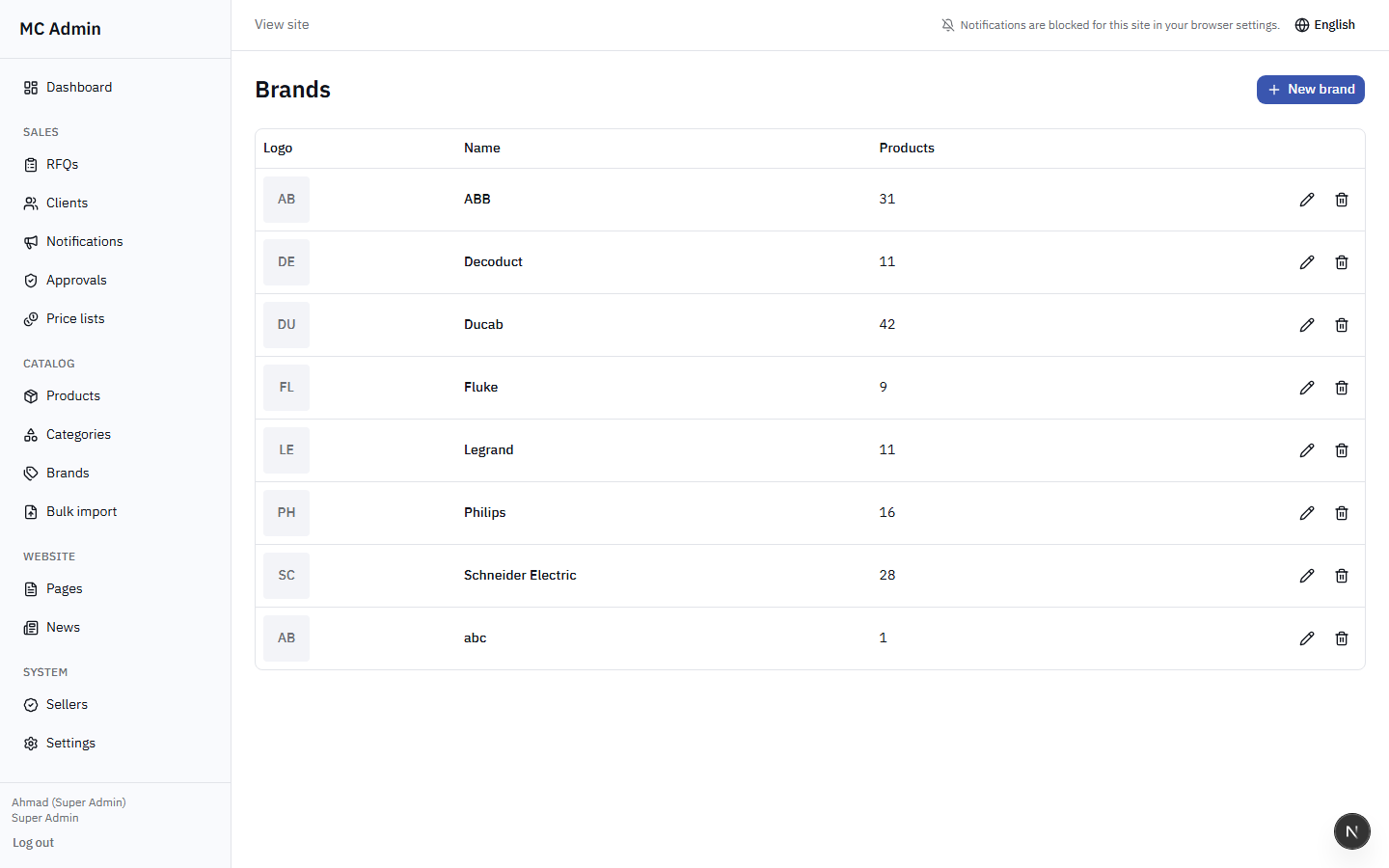
Before adding products, the structure must be in place. Admins can perform full CRUD (Create, Read, Update, Delete) operations on:
- Brands: Add brand names and upload brand logos.
- Categories: Build a hierarchical category tree (Main Categories -> Sub-Categories). Each category requires a thumbnail image.
Product Management
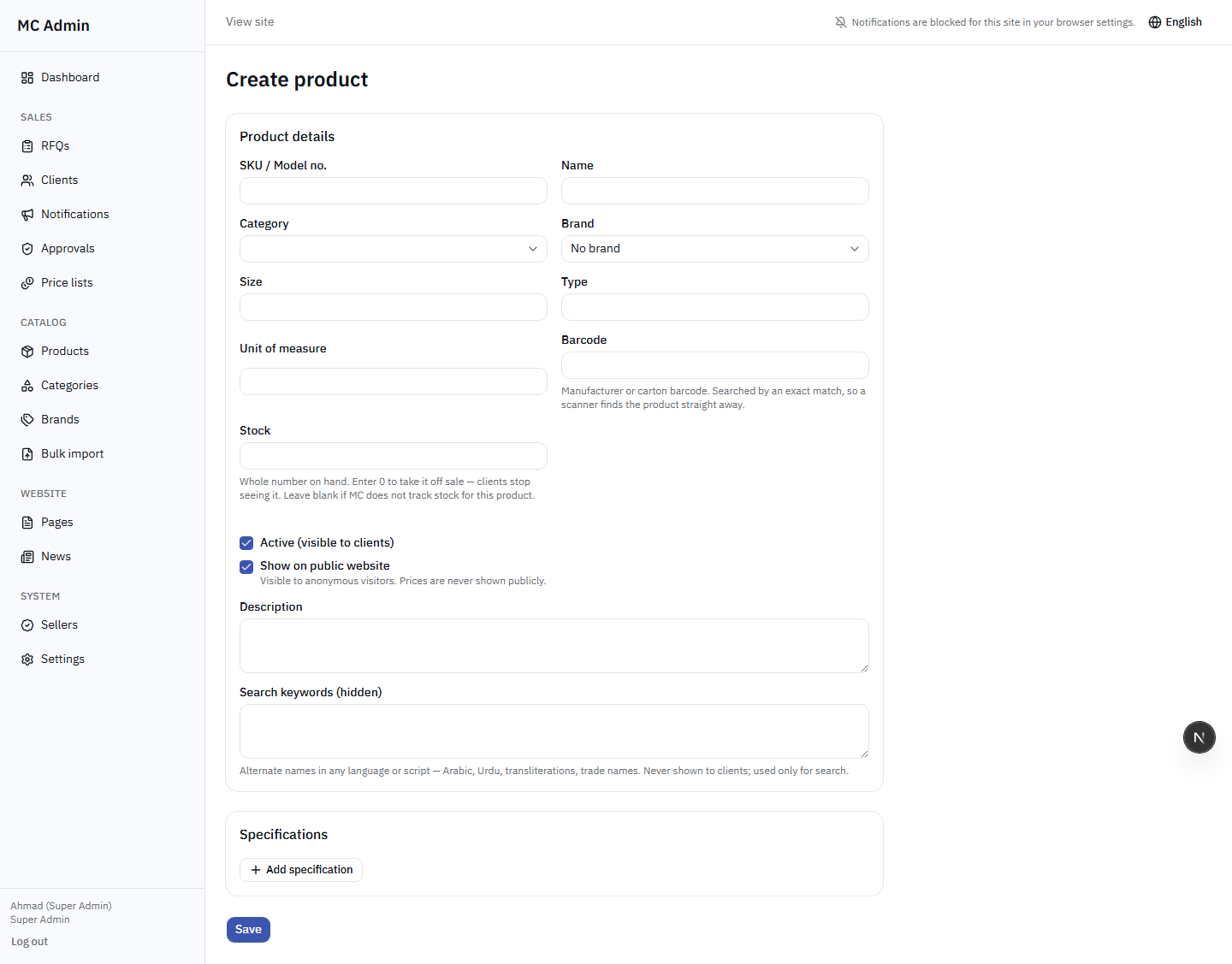
Admins can add new products manually or edit existing ones. Key product fields include:
| Field | Description | Requirement |
|---|---|---|
| SKU/Reference | Unique identifier, usually matching the ERP | Required, Must be Unique |
| Name (EN/AR) | Bilingual product title | Required |
| Description (EN/AR) | Detailed bilingual product text | Optional |
| Brand & Category | Classification assignments | Required |
| Technical Specs | Key-value pairs for technical details | Optional |
| Datasheet PDF | Downloadable technical documentation | Optional |
| Status | Active, Inactive, or Discontinued | Required |
Image Requirements
Product images must be uploaded in JPG or PNG format. To ensure fast load times on the portal, images should be compressed to under 500KB and ideally sized at 800x800 pixels.
Stock Management
While initial stock levels can be set manually, stock is generally synced from the ERP. Admins can view current stock levels and set low-stock warning thresholds.
Exporting Catalog Data
Admins can export the entire product list to Excel or CSV formats for auditing or as a template for bulk updating.
10. Bulk Import
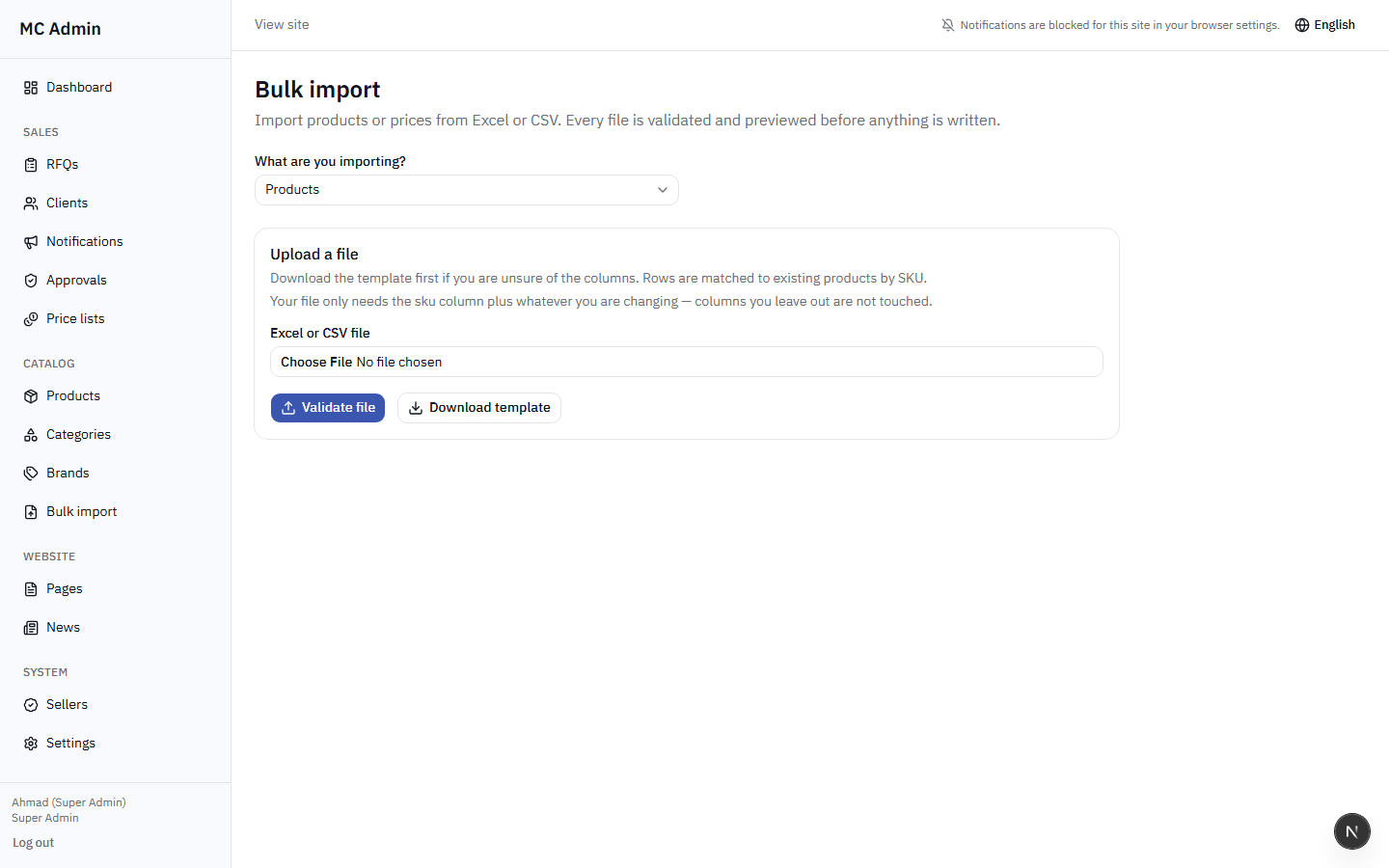
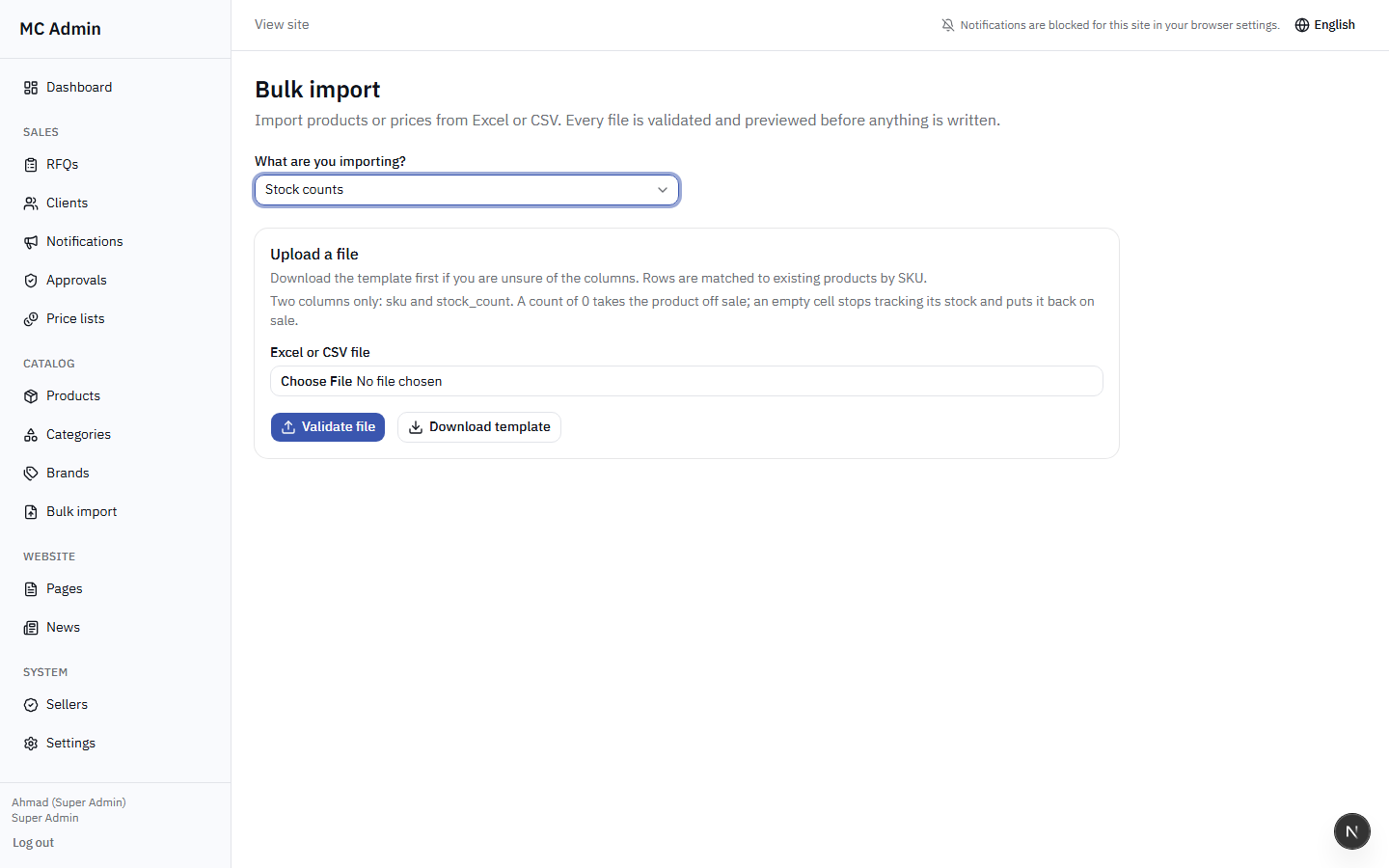
The Bulk Import tool is essential for managing large amounts of data efficiently. Admins have access to all 6 import types.
Available Import Types:
- Products Creation
- Product Updates
- Stock Levels Update
- Price List Updates
- Client ERP Codes Update
- Client Balances Update
The Import Workflow
- Select the desired import type from the dropdown.
- Download the specific CSV template provided on screen.
- Populate the template using Excel or similar software. Do not alter column headers.
- Save as CSV and upload the file.
- Review the validation screen. The system will flag any errors (e.g., missing mandatory fields, unrecognized SKUs).
- If errors exist, fix the file and re-upload. If validation passes, click "Execute Import".
Column Specifications
The system is strictly dependent on exact SKUs and ERP Codes to match records. Ensure there are no trailing spaces in your CSV columns before uploading.
11. Website Content (CMS)
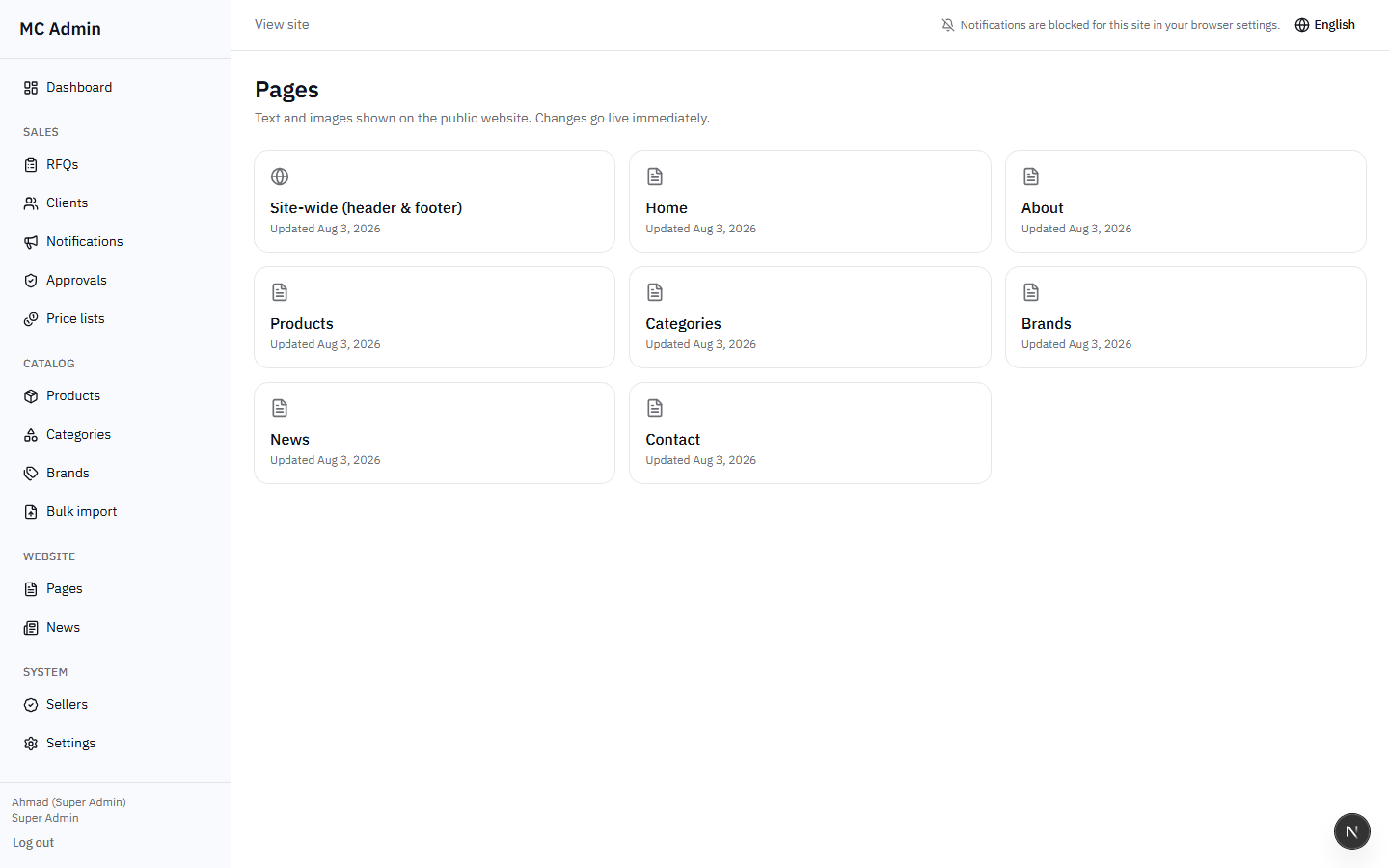
Admins can manage standard content on the frontend portal using the built-in Content Management System.
Pages
Admins can edit the content blocks of standard pages (e.g., About Us, Terms & Conditions, Privacy Policy). All content must be entered in both English and Arabic.
CMS Restrictions
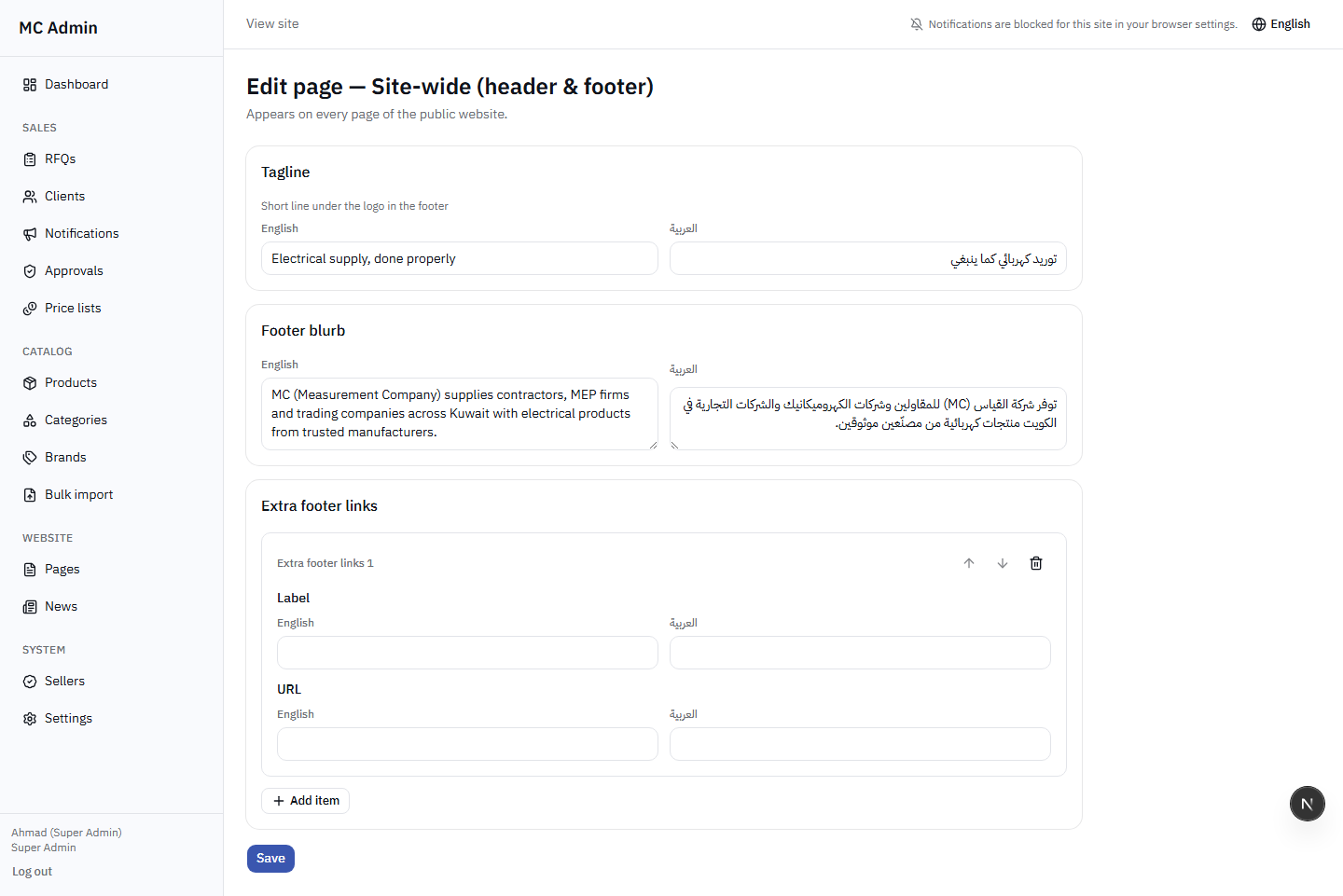
Admins CANNOT edit the site-wide Header (navigation menu), Footer links, or perform per-page SEO optimization (Meta Titles/Descriptions). These functions require Super Admin access.
News & Announcements
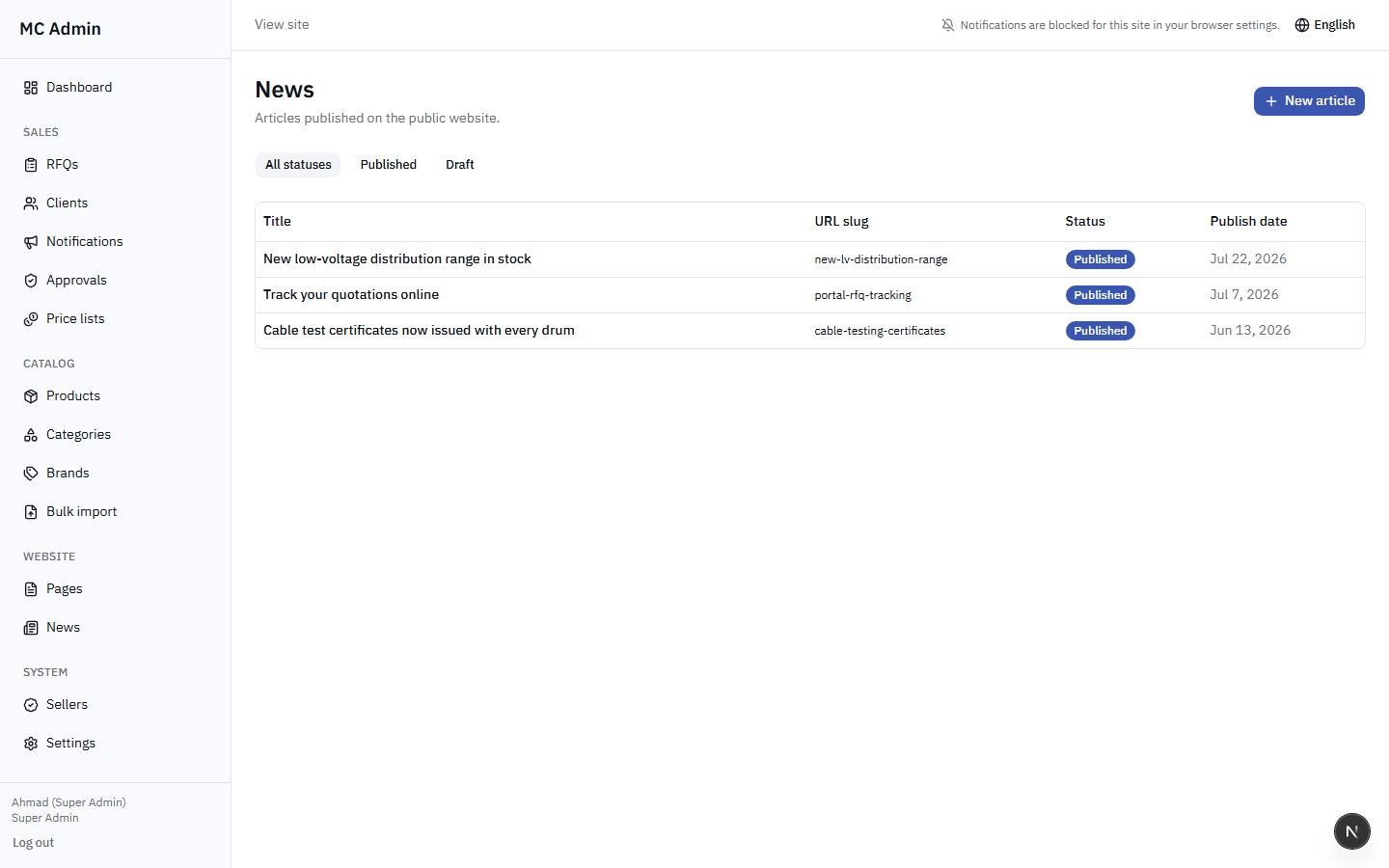
Admins can publish news articles that appear in the portal's "News" section. This includes setting the article title, featured image, publication date, and bilingual body content.
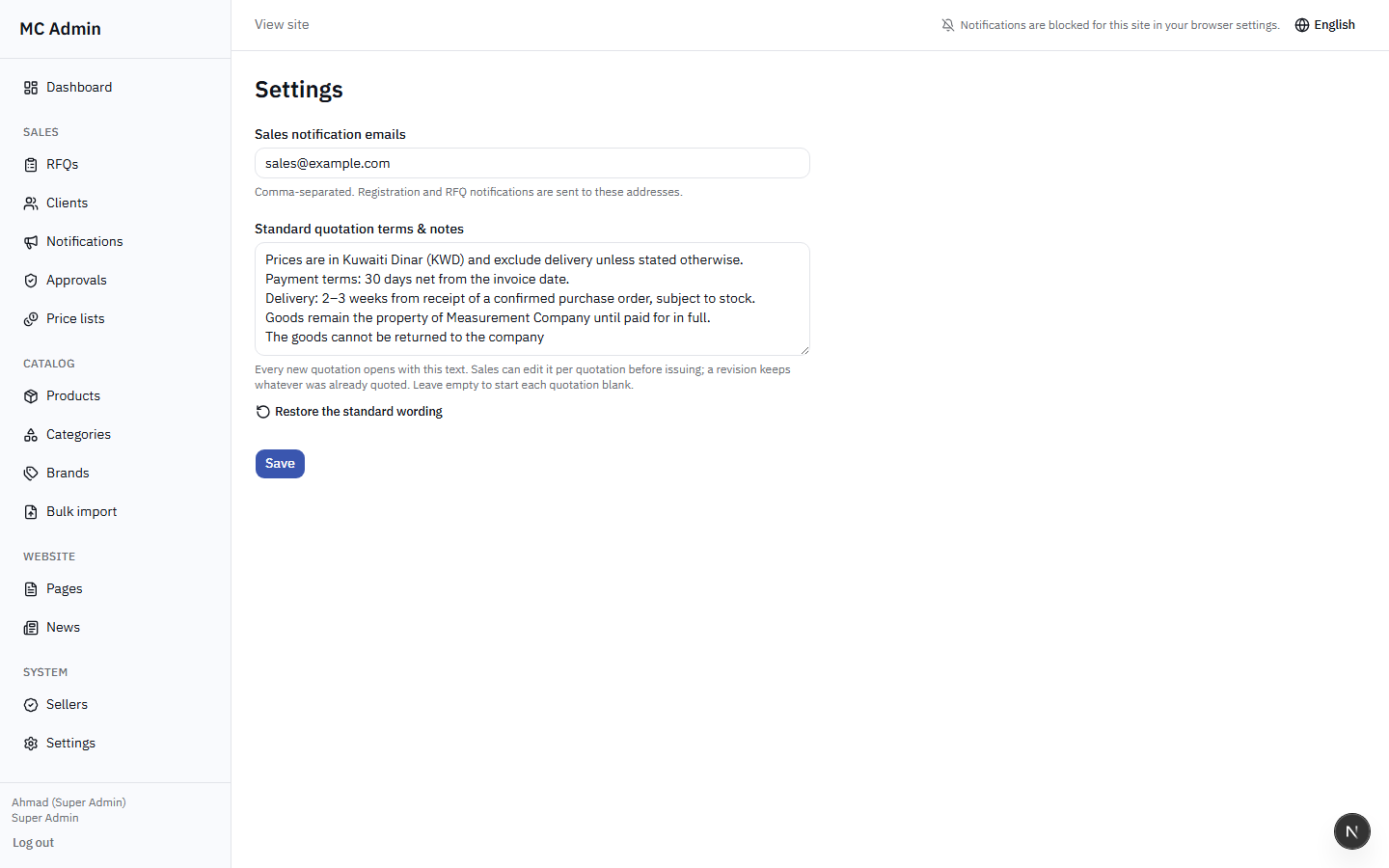
12. Settings
The Settings area for Admins is limited to operational configurations rather than system-level configurations.
- Sales Notification Emails: Configure which internal email addresses receive copies of incoming RFQs or accepted quotations.
- Standard Quotation Terms: Edit the default "Terms and Conditions" block that automatically populates when building a new quote.
13. Push Notifications
Like all staff roles, Admins receive real-time web push notifications for critical events. These appear as browser alerts if the portal is open in a background tab.
Admins will receive notifications for:
- New Client Registrations requiring approval
- New RFQs submitted by any client
- Clients accepting or rejecting a quotation
- Client messages/notes on an active RFQ
14. What Admin Cannot Do
It is crucial to understand the boundaries of the Admin role. The following actions are restricted and require escalation to a Super Admin:
Escalation Required
- Manage Seller Accounts: Admins cannot create, edit, or delete salesperson accounts.
- Approve Discounts: If a seller submits a quote requiring discount approval, Admins cannot approve it. Only Super Admins manage the approval workflow.
- Reassign Clients: Once a client is assigned to a seller, an Admin cannot move them to a different seller's portfolio.
- Site Header/Footer/SEO: Structural website changes are locked.
- View Reports: BI dashboards and sales reporting are restricted.
- Manage Staff: Creating other Admin or staff accounts is prohibited.
- Email Manager: Accessing the system email logs and templates is restricted.
- System Logs: Viewing technical error logs or audit trails is restricted.
15. Permissions Matrix
The table below provides a quick reference comparing Admin capabilities against Super Admin capabilities.
| Feature / Module | Admin | Super Admin |
|---|---|---|
| View All Clients & RFQs | ✓ Yes | ✓ Yes |
| Manage Catalog & Prices | ✓ Yes | ✓ Yes |
| Perform Bulk Imports | ✓ Yes | ✓ Yes |
| Approve New Clients | ✓ Yes | ✓ Yes |
| Issue Quotes w/ Unlimited Discount | ✓ Yes | ✓ Yes |
| Edit Page Content & News | ✓ Yes | ✓ Yes |
| Reassign Client to New Seller | ✗ No | ✓ Yes |
| Approve Seller Over-Limit Discounts | ✗ No | ✓ Yes |
| Manage Staff & Seller Accounts | ✗ No | ✓ Yes |
| Edit Site Header/Footer/SEO | ✗ No | ✓ Yes |
| View Sales & System Reports | ✗ No | ✓ Yes |
| Access Email & System Logs | ✗ No | ✓ Yes |
16. Important Rules
As an administrator of the platform, adhere to the following business rules to maintain system integrity:
- ERP Synchronization: Always ensure the ERP Code entered during client approval exactly matches the accounting system. A mismatch will cause invoice syncing failures.
- SKU Integrity: Never change a product's SKU/Reference once it has been created and used in quotes. Doing so will break historical RFQ data. If a product changes completely, mark the old one 'Inactive' and create a new record.
- Data Import Backups: Before running a Bulk Price or Stock import, it is highly recommended to export the current catalog data as a backup safety net.
- Client Communications: Use the "Client Notifications" broadcast feature sparingly to prevent alert fatigue. Ensure notifications have a clear expiration date.
- Image Optimization: Strictly enforce the 500KB limit for product and brand images. Large files significantly degrade frontend performance for end-users.